
Guides
Manuscript Manager help
Step-by-step guides and help articles for every role. Search, or choose your role.
Submitting a manuscript
From choosing the manuscript type to the final check before you submit.
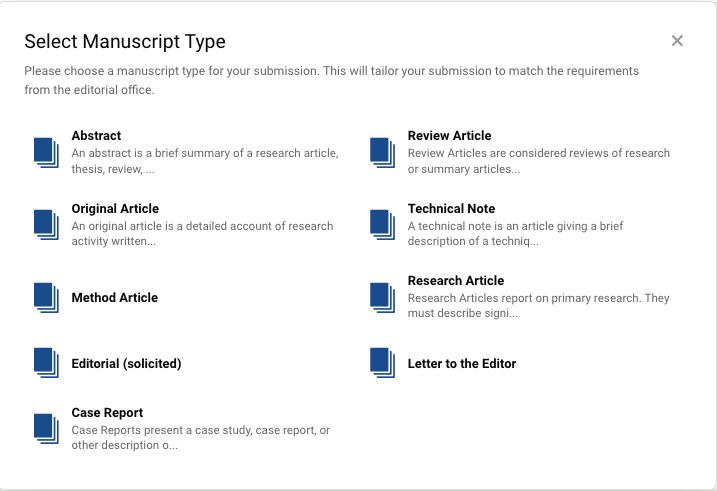
1Choose the manuscript type
Click Start a new submission and choose the type of manuscript you are submitting. The type decides which fields, documents and limits apply, so choose the one that matches your manuscript. If you are unsure, check the journal's author guidelines.
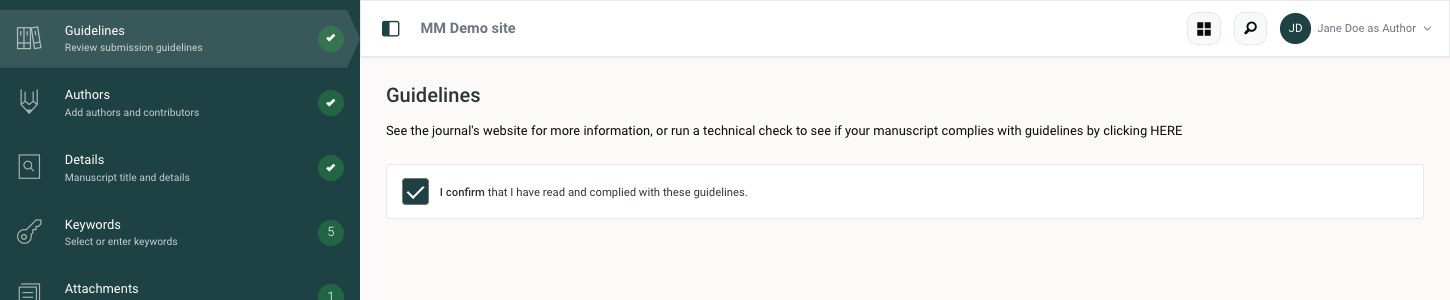
2Guidelines
Read the journal's guidelines and tick I confirm that I have read and complied with these guidelines.
Paid featureActive author guidelinesSome journals offer a technical check on this page, built with Penelope.ai. It compares your manuscript with the journal's guidelines and reports anything missing or wrongly formatted, so you can correct the manuscript before you submit it.
3Authors
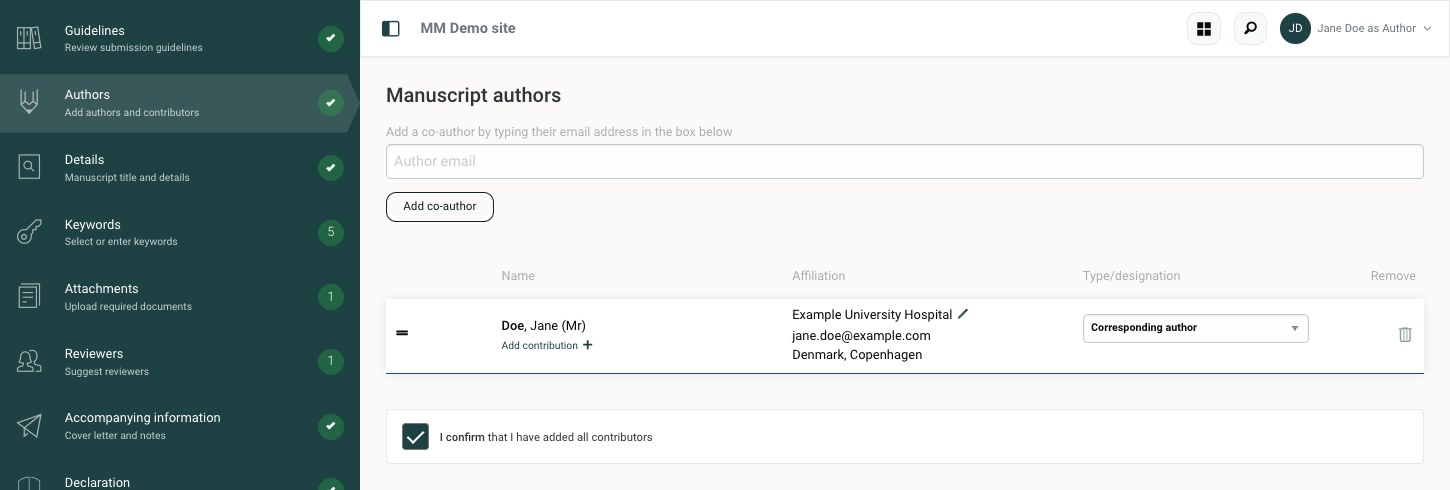
You are already listed as an author. To add a co-author, type their email address and click Add co-author. If the co-author already has an account with the journal, their details are filled in for you. If not, enter their name and affiliation.
For each author you can:
- choose the Type/designation: Co-author, Corresponding author or Submitting secretary,
- click Add contribution to record what the author contributed to the manuscript,
- drag the handle at the start of the row to change the author order,
- click the pencil next to the affiliation to edit it.
When the list is complete, tick I confirm that I have added all contributors.
Affiliations and ROR IDsAffiliations in Manuscript Manager are looked up in the Research Organization Registry (ROR), a free, open registry that gives each research organisation a unique ID. The affiliation is then recorded the same way everywhere, rather than as free text, and the institution's location is added from GeoNames.
ORCIDIf the journal uses ORCID, authors can link their ORCID iD to their account, so their published work is attributed to them. Co-authors get a link in the submission alert email, where they can confirm their authorship and add their ORCID iD.
4Details
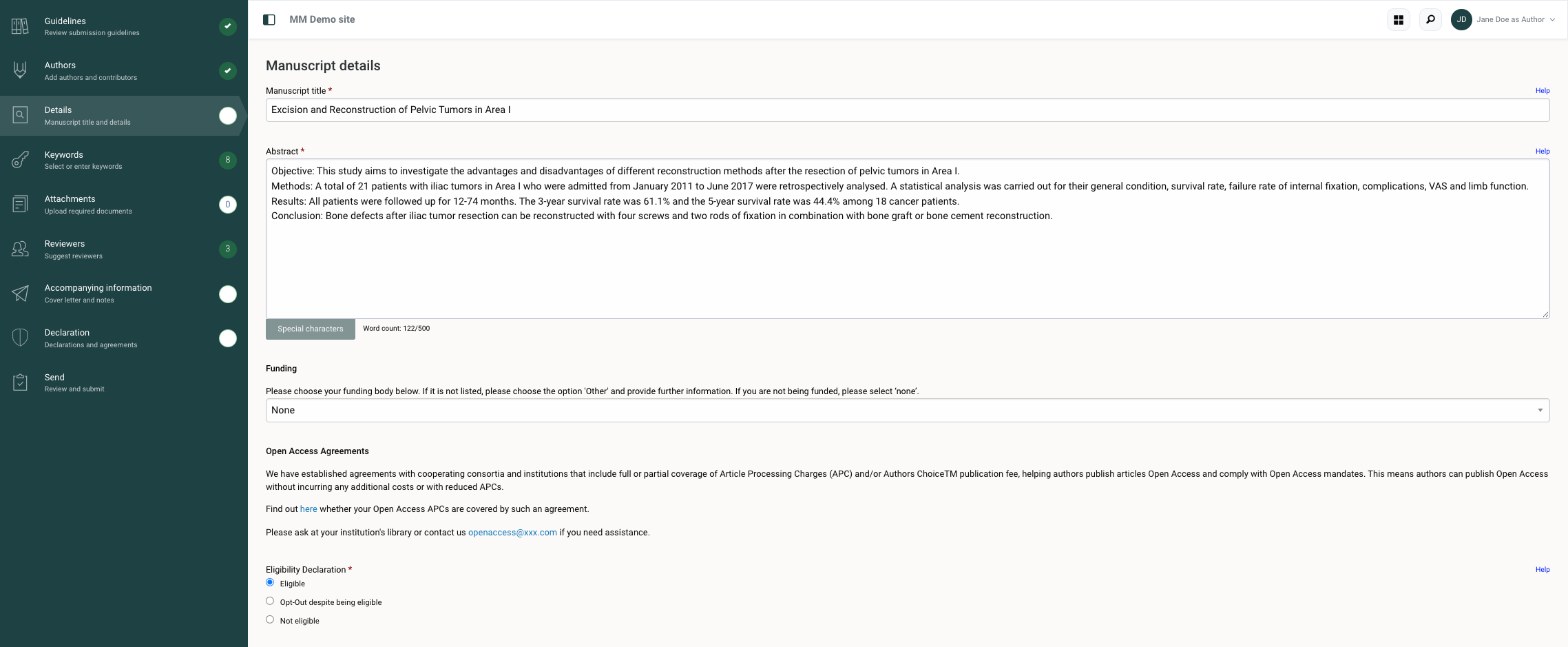
Enter the Manuscript title and the Abstract. The counter under the abstract shows how many words you have used of the journal's limit. Use Special characters to insert symbols that are not on your keyboard.
Journals often add their own questions here, for example about funding, open access or eligibility. Fields marked with a red asterisk are required. Click Help next to a field to read the journal's instructions for it.
5Keywords
Choose keywords from the journal's list. Hold Ctrl (Cmd on a Mac) to select several, then click Add selected keywords. If the journal allows your own keywords, type them in Enter custom keywords, separated by commas, and click Add Keywords.
Your keywords are shown on the right. Click the bin on a keyword to remove it.
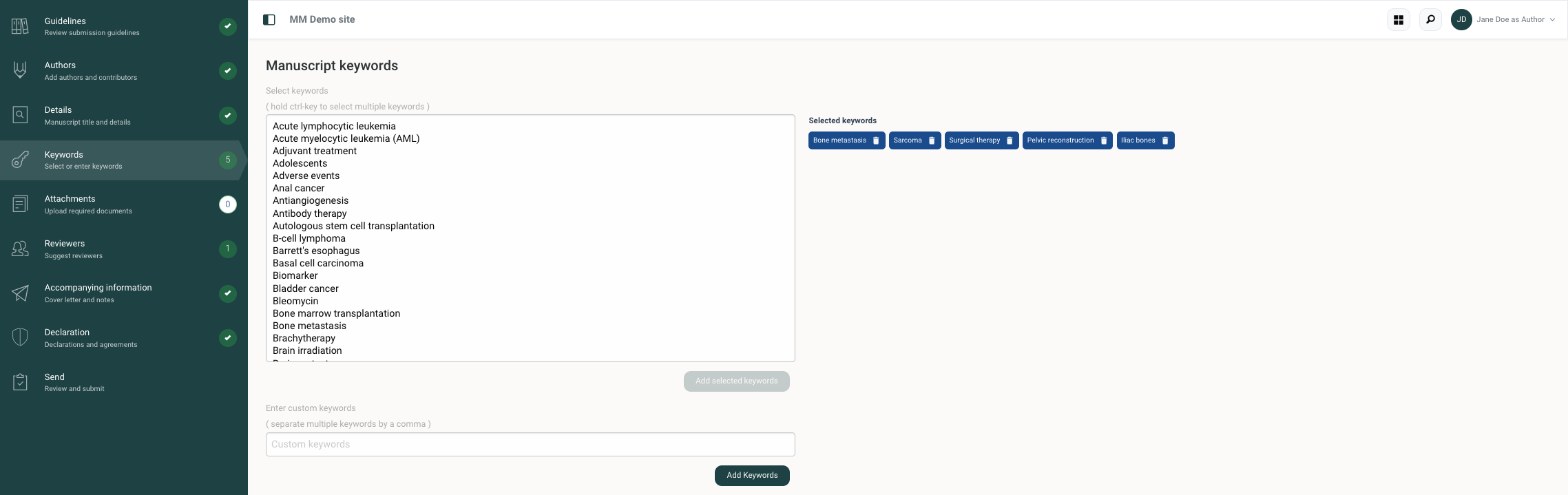
Editors use keywords to find suitable reviewers for your manuscript, so choose the ones that describe its subject most precisely.
6Attachments
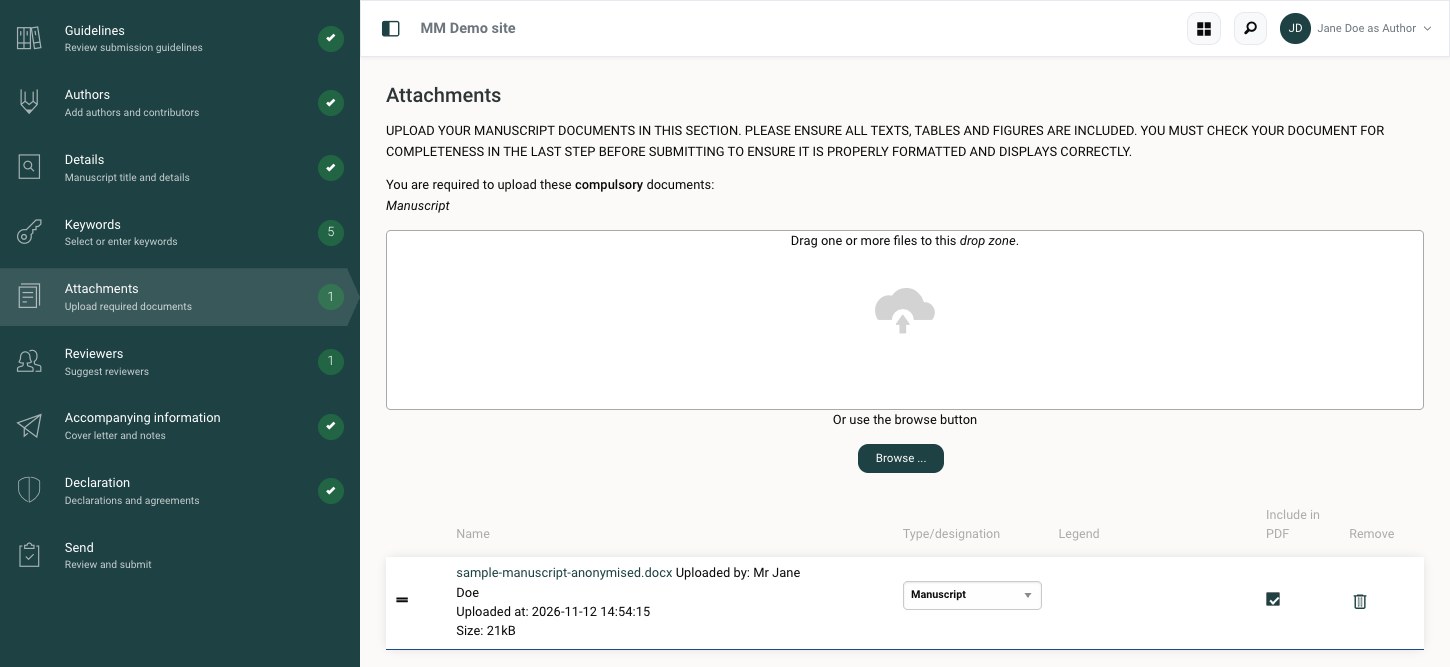
The documents the journal requires are listed at the top of the page. Drag your files into the drop zone, or click Browse to choose them.
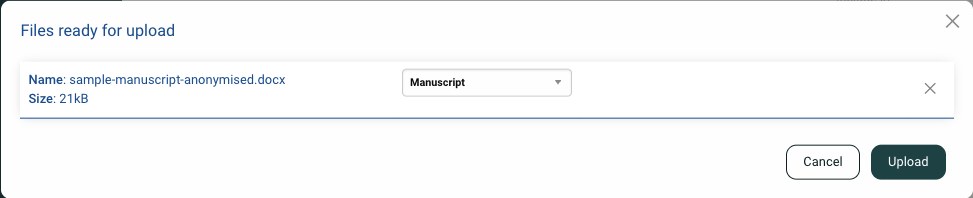
Before the files are uploaded, choose a label for each one, for example Manuscript, Figure, Table, Title page, Cover letter or Supplementary information. The labels on offer are set by the journal. Then click Upload.
Uploaded files are listed below the drop zone. Here you can change a file's Type/designation, add a Legend, choose whether it is included in the PDF, drag the handle to change the order, or click the bin to remove it.
Video. Supplementary video can be uploaded as mp4, WebM or Ogg files of up to 50 MB, labelled Supplementary video. Reviewers can then play it in the browser. Convert other formats to mp4 before you upload.
Double-blind review. If the journal uses double-blind review, remove the author names, affiliations and acknowledgements from the files you upload, and from the file properties.
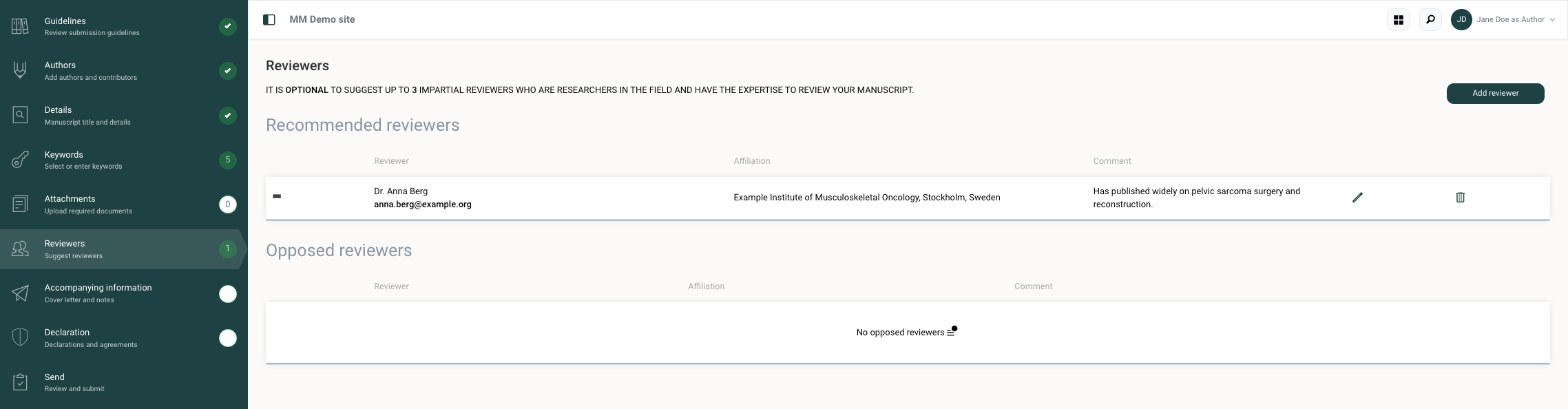
7Reviewers
Many journals invite you to suggest reviewers. The page tells you whether this is optional or required, and how many you may suggest. Click Add reviewer, fill in the reviewer's details and choose Recommended or Opposed. A comment helps the editor understand your suggestion.
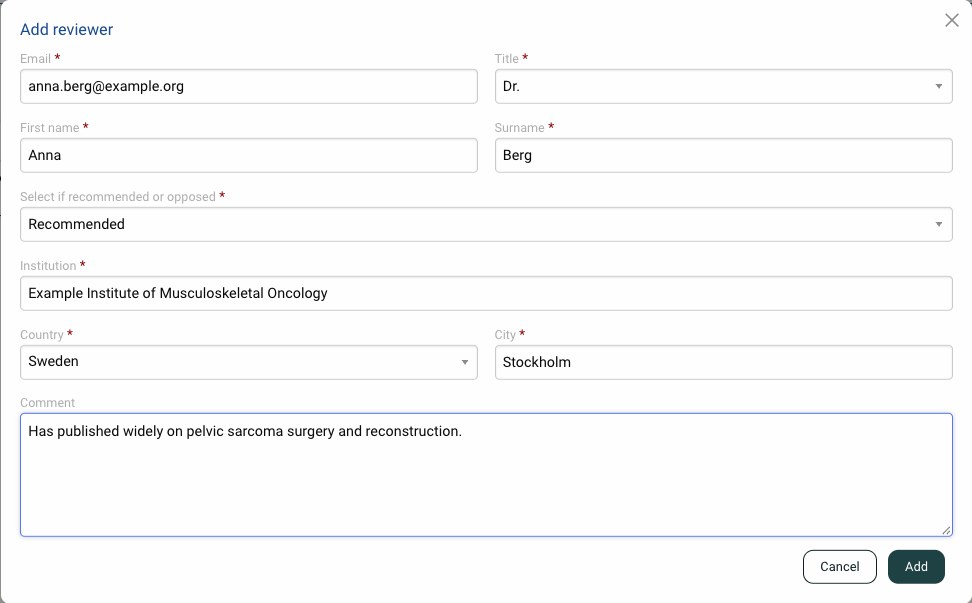
Recommended and opposed reviewers are listed separately. Use the pencil to edit a reviewer and the bin to remove one.
Each reviewer you suggest is checked against the journal's database, so someone who already has an account isn't added twice. Your suggestions are marked as author suggestions in the editor's reviewer list.
8Accompanying information
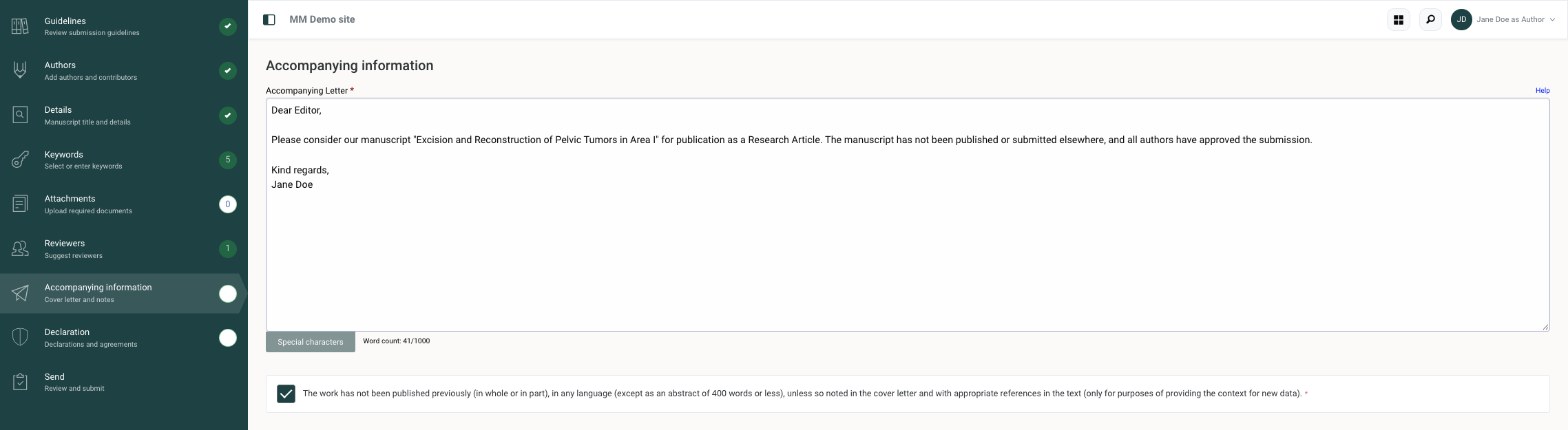
Write your cover letter to the editor in Accompanying Letter, and tick any confirmations the journal asks for. When you later submit a revised manuscript, this is where you give your response to the reviewers.
9Declaration
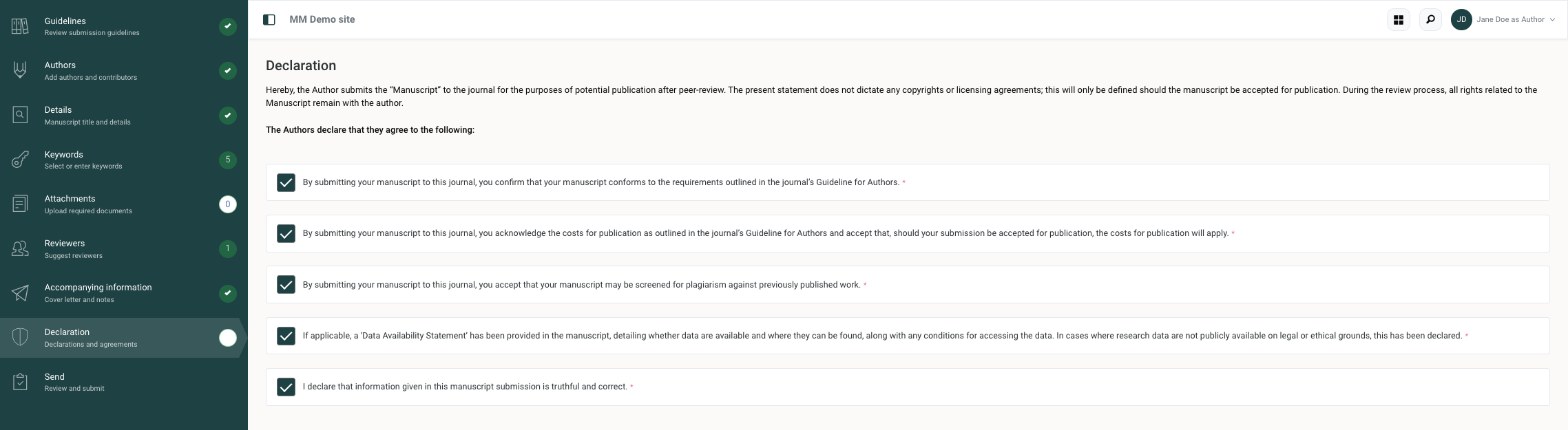
Read each statement and tick it to agree. Statements marked with a red asterisk must all be accepted before you can submit.
10Send
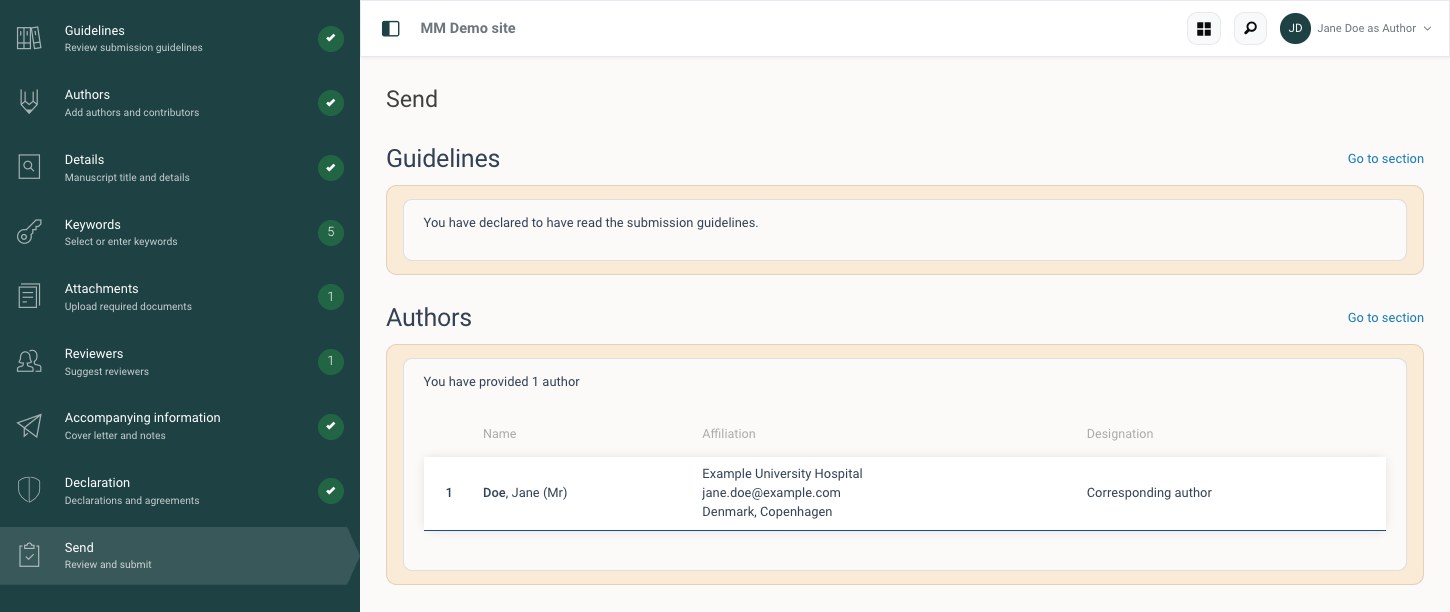
The Send page summarises your submission, section by section. Anything that is missing is marked in red. Click Go to section to correct or add it.
Check the PDF
At the bottom of the page, generate the PDF of your submission and open it. This is the file the editor and reviewers will read, so check that every page, table and figure is included and displays correctly. Then tick I confirm to have reviewed and checked the compiled PDF file that will be presented to the reviewers and click Submit.
You cannot submit until the PDF has been generated and you have confirmed it.
Revising and resubmitting
If the decision-maker asks for revisions, the decision email explains what the editor and reviewers want changed, and how long you have. The manuscript moves to Awaiting revision on your Author dashboard.
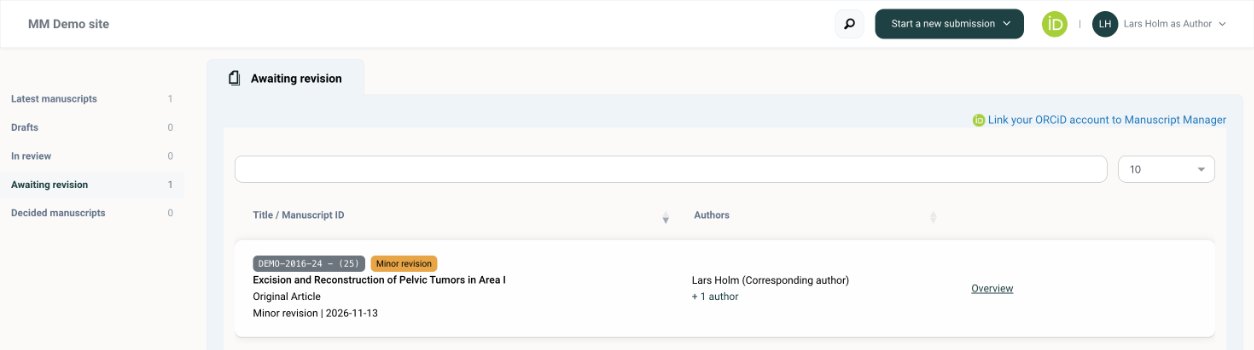
Click Overview to see the manuscript's details and files, and the decision letter with the editor's and reviewers' comments under Decision.
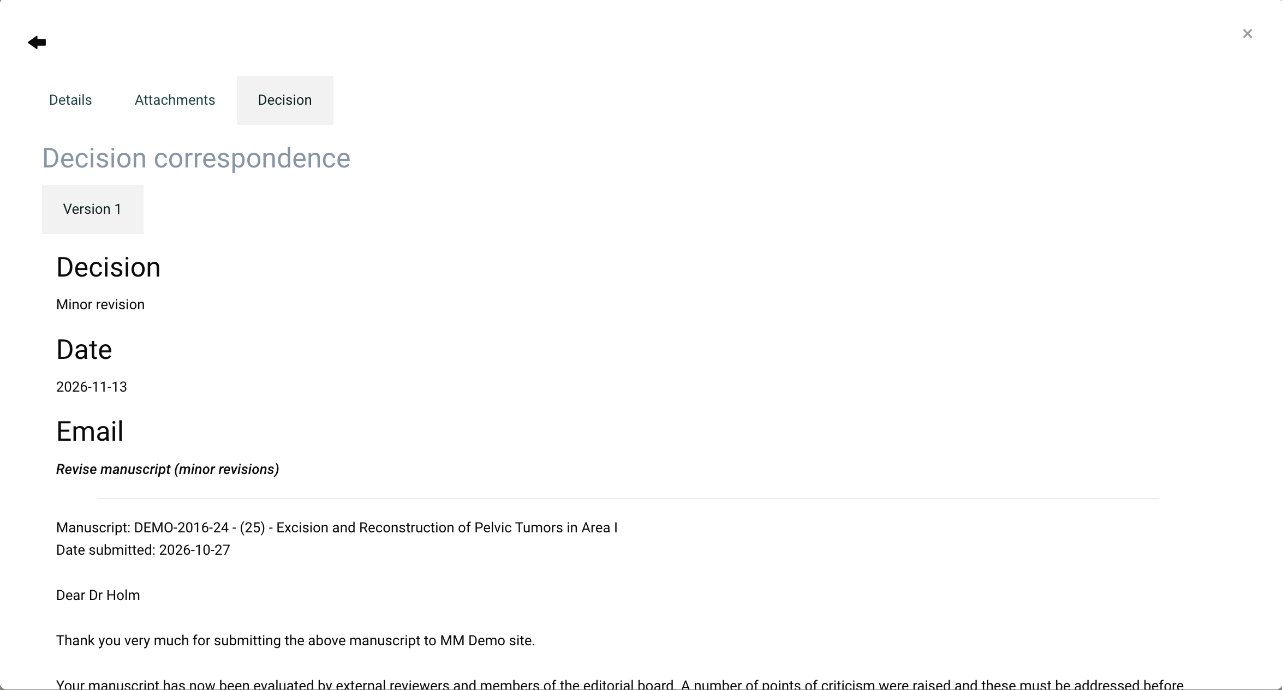
- On the Author dashboard, open Awaiting revision and click Resubmit (or Start resubmission) next to the manuscript.
- The submission steps open again with everything you entered the first time. Update what has changed.
- In Attachments, upload the revised manuscript with the right file label. Follow the journal's instructions on that page. Many journals also want a marked-up copy showing your changes.
- In Accompanying information, add your response to the reviewers, usually a point-by-point reply to each comment.
- Check everything in Send and submit.
Don't start a new submission. Always resubmit from the dashboard. The revised manuscript then keeps its manuscript number, and the editors see it together with the earlier reviews.
The journal sends you reminders as the resubmission deadline approaches.
Handling a new submission
Checking a submission, starting review, assigning editors and inviting reviewers.
The Administrator dashboard
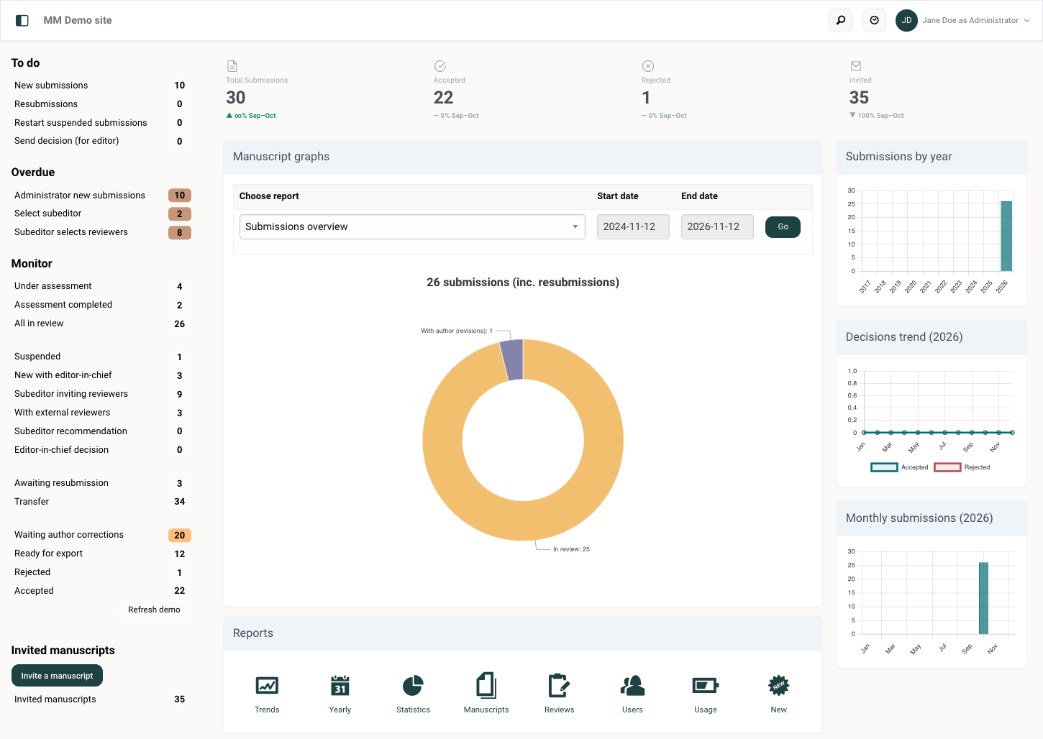
When you sign in as Administrator, the dashboard shows the general health of the journal and where manuscripts sit in the review process. The lists on the left are grouped as follows:
To do
New submissions, resubmissions, suspended submissions to restart and decisions to send.
Overdue
A manuscript is listed under Overdue when it has been in review too long overall, or when one task in it is late. Open the manuscript's Review tab to see which task it is, then send the person a reminder (see Contacting authors, reviewers and editors).
Monitor
Follows each manuscript through the review, stage by stage: suspended, new with the Editor-in-Chief, Subeditor inviting reviewers, with external reviewers, Subeditor recommendation, Editor-in-Chief decision, awaiting resubmission, resubmission in progress, accepted and published.
Invited manuscripts
Manuscripts you have invited authors to submit. Use Invite a manuscript to start a new invitation.
Click any list to open the manuscripts in it. The centre of the page shows submission figures, graphs you can filter by date, and shortcuts to the journal's reports.
The manuscript page
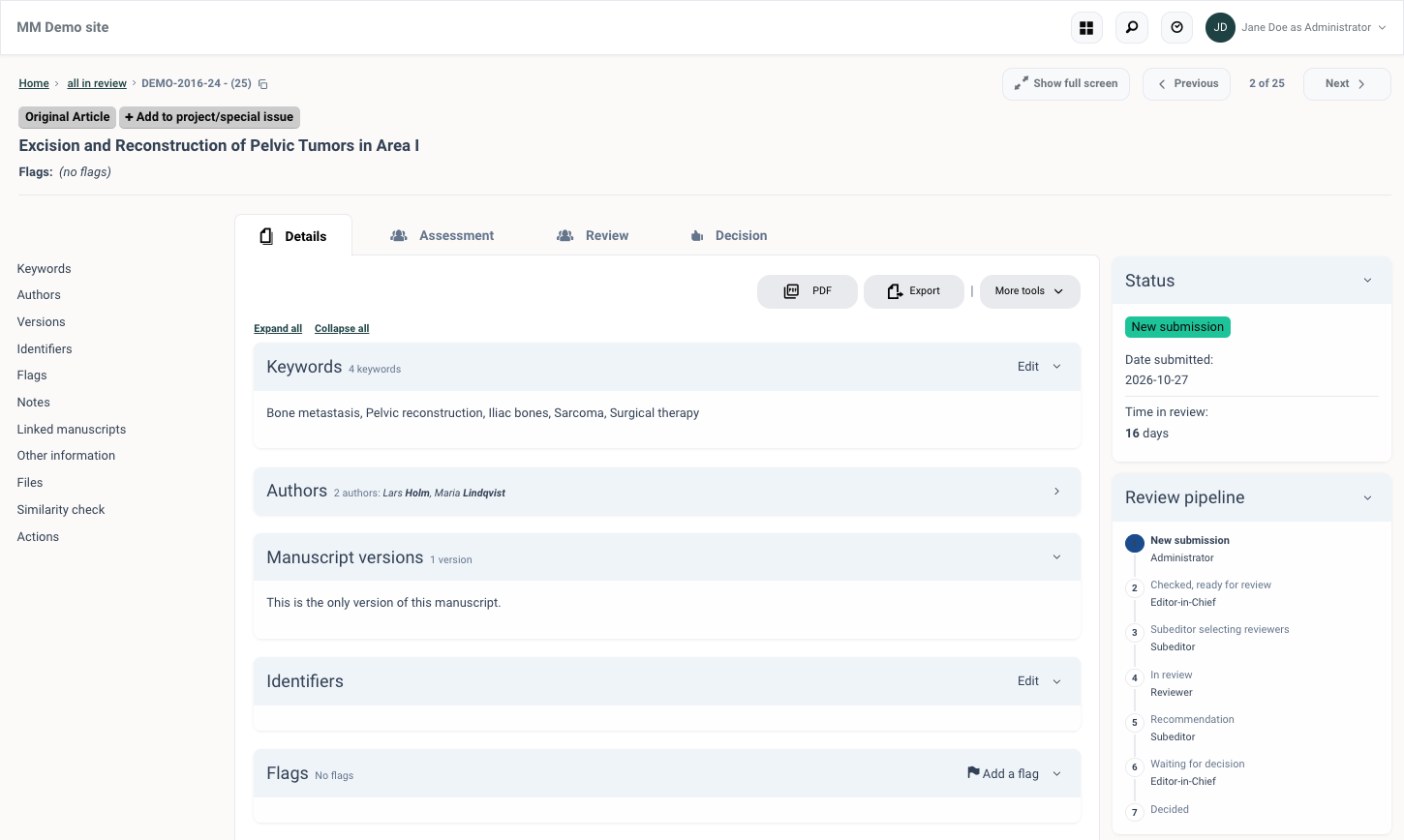
Open a manuscript from any list by clicking View details. The manuscript page has four tabs: Details, Assessment, Review and Decision. The menu on the left jumps to each section of the current tab.
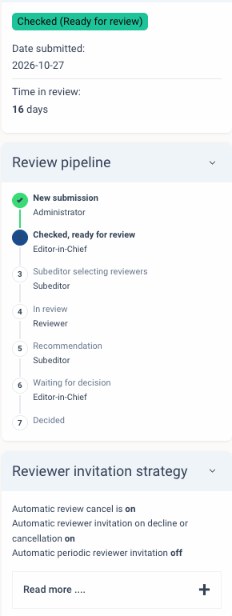
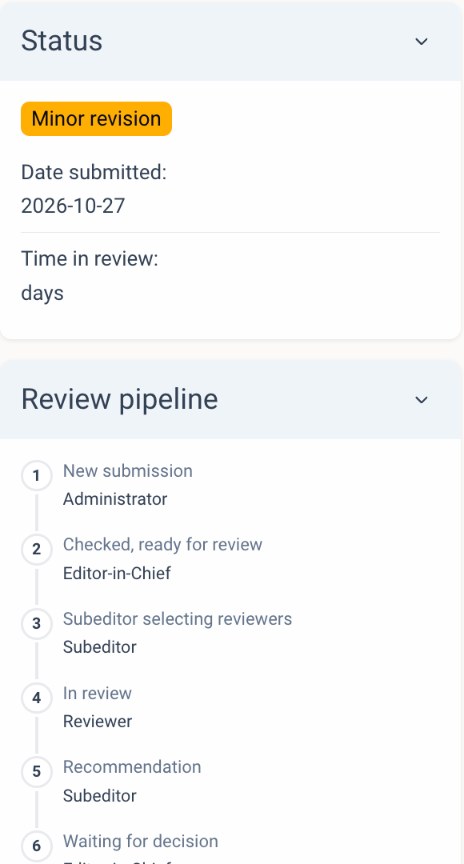
On the right, Status shows the manuscript's current stage and how long it has been in review. Review pipeline shows every stage the manuscript will pass through and who is responsible for each one.
Under Other submission information on the Details tab, the Timeline logs every change in the manuscript's status, and Correspondence keeps every email sent about it.
To download everything at once, use the export icon at the bottom of the Details tab. The zip file holds all the manuscript's files and an XML file of its metadata and author affiliations, which can go into a typesetting template or a publisher's production system.
1Check the submission
Before a manuscript goes to the editors, check that it is complete and follows the journal's guidelines. On the Details tab, go through the sections:
| Section | What to check |
|---|---|
| Keywords | The keywords suit the manuscript. Click Edit to change them. |
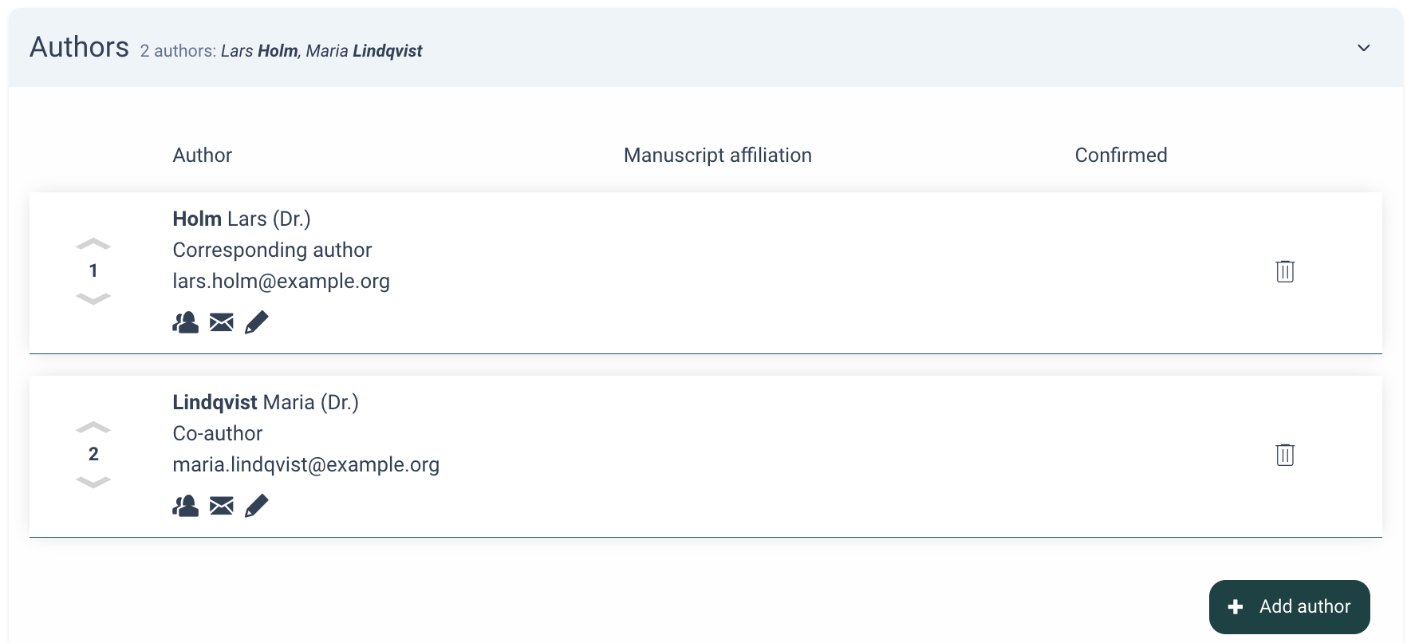
| Authors | All authors are listed with the correct designation. You can add an author, edit details, change the order, contact an author or work on behalf of one. |
| Flags and Notes | Add a flag to mark the manuscript, or an internal note for the editorial team. |
| Other submission information | The abstract, the journal's own questions, the cover letter, the timeline of activity and all emails sent about the manuscript. |
| Files | All required files are present, with the right type, and marked for the PDF where they should be. |
| Similarity check | If the journal uses iThenticate, you can request a similarity report for the manuscript directly here. |
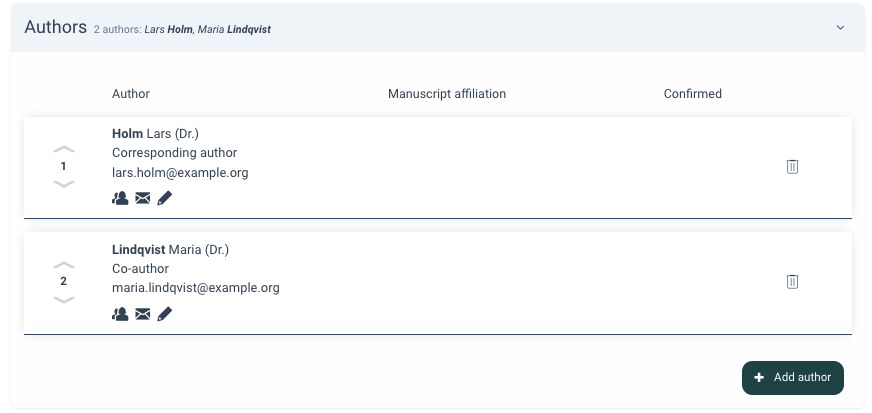
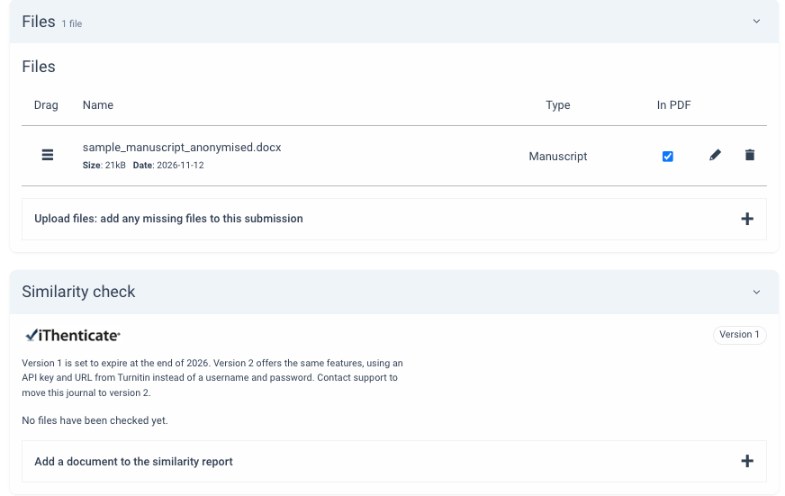
To correct the title, click it at the top of the page. To correct the files or other details yourself, use the edit options in each section.
ROR IDsAffiliations are looked up in the Research Organization Registry (ROR), so each institution is recorded with a unique ID rather than as free text. This helps publishers, funders and libraries see where research comes from.
Paid featureiThenticate similarity checkFor journals that subscribe to iThenticate, a Similarity check section appears on the Details tab. Choose a manuscript file to check, and the similarity report comes back to the same section, where editorial staff can open it. You can run a check at any time during the review.
Checking anonymisation
If the journal uses double-blind review, check that the authors can't be identified from the files or their metadata, and that only the right files are marked for the reviewers' PDF. If an author can be identified, there are two ways to fix it:
- Ask the author. Use Suspend to send the manuscript back with a note on what to change, for example to move the author details to a separate title page. The author resubmits from their dashboard, and the manuscript keeps its number.
- Fix it yourself. Click the file name to download the file, remove the identifying details and upload the corrected file with Upload files. Then delete the original or untick it for the PDF, and tell the author what you changed with Send a new email under Correspondence.
Only files marked for the PDF are shown to reviewers.
2Start the review
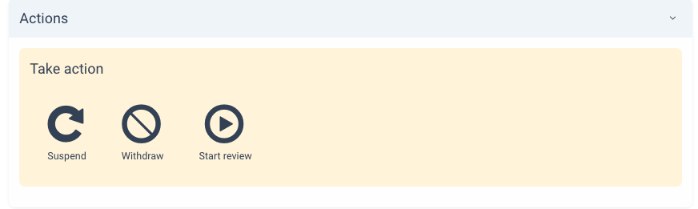
At the bottom of the Details tab, Actions offers three choices:
- Start review sends the manuscript on to the editors.
- Suspend pauses the manuscript, for example while you wait for the author to send a missing file.
- Withdraw takes the manuscript out of the review process.
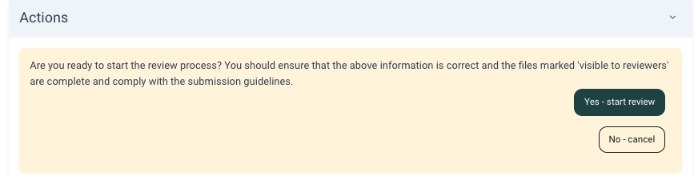
When you click Start review, you are asked to confirm that the information is correct and the files for the reviewers are complete. Click Yes - start review.
3Assign the editors
After you start the review, the manuscript opens on the Review tab. Under Editorial Staff, choose the editors who will handle it. The number after each name shows how many manuscripts that editor currently has.
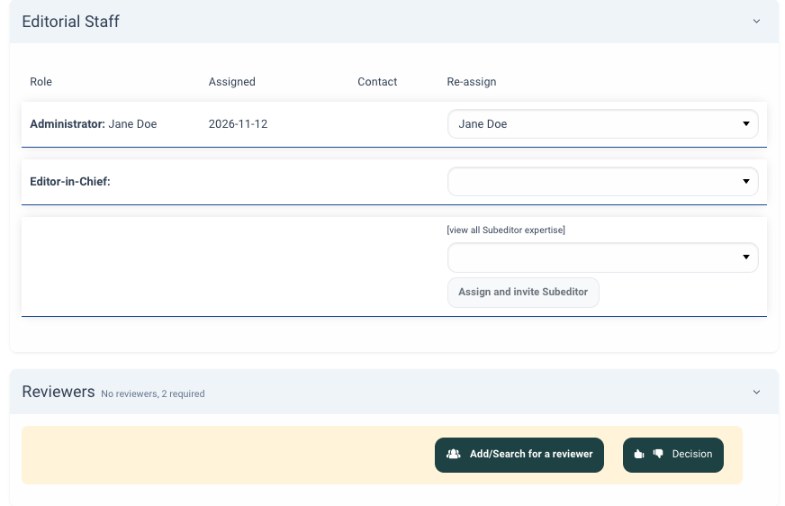
Editor-in-Chief
Choose the Editor-in-Chief from the list and click Confirm re-assignment. The editor is sent an email alert automatically. If you later change an assignment, the person who is removed is also informed.
Subeditor
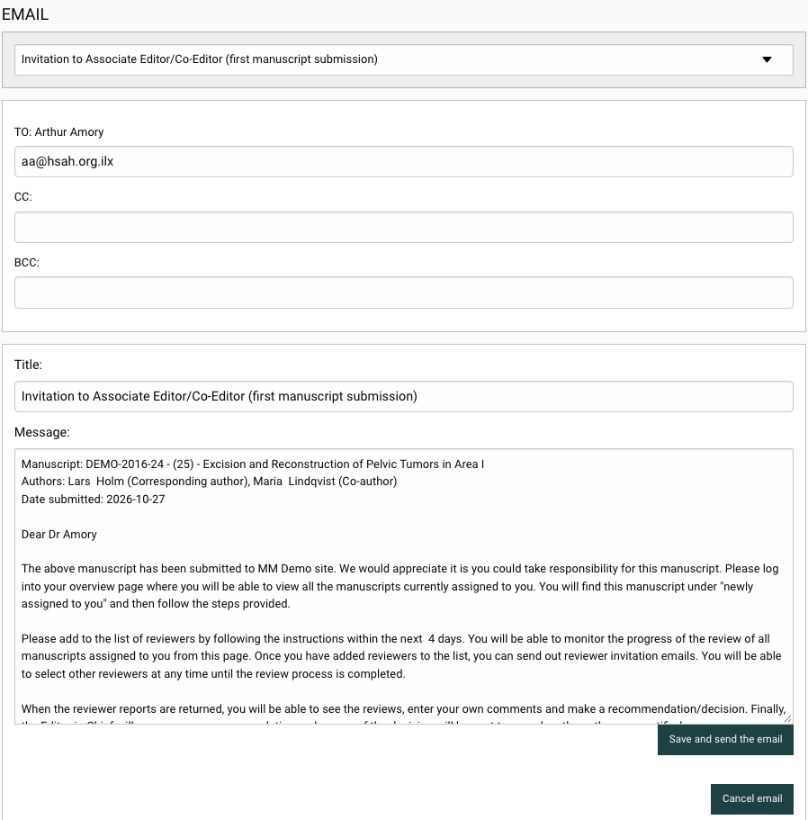
Choose a Subeditor, then click Assign and invite Subeditor. Click [view all Subeditor expertise] to compare the editors' fields before you choose.
An invitation email opens, written from the journal's template and filled in with the manuscript details. Check it, change the text if needed, and click Save and send the email.
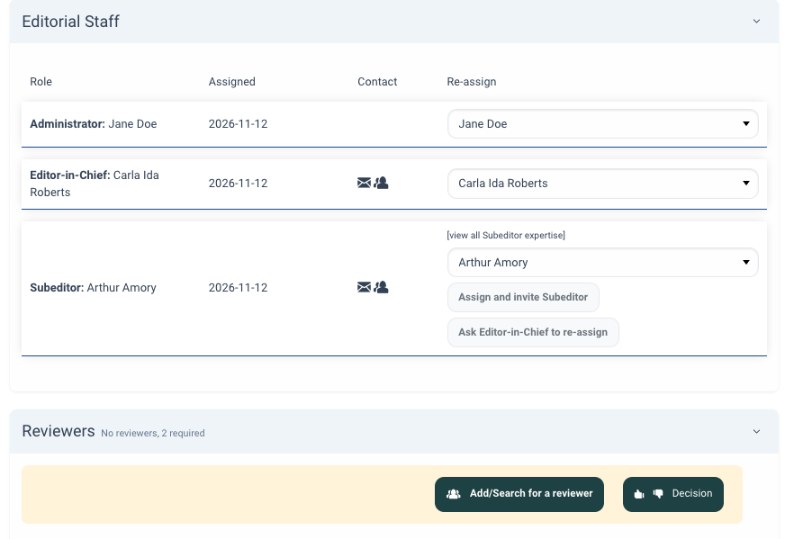
Depending on the journal's workflow, the Subeditor or the editorial office selects and invites the reviewers. The steps are the same either way.
4Find reviewers
The Reviewers section shows how many reviewers are required. Click Add/Search for a reviewer to search the journal's database:
- By Category: search on expertise and keywords, name or email, institution, keywords or letter, list the editorial board, or add a reviewer manually. Links to PubMed and Google Scholar help you find people outside the database.
- By expertise: reviewers whose expertise matches the manuscript's keywords, ranked by how close the match is.
- By related manuscripts: reviewers of manuscripts similar to this one.
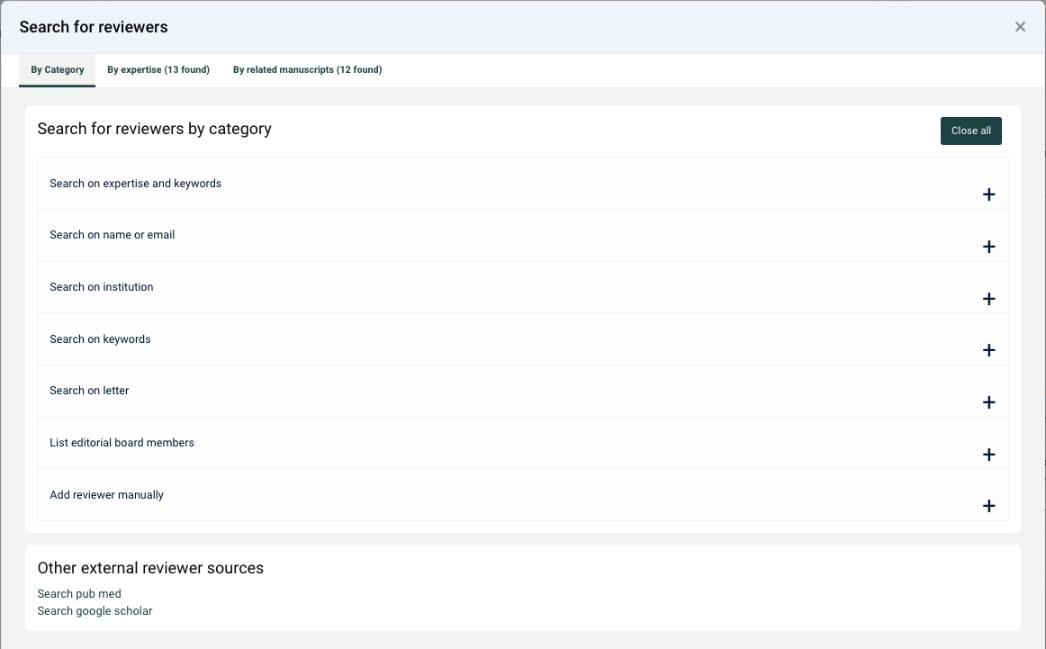
The results show each reviewer's expertise and review history, such as how many reviews they have completed and how quickly they respond. Tick the reviewers you want and click Add selected to reviewer list.
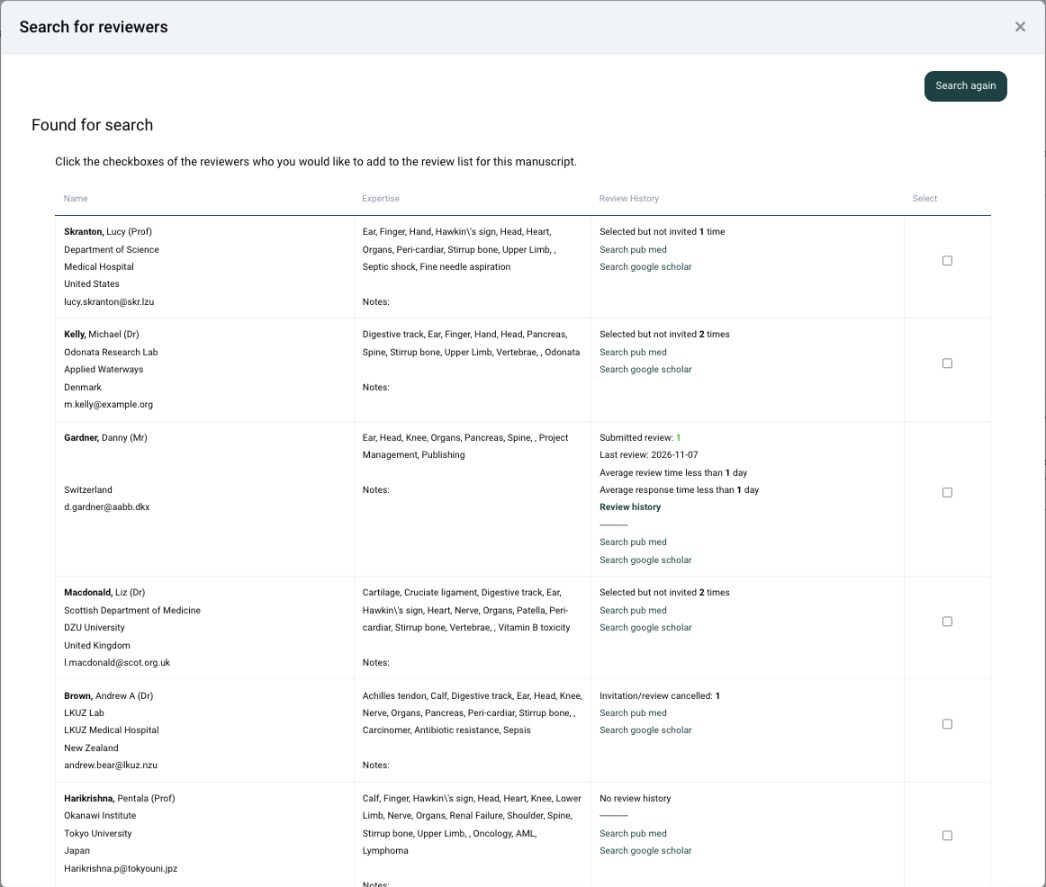
Add a reviewer who isn't in the database
Always search first, by name and by email, so you don't create a second account for someone who is already registered. If the person isn't found, open By Category and expand Add reviewer manually.
- Enter the reviewer's email, title, first name and surname.
- Under Affiliation, start typing the institution and pick it from the list. Add the department, job title and address if you have them.
- Click Add to create the reviewer's account, then invite them as described in the next step.
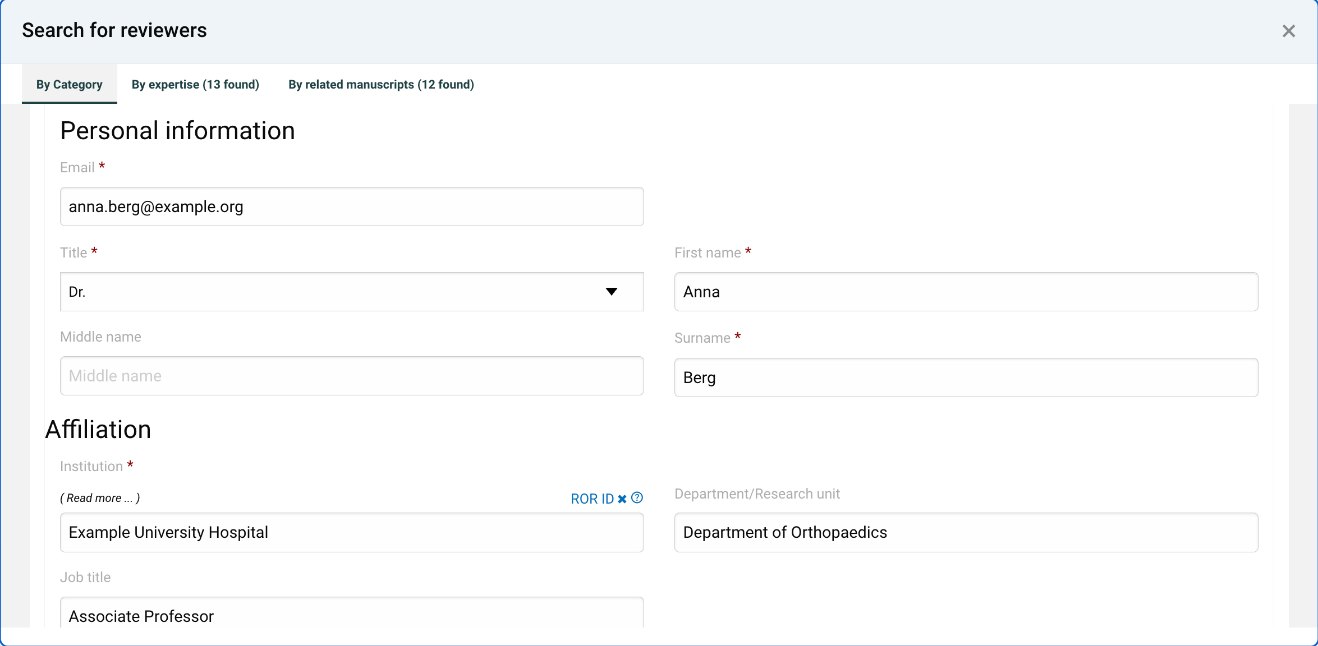
To add editorial board members or regular reviewers without a manuscript, go to Config. ManagerReviewers.
Reviewer finder add-ons
Two premium add-ons help you find reviewers beyond the journal's own database. Both search large, independent databases of published researchers and suggest people who match the manuscript. Contact Manuscript Manager to switch one on.
Prophy
Matches the manuscript's content against the work of millions of researchers using AI, ranks the candidates by how well they fit, and flags possible conflicts of interest.
Web of Science Reviewer Locator
Clarivate's reviewer search, formerly Reviewer Connect. Uses Web of Science publication, citation and peer review records to recommend reviewers, with their latest contact details.
5Invite reviewers
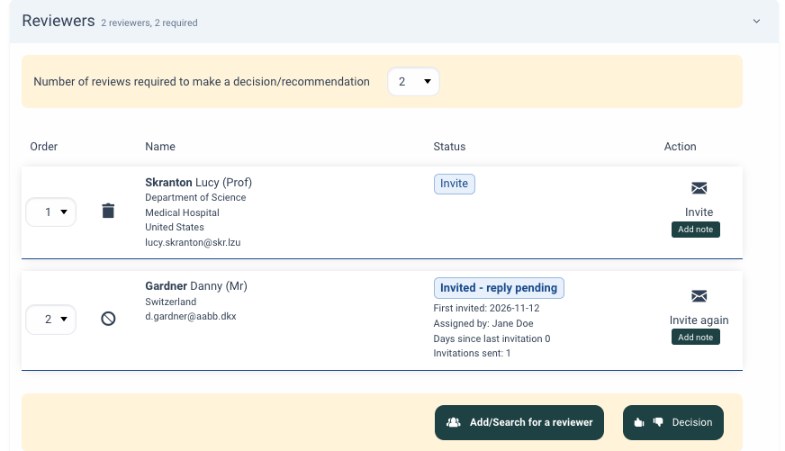
The reviewers you added are listed in order. Use the number on the left to change the order, and set Number of reviews required to make a decision/recommendation if this manuscript needs more or fewer than the default journal setting.
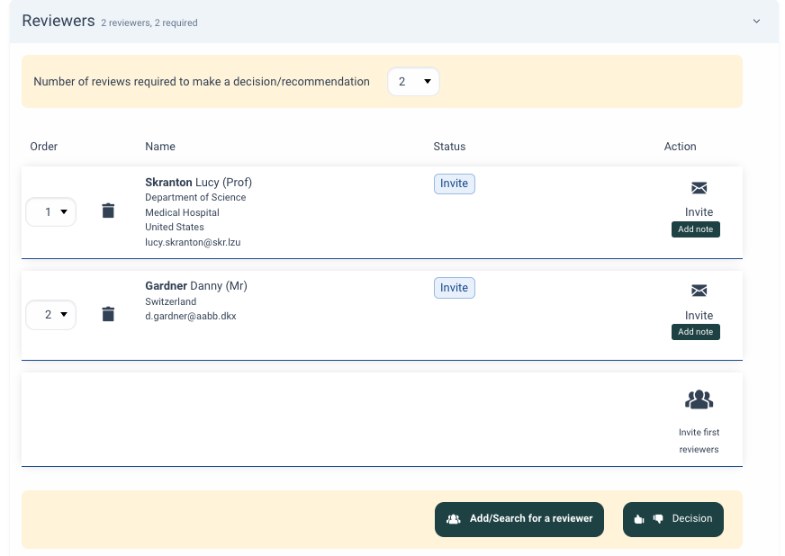
Click Invite next to a reviewer to open the invitation email. It includes a link the reviewer uses to agree or decline. Check the text and click Save and send the email. To invite several reviewers at once, use Invite first reviewers.
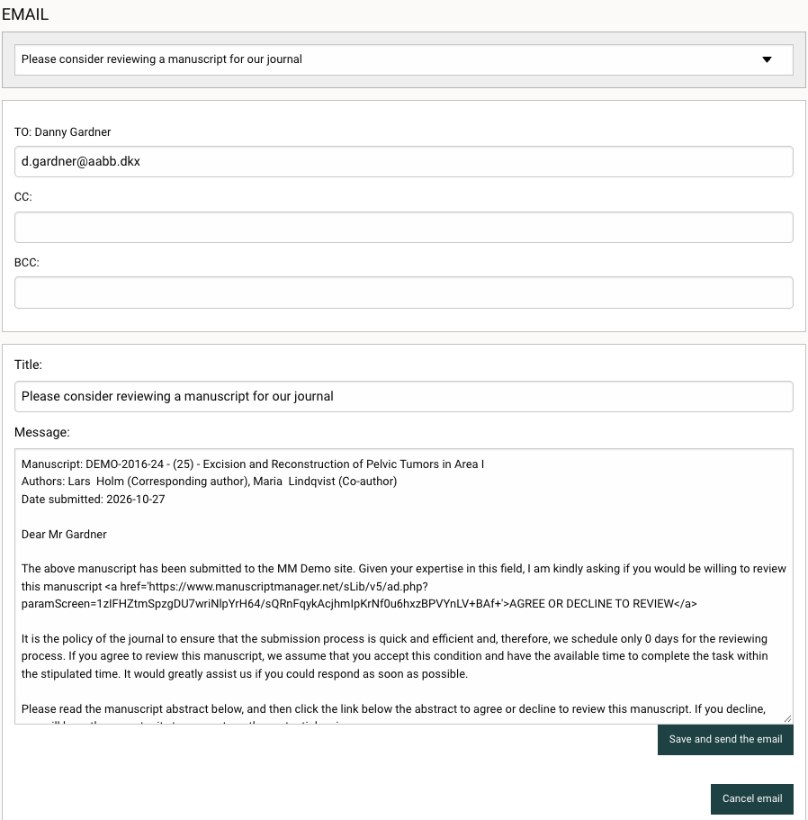
6Follow the invitations
Once invited, the reviewer's status changes to Invited - reply pending, with the date of the first invitation, who assigned the reviewer, the days since the last invitation and the number of invitations sent. Use Invite again to send a reminder, or the cancel icon to withdraw the invitation.
The status and review pipeline on the right move on as the manuscript progresses. When the required reviews are in, use Decision to go to the recommendation or decision.
Reviewer invitation strategy
The Reviewer invitation strategy panel on the Review tab shows which automatic settings the journal uses. For example:
- Automatic review cancel cancels invitations that are not answered in time.
- Automatic reviewer invitation on decline or cancellation invites the next reviewer on the list when someone declines or is cancelled.
- Automatic periodic reviewer invitation sends invitations at set intervals until enough reviewers have agreed.
Working on behalf of a user
The editorial office can act on behalf of an author, reviewer or editor, for example to complete a step for someone who is having trouble. Open the person's profile and click proxy as this user. While you are working on their behalf, the bar at the top of the page says so. Choose End proxy session from the menu at the top right to return to your own account.
Emails are still sent. Actions you take on someone's behalf send the same emails as if they had done it themselves.
Handling a resubmission
When an author resubmits a revised manuscript, the Administrator who handled it before is alerted by email, and the manuscript appears under Resubmissions in the To do list on the dashboard. It keeps its manuscript number.
- Open the resubmission and check it as you would a new submission: the revised files, the response to the reviewers and any changed details.
- Click Start review at the bottom of the Details tab.
Depending on the journal's workflow, the manuscript then goes to the Editor-in-Chief or straight to the Subeditor. The same editors and reviewers as before are added to the Review tab, so they can be invited to look at the revised version. From here the process is the same as for a first submission.
Correcting manuscript details
The editorial office can correct almost everything an author entered, without sending the manuscript back. Open the manuscript's Details tab:
| What to correct | How |
|---|---|
| Title | Click the title at the top of the page. |
| Keywords, identifiers | Click Edit in the section. |
| Authors | Use the pencil to edit an author's details and affiliation, the arrows to change the order, the bin to remove an author, and Add author to add one. |
| Files | Change a file's name or type, choose whether it goes in the reviewers' PDF, or add a missing file with Upload files. |
Contacting authors, reviewers and editors
Emails sent from a manuscript are kept with it, under Correspondence in Other submission information on the Details tab.
- Authors and editors: on the Review tab, click the envelope under the person's name. For authors, open the author list with + first. Editors use the same envelope to contact the editorial office.
- Reviewers: click the reviewer's name to open their profile, then use its Contact tab. Once a review is overdue, Send reminder also appears in the Action column of the reviewer list.
- Anyone, about this manuscript: under Correspondence, click Send a new email for an email that refers to the manuscript.
- Anyone, about anything: search for the person, open their profile and use its Contact tab.
Each option opens an email template that you can edit before sending. If the journal has more versions of a template, pick one from the list at the top. Reviewers also get automatic reminders, set in Config. ManagerReview.
Flags and internal notes
Flags and notes are for the editorial team only. Authors and reviewers never see them.
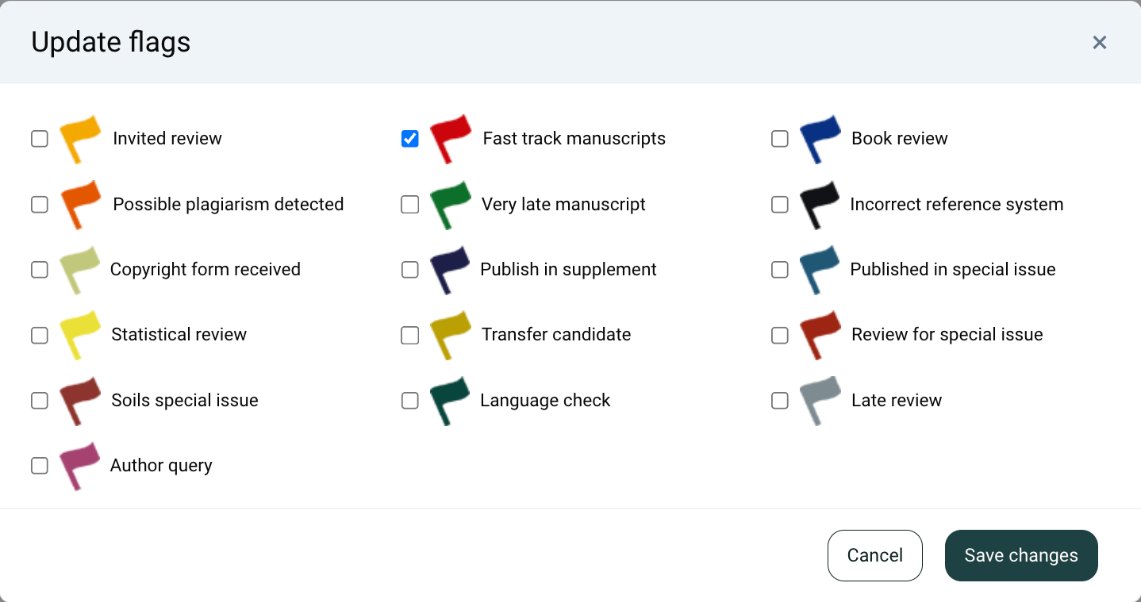
- Flags mark a manuscript so it stands out in lists and can be found later, for example Fast track, Possible plagiarism detected or Copyright form received. Click Add a flag on the Details tab, tick the flags that apply and click Save changes. Flagged manuscripts appear under the title, and you can find them all with the Flag option in the search.
- Notes are short internal messages, such as a reminder to check figure permissions. Click Add a note, write the note and click Save.
People can be flagged too, for example a reviewer who should not be invited again. Open the person's profile and use its Flags tab.
Rescinding a decision
If a decision needs to be reversed, for example after an author's appeal, the Editor-in-Chief or the editorial office can rescind it. Open the manuscript's Decision tab and click Rescind decision under the decision. Explain the reason in the email to the authors and send it. The manuscript goes back to review, so you can invite more reviewers or make a new decision.
Rescinding a review
If a reviewer wants to correct or redo a review they have sent, open the Review tab, click the recycle icon next to their review in the reviewer list and confirm. The reviewer gets an email and can sign in to submit the review again.
Suspend, withdraw or transfer
Three actions take a manuscript out of the normal path. You find them under Actions at the bottom of the Details tab.
Suspend
Use Suspend when a new submission needs fixing before review, for example a missing file or a manuscript that isn't anonymised. An email opens so you can tell the author what to change. The author corrects the submission and sends it again from their dashboard, and it keeps the same manuscript number. It then appears in your Restart suspended submissions list. Open it and start the review as usual.
Withdraw
Use Withdraw when the authors ask to withdraw their manuscript. An email to the author opens with the standard text. A withdrawn manuscript can be brought back with Unwithdraw, which returns it to where it was: with the author if it was waiting for a revision, or back to New submission if it was in review.
Transfer
A manuscript that suits another journal in the portfolio can be rejected with the decision Reject (but suggest transfer to another journal). The author is then encouraged to submit the manuscript to another journal from the same publisher. Transferred manuscripts are listed under Transfer on the dashboard.
Inviting a manuscript
Journals often invite authors to submit, for example for a special issue or a review article. On the dashboard, click Invite a manuscript. Editors can do the same if the journal allows it.
- Manuscript details: enter the proposed title and manuscript type, and choose a special issue if there is one.
- Corresponding author: enter the author's name, country and email.
- Automatic correspondence: set the date by which the author must reply and the date by which the manuscript must be submitted, and how many reminders to send. Reminders go out every 7 days before each date.
- Handling staff: choose the Administrator, Editor-in-Chief, Subeditor and Approver who will handle the manuscript when it arrives, or leave them to be set later.
- Click Save and continue to write and send the invitation email.
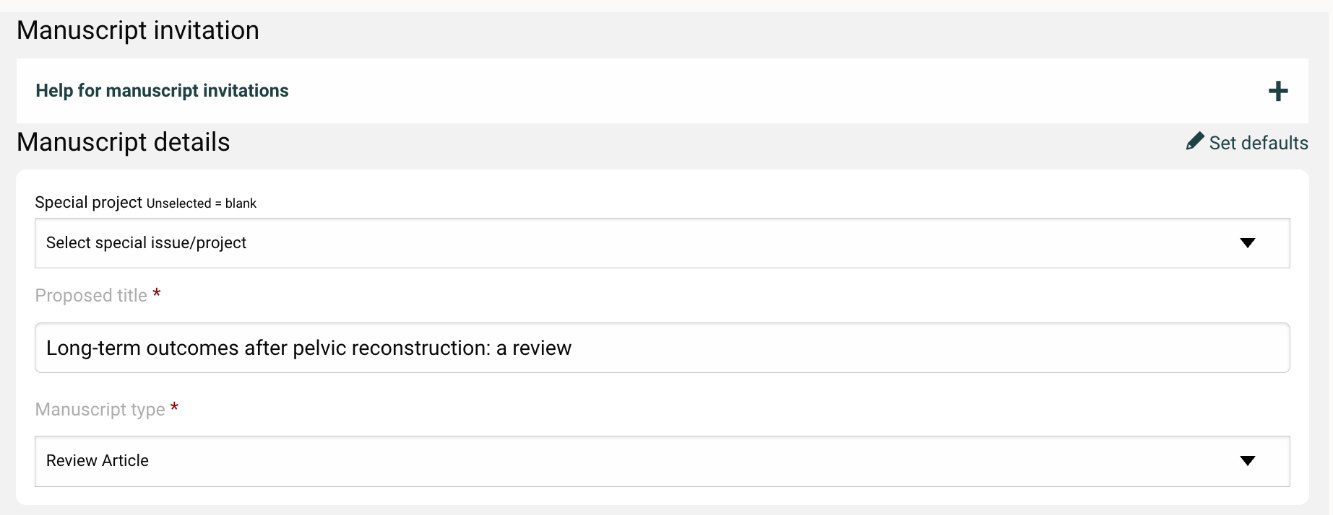
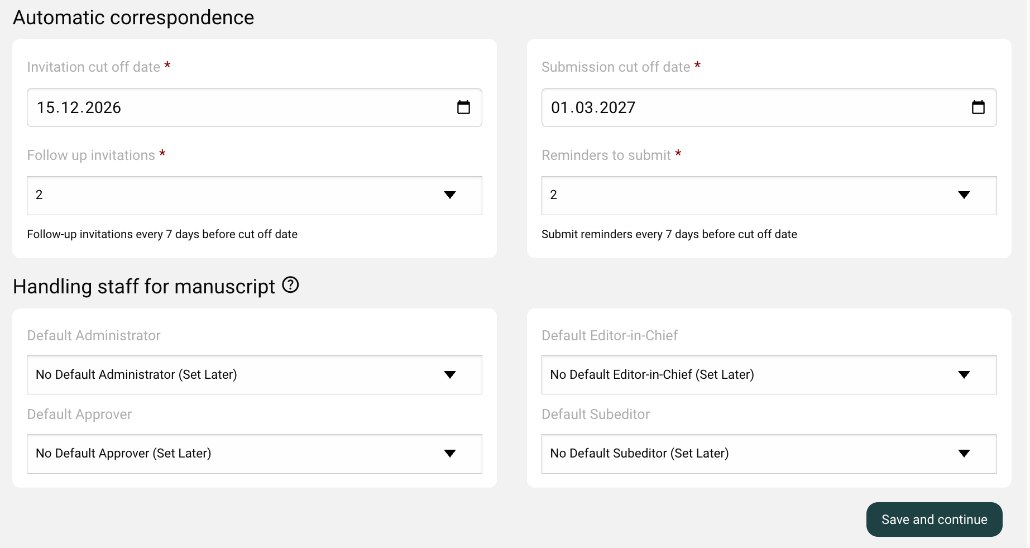
Invited manuscripts are listed under Invited manuscripts on the dashboard, where you can follow whether the author has accepted and submitted. The journal's default settings are in Config. ManagerOfficeInvitation defaults.
Searching
Click the search icon at the top of the page. Use the general search bar or search specifically for:
- Manuscript: manuscript number, year, title or any author's name.
- Flag: every manuscript or person with a given flag.
- Person: first name, last name or email address.
Merging duplicate accounts
Sometimes one person ends up with two accounts, for example after registering with a new email address. The editorial office gets a Possible multiple account alert when someone signs in with the same name as an existing user. Merging moves all manuscripts and reviews onto one account.
- Click the search icon at the top of the page, open Person and search on the last name or email.
- In the results, tick Mark for merge for each of the accounts, then click Go to merge accounts.
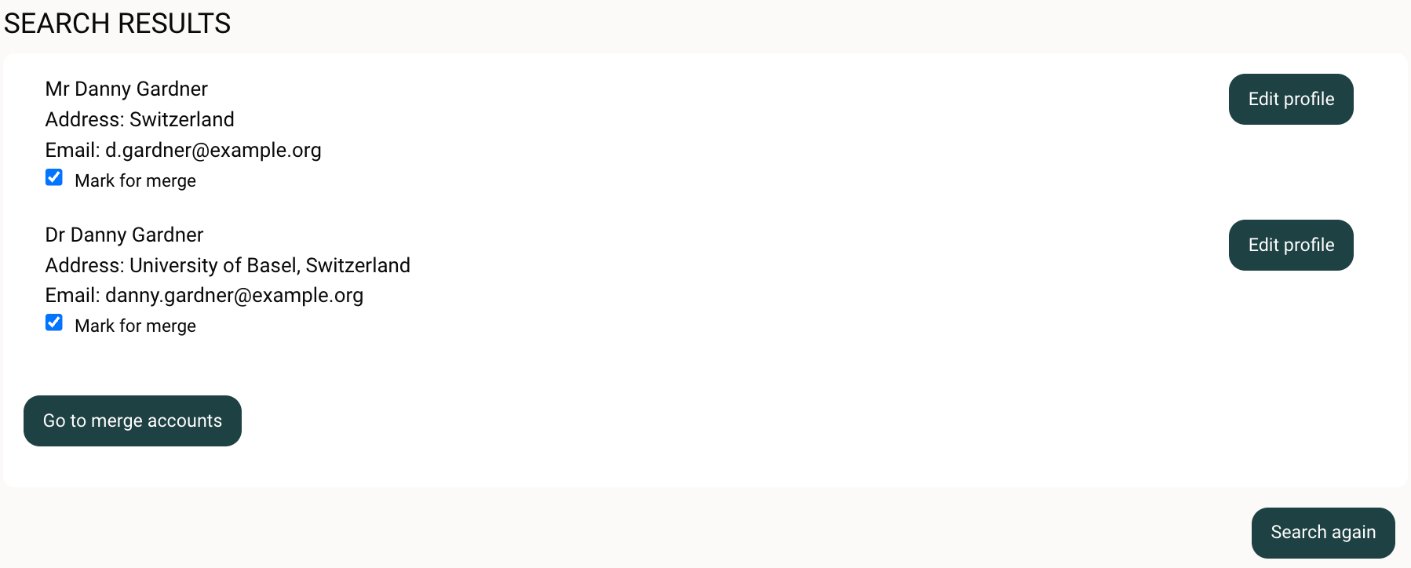
- Compare the accounts: address, email, roles and activity. Check carefully that they really are the same person.
- Choose Keep this account for the account to keep, usually the one the person uses most, then click Merge accounts.
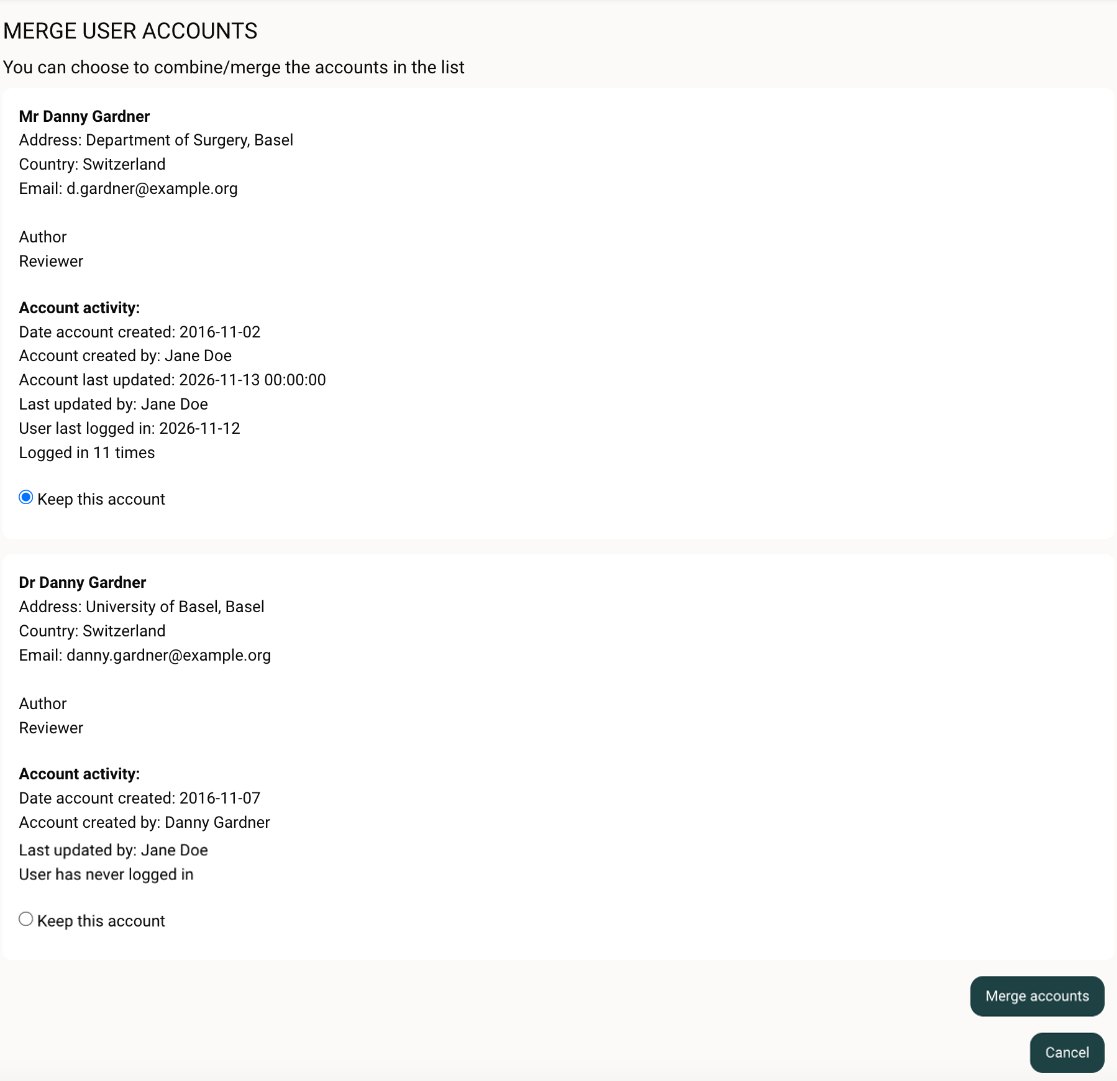
Merging can't be undone. The person is sent an email about the merge with their sign-in details. Add the old email address as the alternative email on the kept profile so they can still be found by it.
Subeditor
Managing reviewers, reading the reviews and making a recommendation or decision.
Who does what
Editor-in-Chief
Receives checked submissions, assigns a Subeditor, and makes or confirms the final decision.
Subeditor
Also called Associate Editor or Co-editor. Manages the reviewers, reads the reviews and makes a recommendation or decision.
Each journal sets its own workflow. Under Config. ManagerStaff, the journal decides which decisions a Subeditor can make directly and which go to the Editor-in-Chief as a recommendation. The options you see on the Decision tab reflect this.
Your dashboard
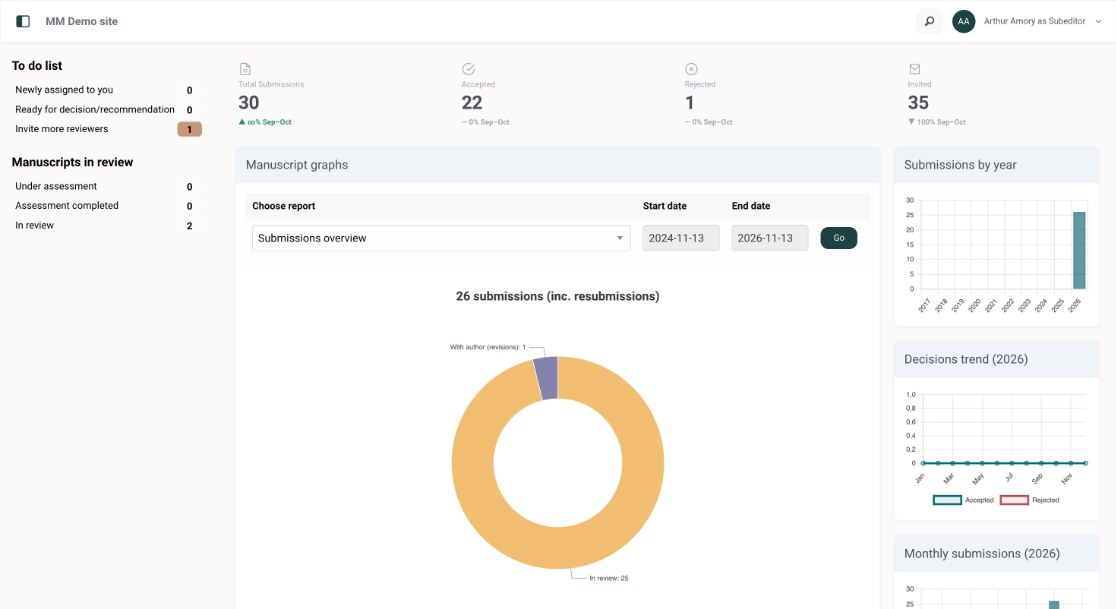
When you sign in as Subeditor, the To do list shows manuscripts newly assigned to you, manuscripts ready for your decision or recommendation, and manuscripts that need more reviewers. Manuscripts in review shows the rest of your manuscripts by stage.
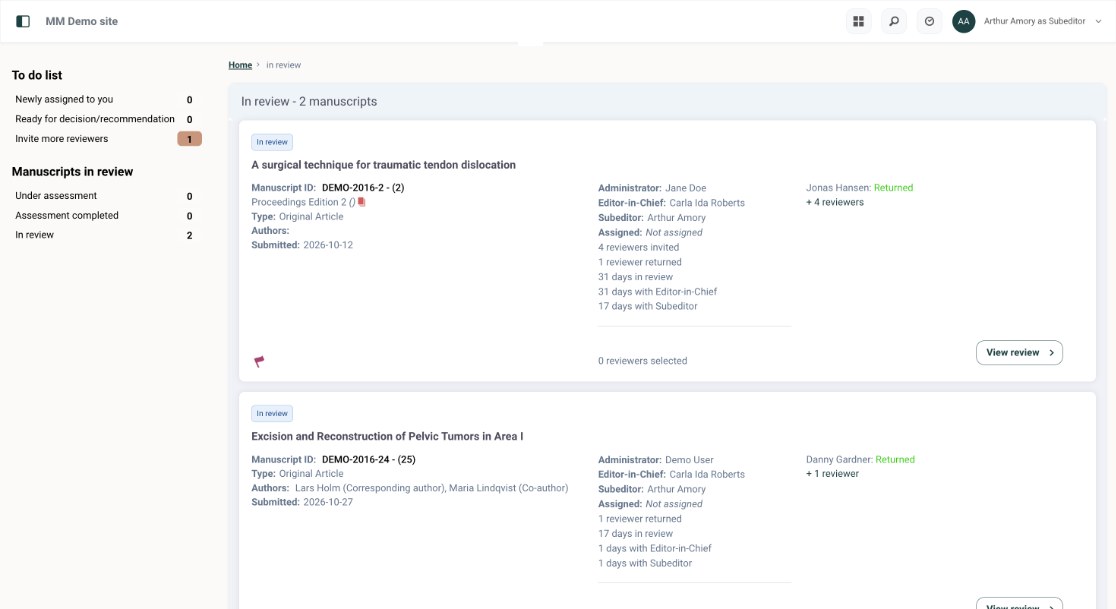
Open a list to see your manuscripts. Each card shows who is assigned, how long the manuscript has been in review and with each editor, and the status of each reviewer. Click View review to open it.
1Manage the reviewers
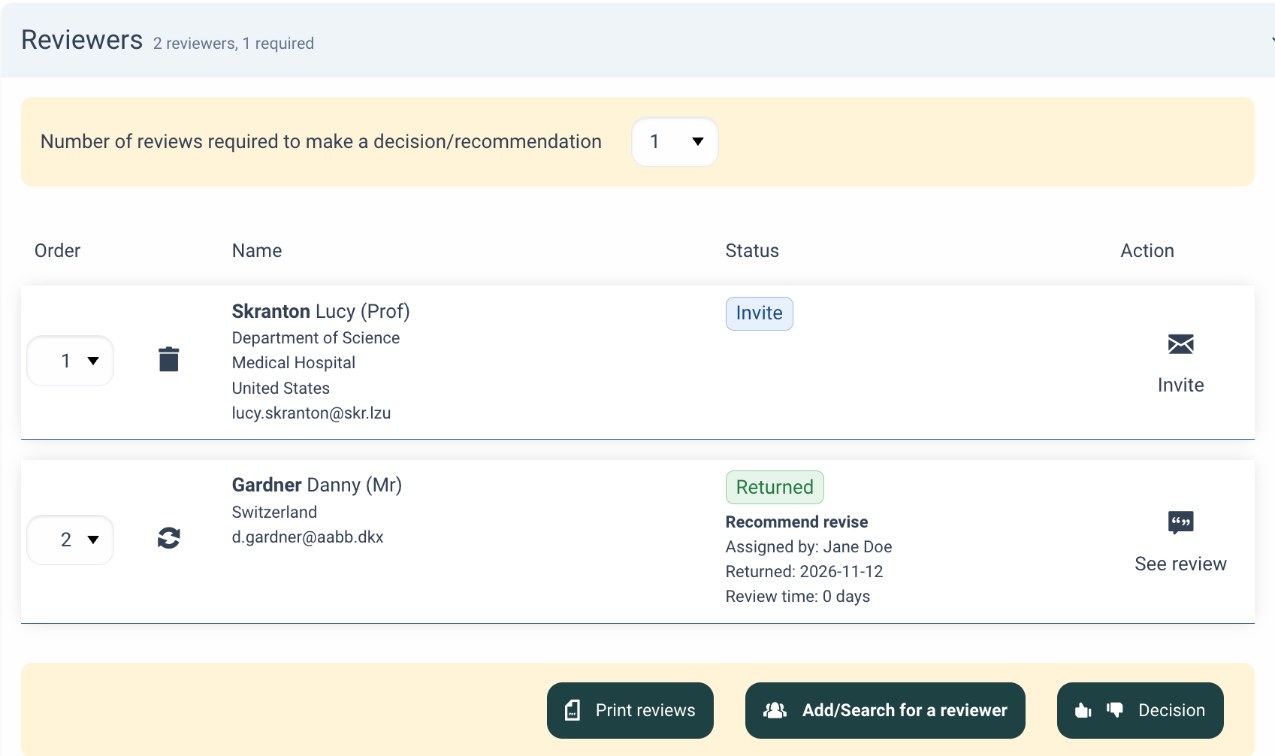
On the Review tab, the Reviewers section works the same way for editors as for the editorial office: search for reviewers, add them to the list, and invite them. See Find reviewers and Invite reviewers in the editorial office guide.
Number of reviews required to make a decision/recommendation sets how many reviews must be returned before the manuscript is ready for your decision. Change it if this manuscript needs more or fewer reviews than the journal's default.
When enough reviews are in, the manuscript's status changes to External reviews completed.
2Read the reviews
Click See review next to a reviewer to read the review: the comments to the authors, the confidential comments to the editor, and the answers to the journal's questions.
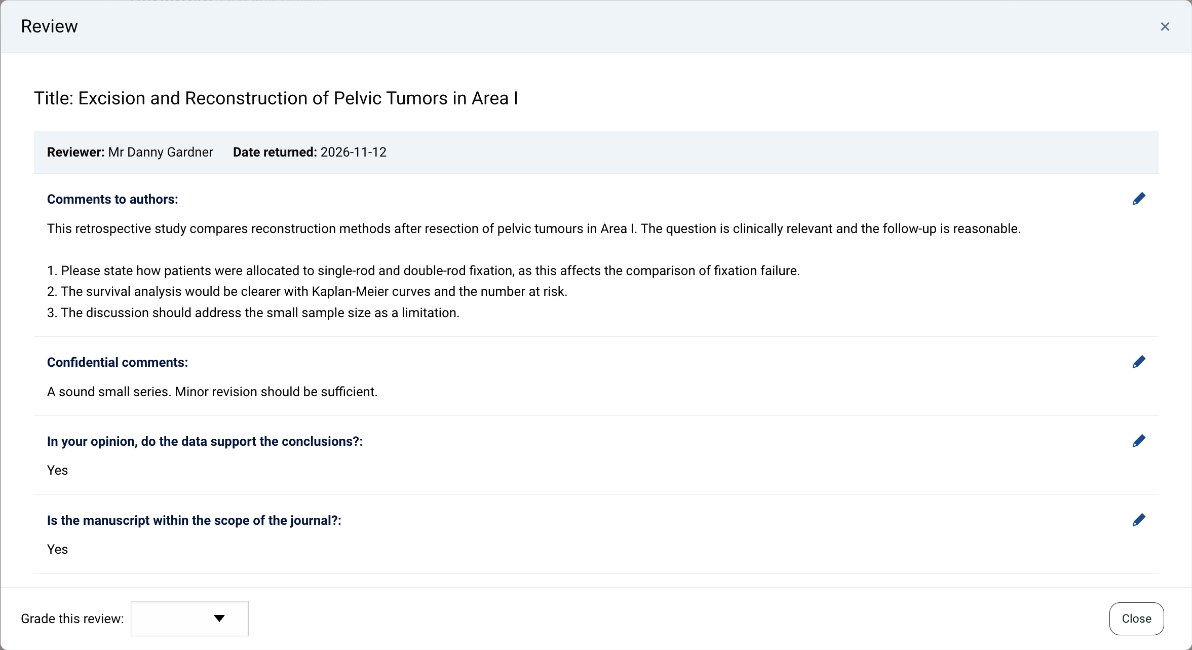
At the bottom of the review, Grade this review lets you rate the reviewer's work, from Poor to Excellent. The grade helps the journal choose reviewers in future. To read all reviews at once or keep a copy, use Print reviews.
3Make your decision or recommendation
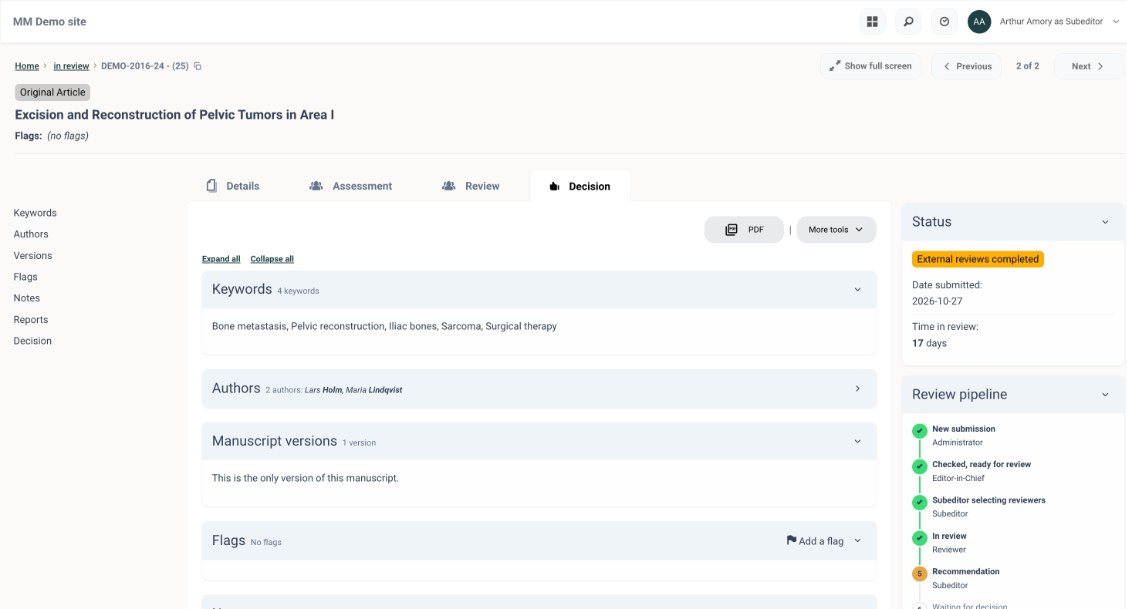
Click Decision in the Reviewers section, or open the Decision tab.
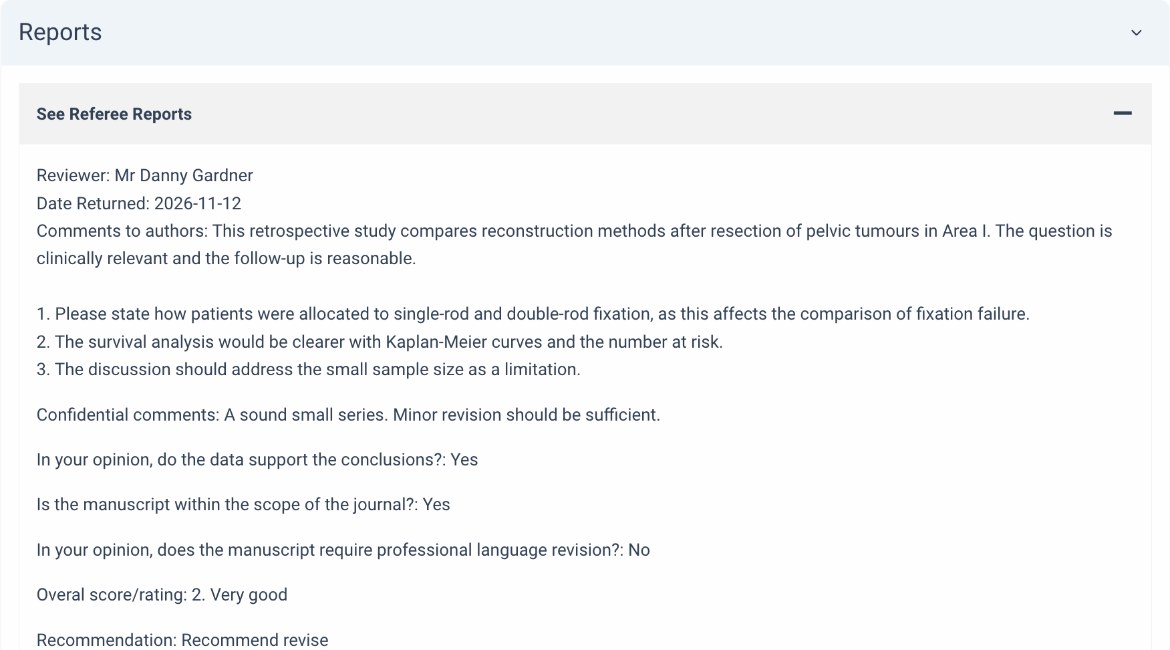
Under Reports, open See Referee Reports to read all the reviews together while you write.
Under Decision, fill in:
- Comments to authors: your summary for the authors. It is included in the decision letter.
- Confidential comments to review board: notes for the other editors only.
- Overall manuscript rating.
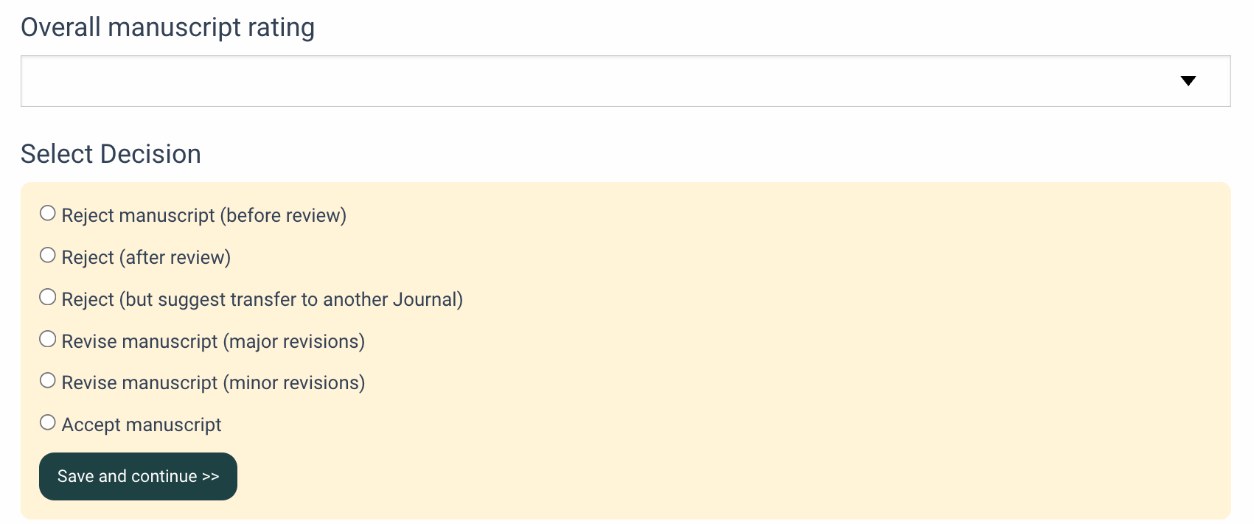
- Decision/Recommendation: options marked Decision take effect straight away. Options marked Recommend go to the Editor-in-Chief, who makes the final decision.
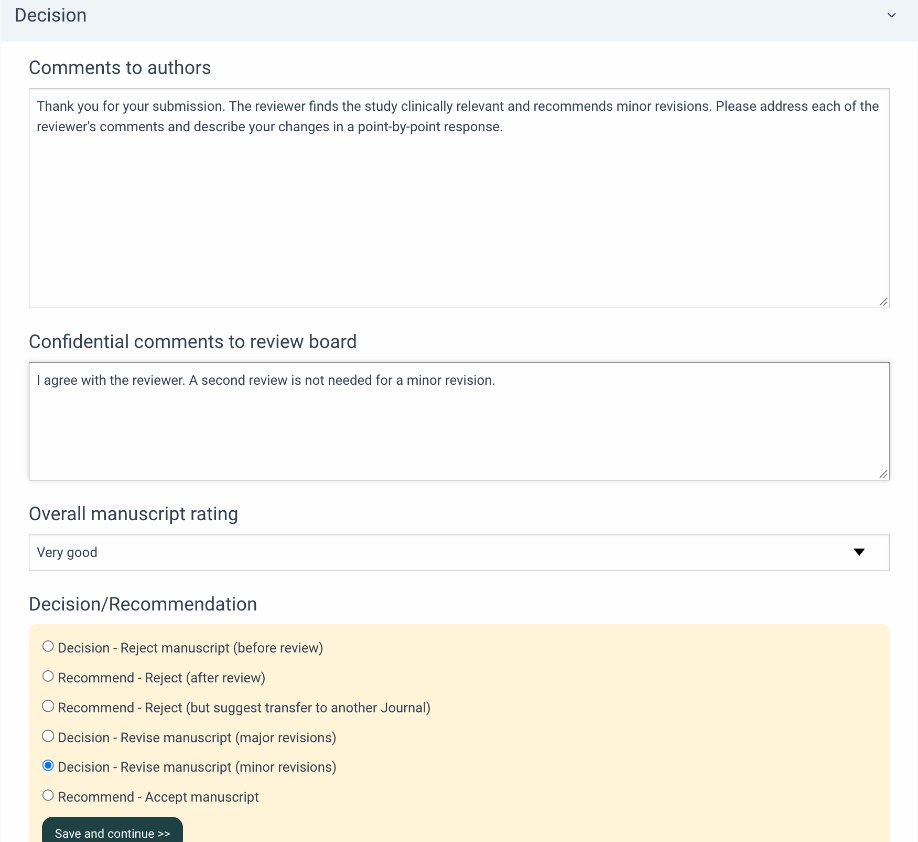
Click Save and continue.
4Send the letter
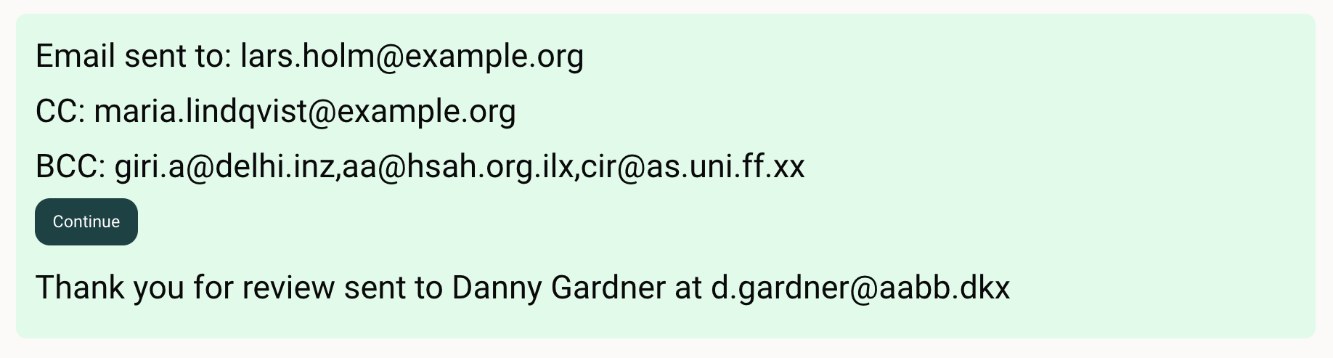
When you make a decision, the decision letter opens, written from the journal's template for that decision. It is addressed to the submitting author, with the co-authors in CC and the editorial team in BCC. Check the letter, edit it if needed, and click Save and send the email.
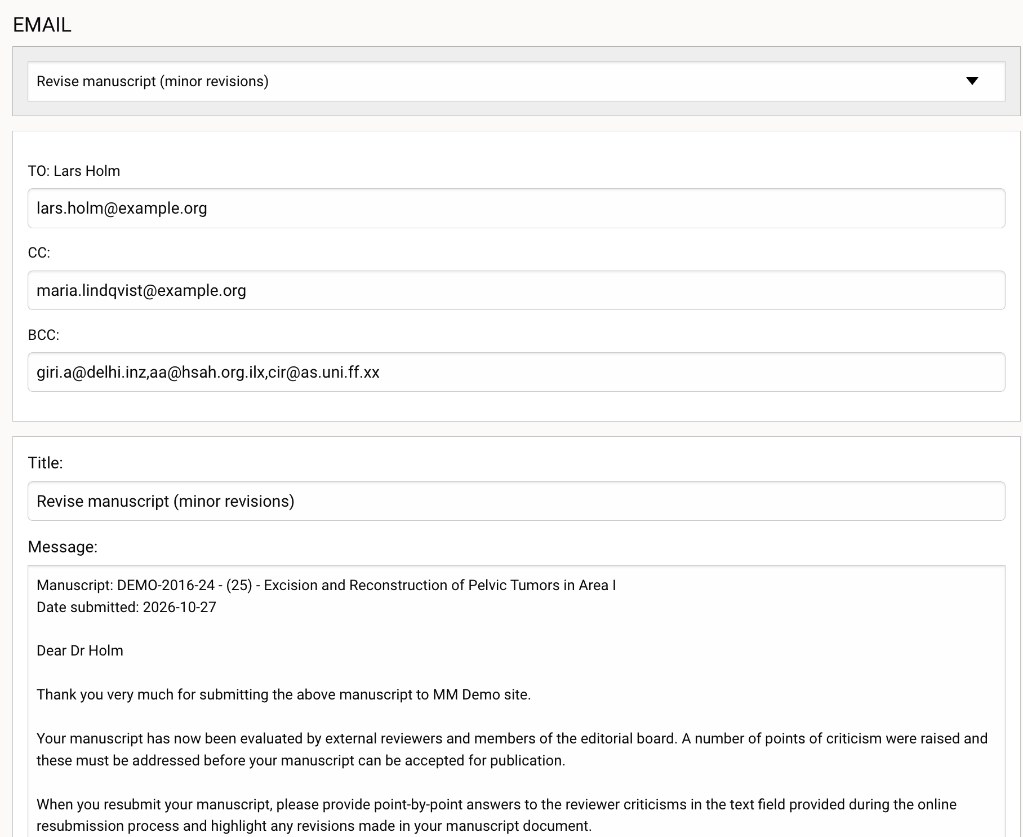
A confirmation shows who the letter was sent to. Reviewers who returned a review are thanked automatically.
What each decision does
| Decision | What happens |
|---|---|
| Accept | The authors can no longer revise the manuscript. A Production menu appears on the Details tab, where staff can ask the authors for final files. If the journal uses production, the Production Manager is told. |
| Revise (minor or major revisions) | The authors can resubmit a revised version from their dashboard, within the journal's revision time. |
| Reject before review | For manuscripts that haven't been reviewed. The decision is final. |
| Reject after review | For reviewed manuscripts. The decision is final. |
| Reject (but suggest transfer to another journal) | The authors are told they may submit the manuscript elsewhere, for example to another journal from the same publisher. |
Each letter is written from the journal's template for that decision, and any other versions the journal has are in the list at the top. Edit the wording as needed, but keep the meaning: a revise letter, for example, is what lets the authors resubmit. The journal chooses which decisions are in use in Config. ManagerEmail templates and alerts.
After the decision
The manuscript's status changes to the decision, for example Minor revision, and it moves to Awaiting resubmission until the authors send their revised version. When they do, it appears under Resubmissions.
Editor-in-Chief
Assigning Subeditors and making the final decision.
Your role
The Editor-in-Chief receives submissions once the editorial office has checked them, assigns a Subeditor to handle the review, and makes or confirms the final decision. Depending on the journal's workflow, you may also handle manuscripts yourself, from inviting reviewers to sending the decision.
Inviting and managing reviewers works the same way for every role. See Find reviewers and Invite reviewers in the Editorial office guide, and Read the reviews in the Subeditor guide.
Your dashboard
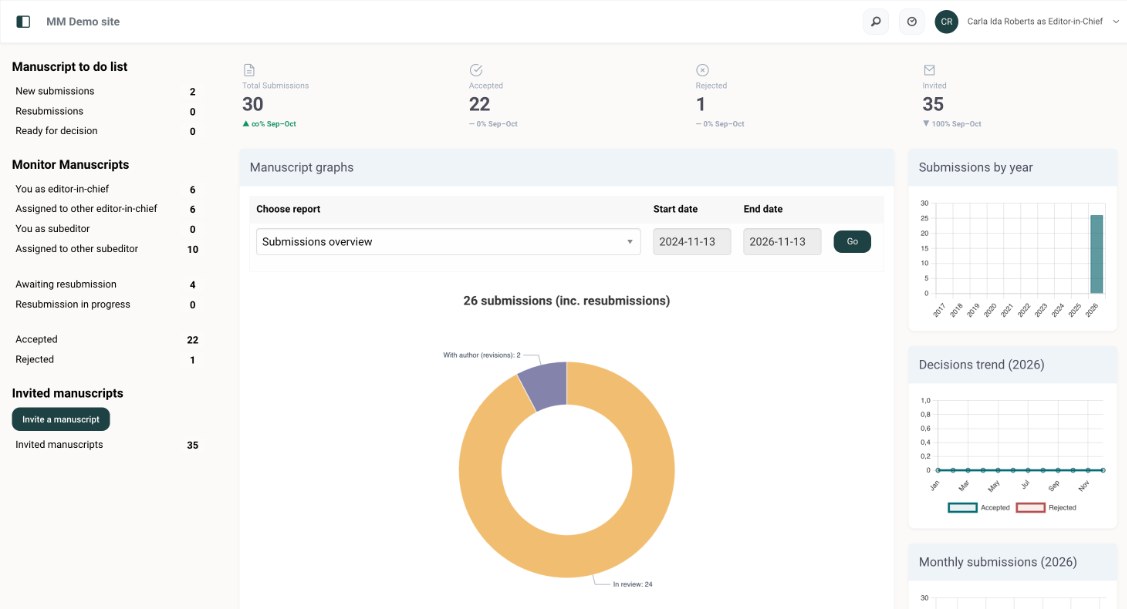
The Editor-in-Chief's Manuscript to do list shows new submissions checked by the editorial office, resubmissions, and manuscripts ready for decision. Monitor Manuscripts lets you follow every manuscript: your own, those assigned to other editors, those awaiting resubmission, and those accepted or rejected.
Under Monitor Manuscripts, manuscripts you have assigned to yourself are yours to take through review. Those assigned to other editors are theirs to follow, but you can still read them, choose reviewers for them or make a decision when needed.
Assign a Subeditor
Open New submissions. Each card shows how long the manuscript has been with you, and a red warning when a task is overdue.
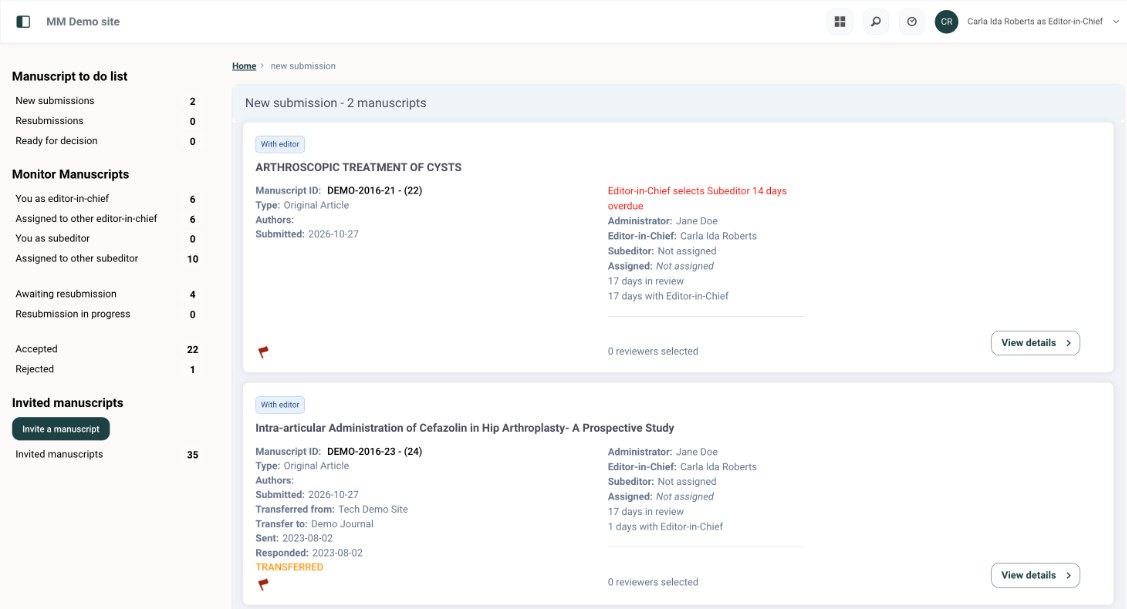
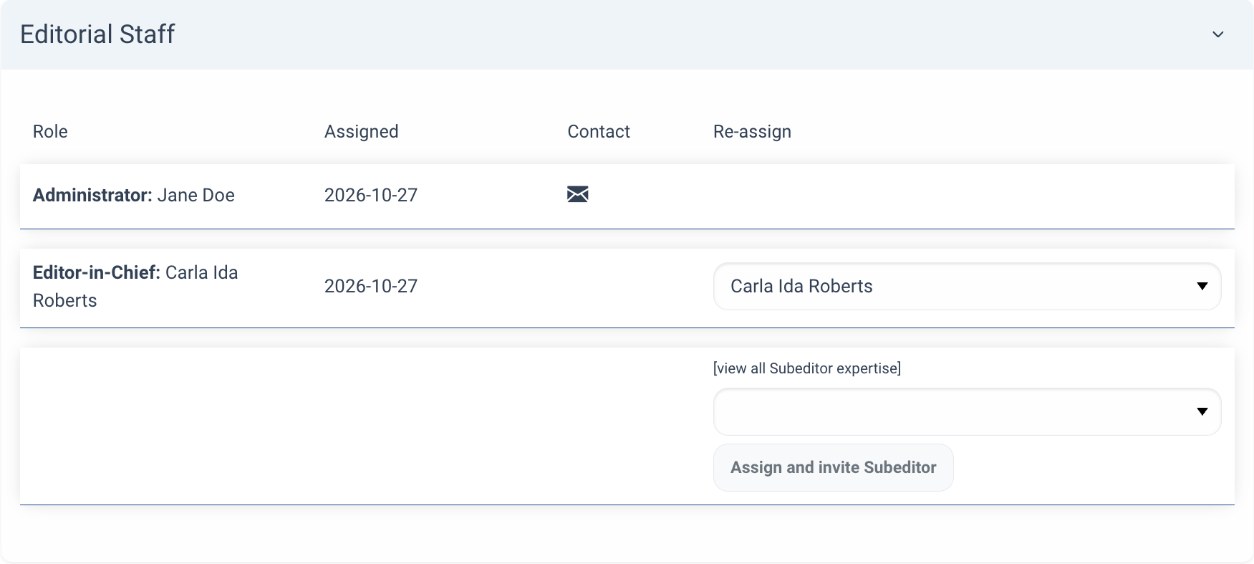
Open the manuscript and go to the Review tab. Under Editorial Staff, choose a Subeditor and click Assign and invite Subeditor, then send the invitation email. Click [view all Subeditor expertise] to compare editors first. If you handle the manuscript yourself, you can go straight to the reviewers.
Make the decision
When a Subeditor sends a recommendation, or when you handle the manuscript yourself, open the Decision tab. It works as described in the Subeditor guide: read the reports, write your comments, choose the decision, and send the letter.
The Editor-in-Chief can choose every decision, including Accept manuscript and Reject manuscript (before review) for submissions that should not go to review.
Reviewing a manuscript
Responding to an invitation, completing the evaluation and submitting your review.
Responding to an invitation
When a journal invites you to review, you receive an email with the manuscript's title, authors and abstract, and a link to agree or decline. You can also sign in to the journal, choose the Reviewer role, and open new invitation to review on your dashboard.
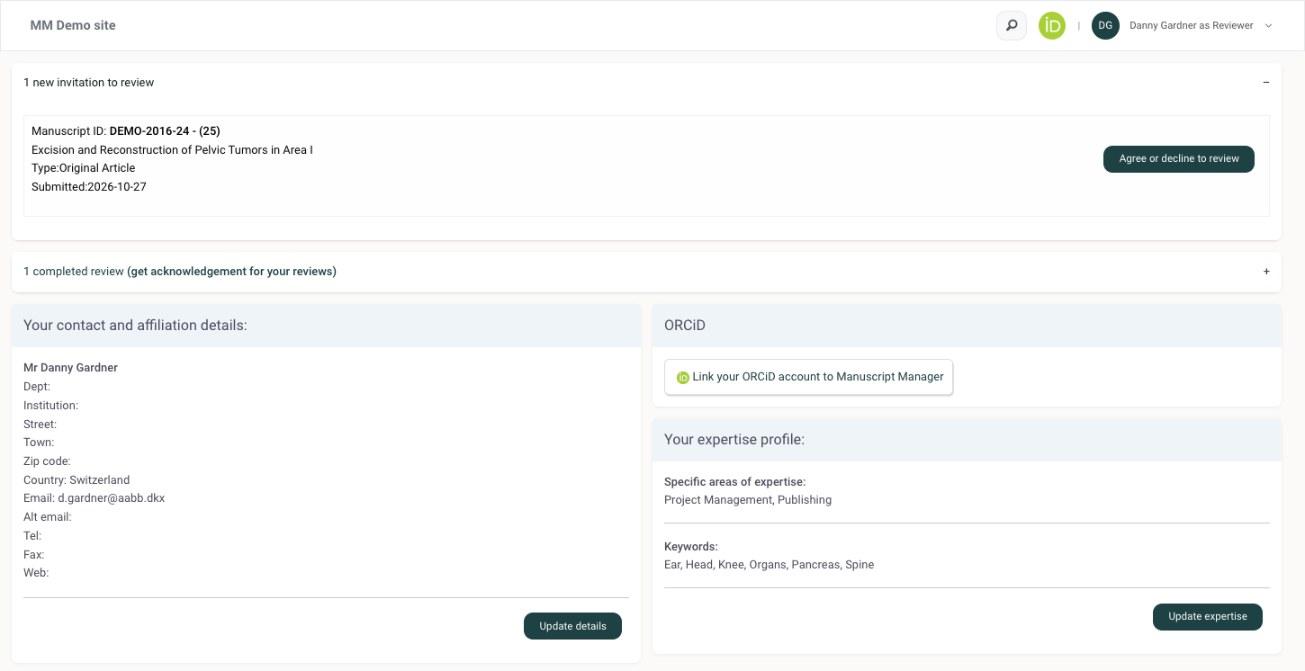
Click Agree or decline to review. Read the abstract, then click Agree to review or Decline to review. The editorial office is told of your answer automatically.
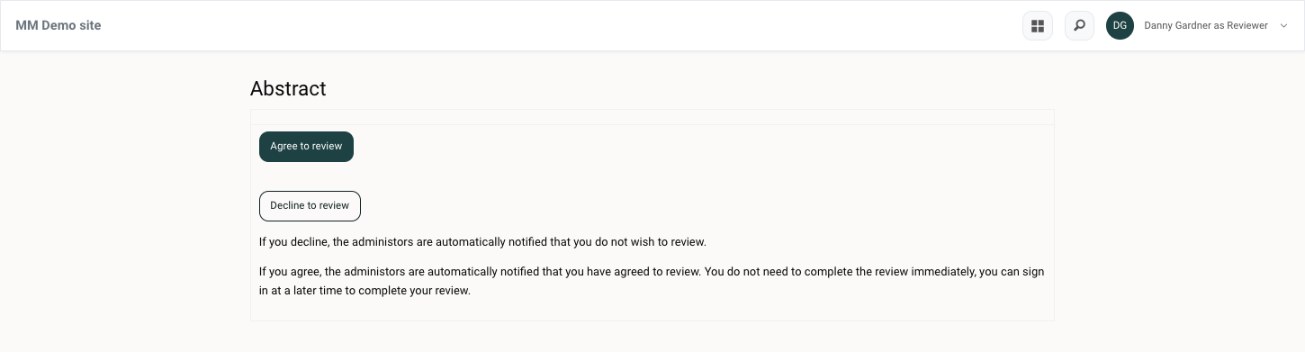
Please answer as soon as you can, even if you decline. It lets the journal invite another reviewer without delay.
1Guidelines
When you agree, the review opens. Its steps are listed on the left. A tick shows that a step is complete, and you can return to any step until you submit.
Read the journal's review guidelines and tick Check this box to confirm you have read these guidelines. Then click Continue to next section.
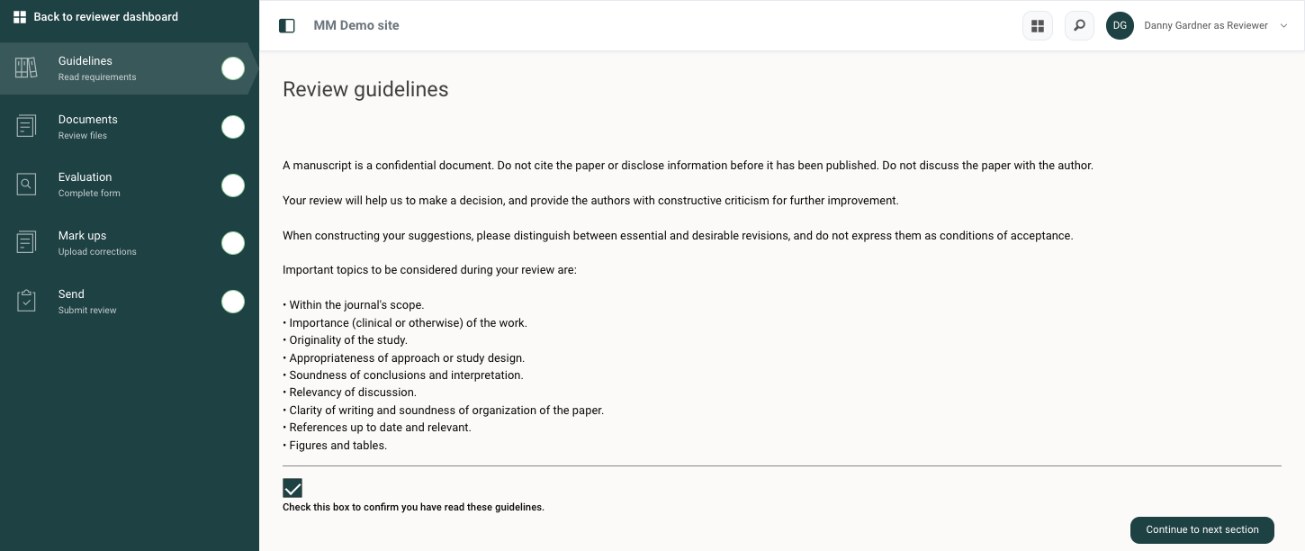
The manuscript is confidential. Do not share it, cite it or discuss it with the authors before it is published.
2Documents
Click PDF review document to open the manuscript. If the journal does not use double-blind review, the original files are also available here.
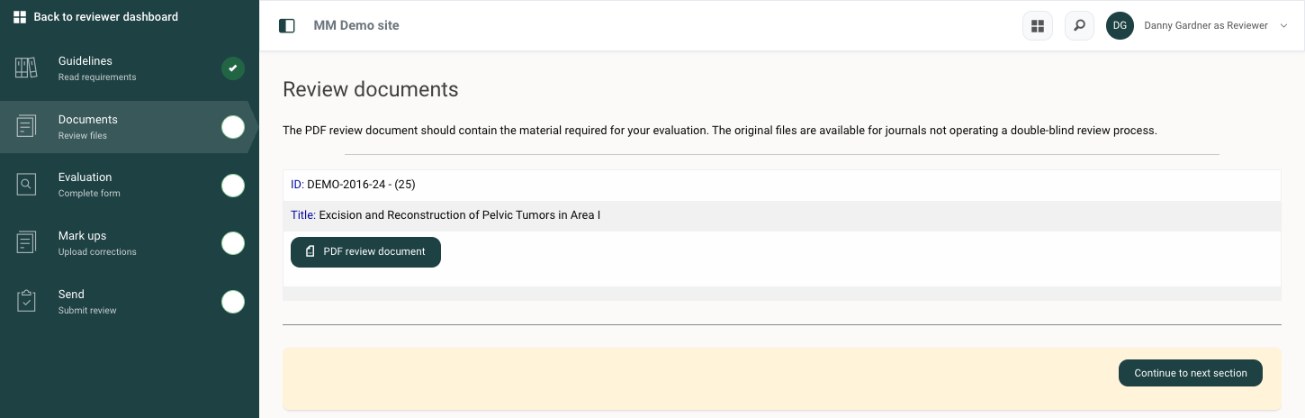
If the authors included supplementary video, you can play it here in the browser. You don't need to install anything.
3Evaluation
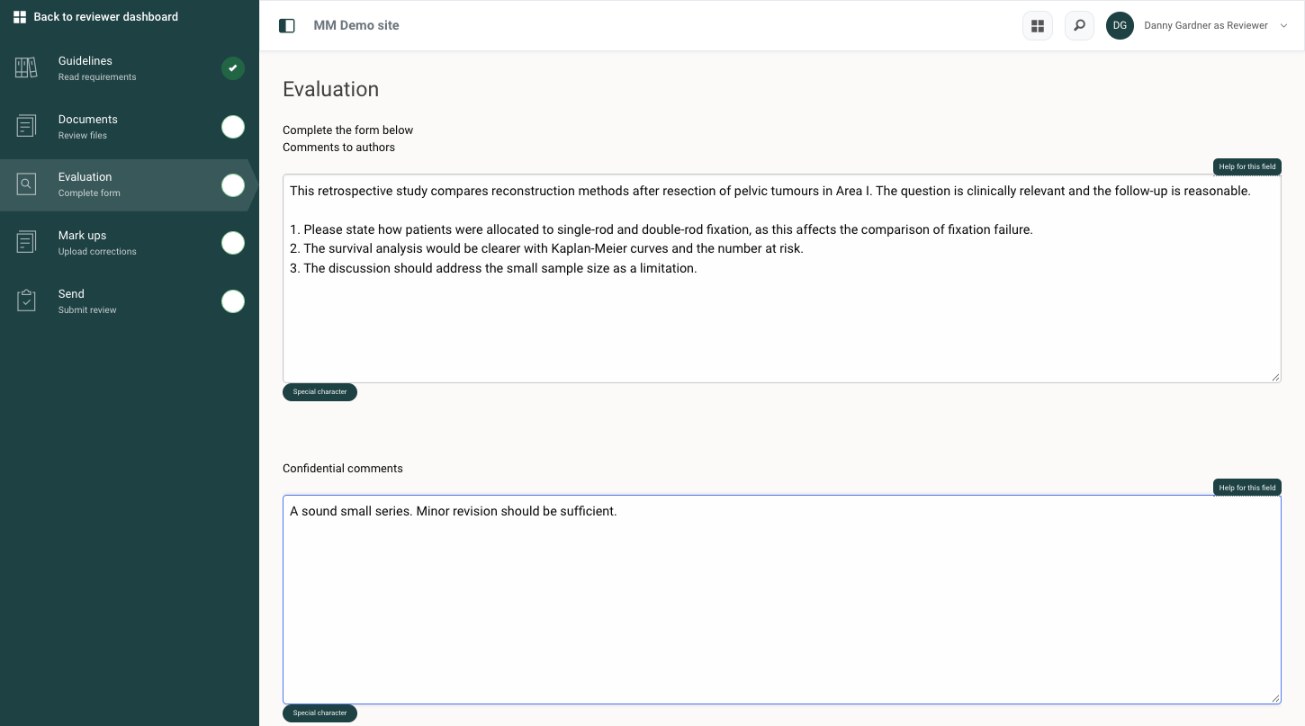
Write your review in the evaluation form. It usually has two text fields:
- Comments to authors: your review. It is sent to the authors, so do not include your name.
- Confidential comments: comments for the editor only. The authors do not see them.
Below the comments, answer the journal's questions, give an overall rating and choose your recommendation. Questions marked (required) must be answered. If you have a conflict of interest, say so here and explain it in the confidential comments.
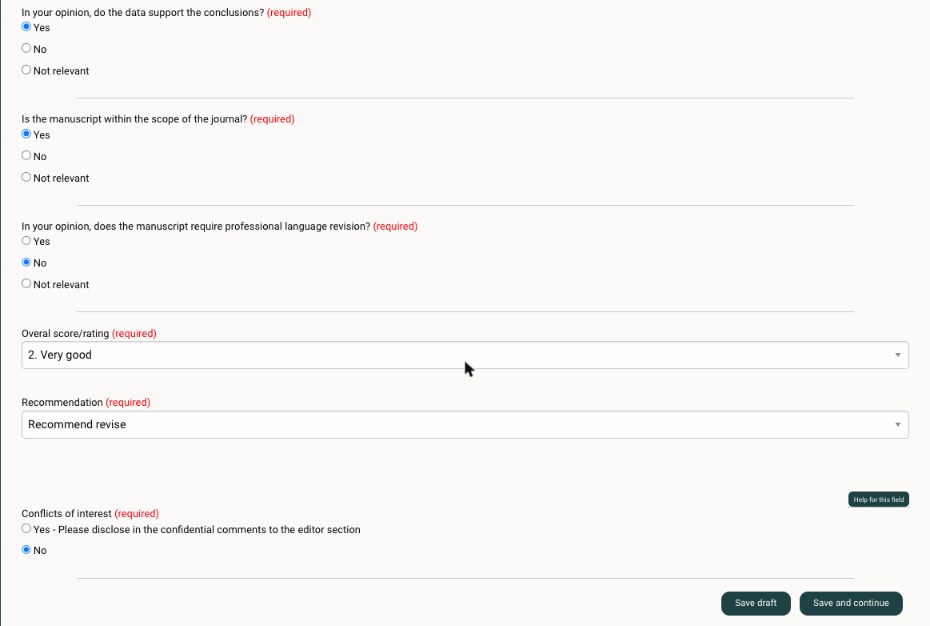
Click Save draft to finish later, or Save and continue when the form is complete.
4Mark ups
If you have corrected the manuscript or added comments in the file itself, you can upload it here. This step is optional.
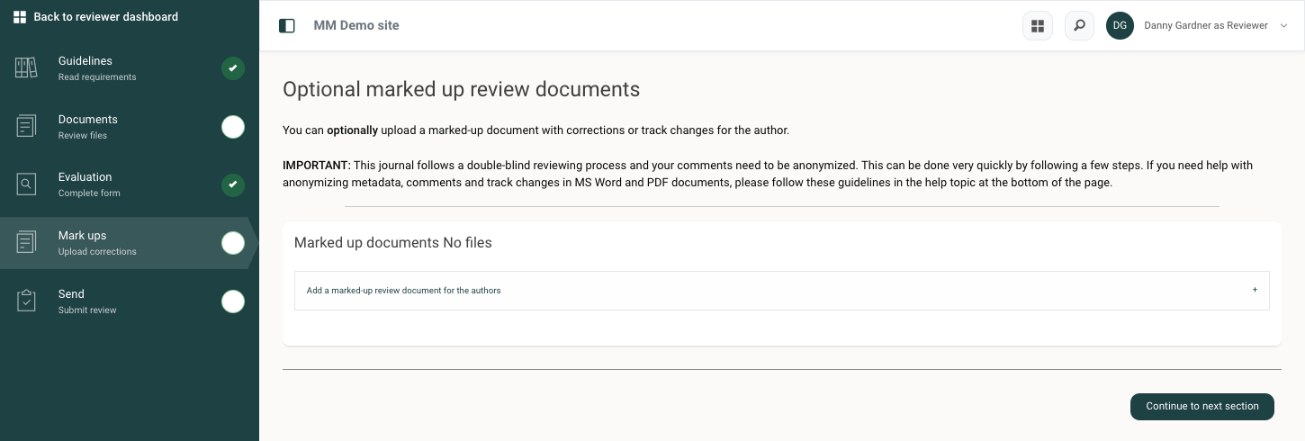
Double-blind review. If the journal uses double-blind review, remove your name from the document, its comments and tracked changes, and its file properties before you upload it. The help topic at the bottom of the page explains how.
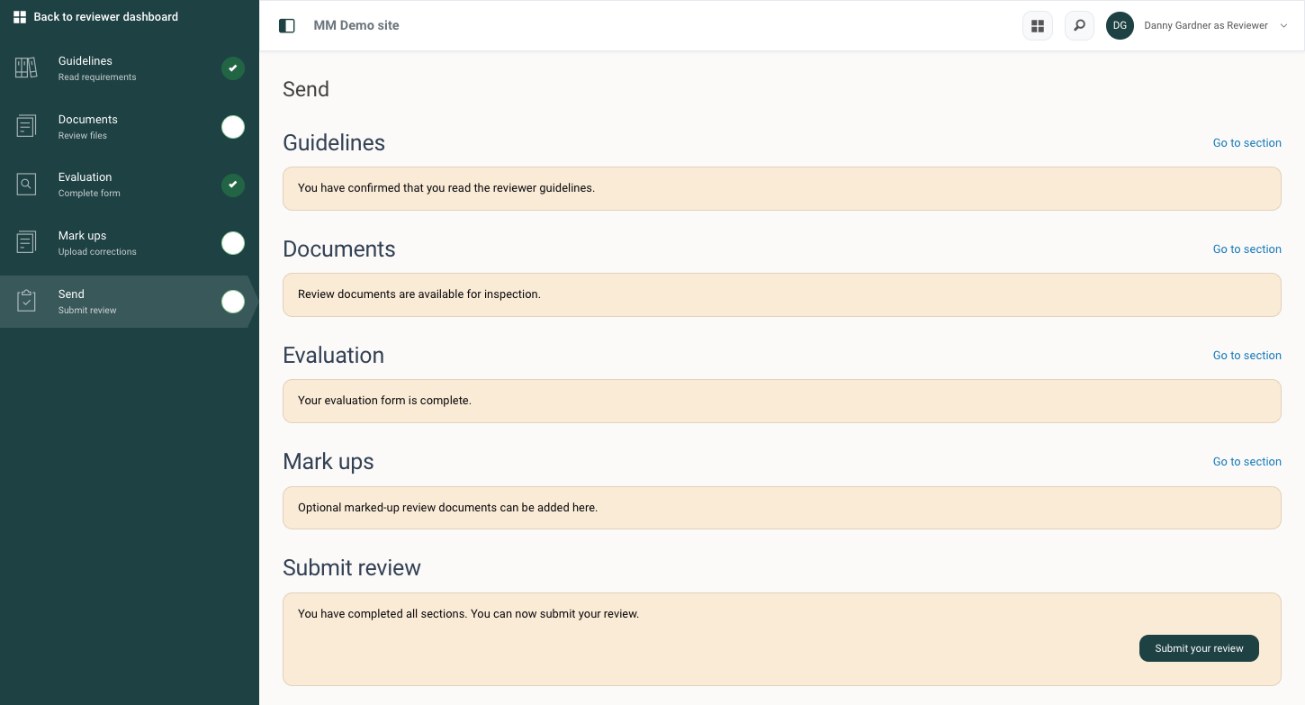
5Send
The Send page summarises each step of your review. If something is missing, click Go to section to complete it. When everything is done, click Submit your review.
Co-reviewing
Some journals let you share a review with a less experienced colleague, such as an early-career researcher. After you agree to review, a Co-reviewer tab explains how it works. Enter your colleague's details there to invite them. They get access to the manuscript, take part in the review and can download a certificate of their contribution. Co-reviewers aren't added to the journal's reviewer pool, but the editorial office can make them full reviewers later.
Completed reviews and acknowledgement
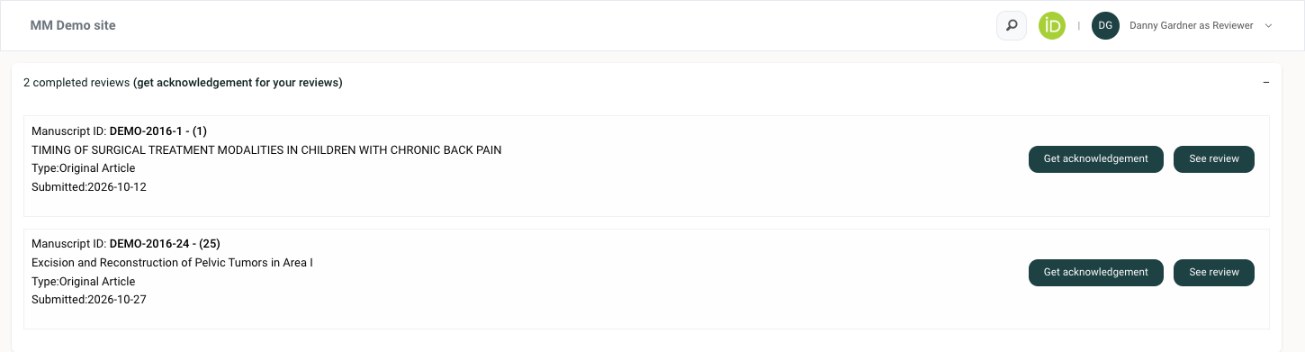
Your completed reviews are listed on your Reviewer dashboard. Click See review to read what you submitted, or Get acknowledgement to receive a confirmation of your review, for example for your records or to register it elsewhere.
The journal thanks you when the decision is made, so the thank-you can show you the decision and, in most journals, the other reviewers' evaluations.
Paid featureWeb of Science Reviewer RecognitionJournals that subscribe to Clarivate's Web of Science Reviewer Recognition service (formerly Publons) can connect it to Manuscript Manager, so your reviews can be recorded there and count towards recognition for your work.
Your details and expertise
The Reviewer dashboard also shows your contact details and your expertise. Keep them up to date: editors search for reviewers by expertise and keywords, so an accurate profile brings you invitations that match your field.
- Update details changes your name, affiliation and contact information.
- Update expertise changes your areas of expertise and keywords.
- Link your ORCiD account to Manuscript Manager connects your ORCID iD.
Configuring the journal
Setting up roles, staff, submission, review, email templates and journal settings as Config. Manager.
Before you start
All journal settings live in the Configure section, which you reach by signing in with the Config. Manager role. Pick it on the role page after signing in, or switch to it with Change Role in the user menu at the top right.
The menu on the left follows the order a new journal is usually set up in, and this guide follows the same order. Every page has a Setup help button at the top right, and most settings have a Read more link that explains the options.
| Menu item | What it controls |
|---|---|
| Address | Journal name, contact details, journal email and identifiers such as ISSN. |
| Man. types | The manuscript types authors can choose, with review times, number of reviews and default staff for each. |
| Roles | The editorial workflow (one, two or three levels), role names and extra roles. |
| Staff | Who holds each staff role, and the editorial office's principal contact. |
| Office | Preferences, email templates, email alerts, flags, keywords, invitation defaults and appearance. |
| Submission | Opening and closing submission, and every step of the author's submission form. |
| Review | Reviewer deadlines, reminders and automation, reviewer guidelines and the evaluation form. |
| Groups | Group Reviewer groups and their review time. |
| Reviewers, Users | The reviewer database and every user account. |
| Projects | Special issues, collections and other projects. |
| Attributes | Extra fields on the registration form and user profiles. |
| Journal page | A public landing page for the journal. |
Changes take effect as soon as you save them. At the bottom of most pages, Setup and configuration activity keeps a log of who changed which setting and when.
1Address
Enter the journal's basic details. Fields marked with an asterisk are required: journal name, town or city, country and journal email.
Use a journal email that will last, such as a shared editorial office address rather than a personal one. The system sends office alerts here, for example about possible duplicate accounts or duplicate submissions.
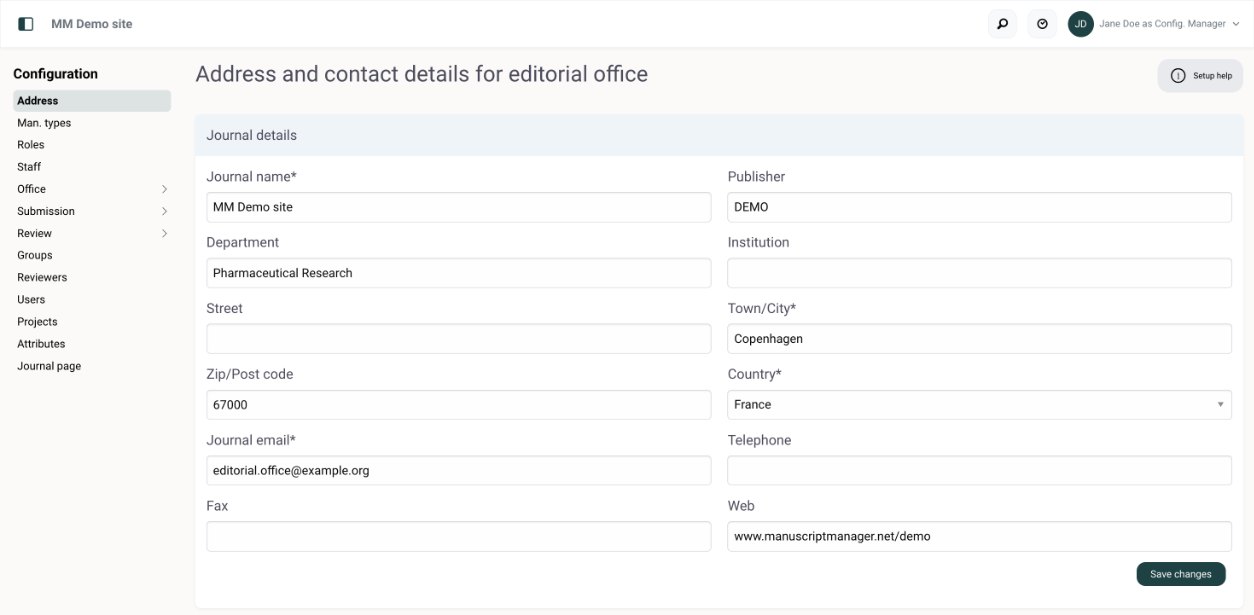
Further down, under Journal identifiers, add the journal's ISSNs, Scopus codes, access type and Crossref and ORCID identifiers.
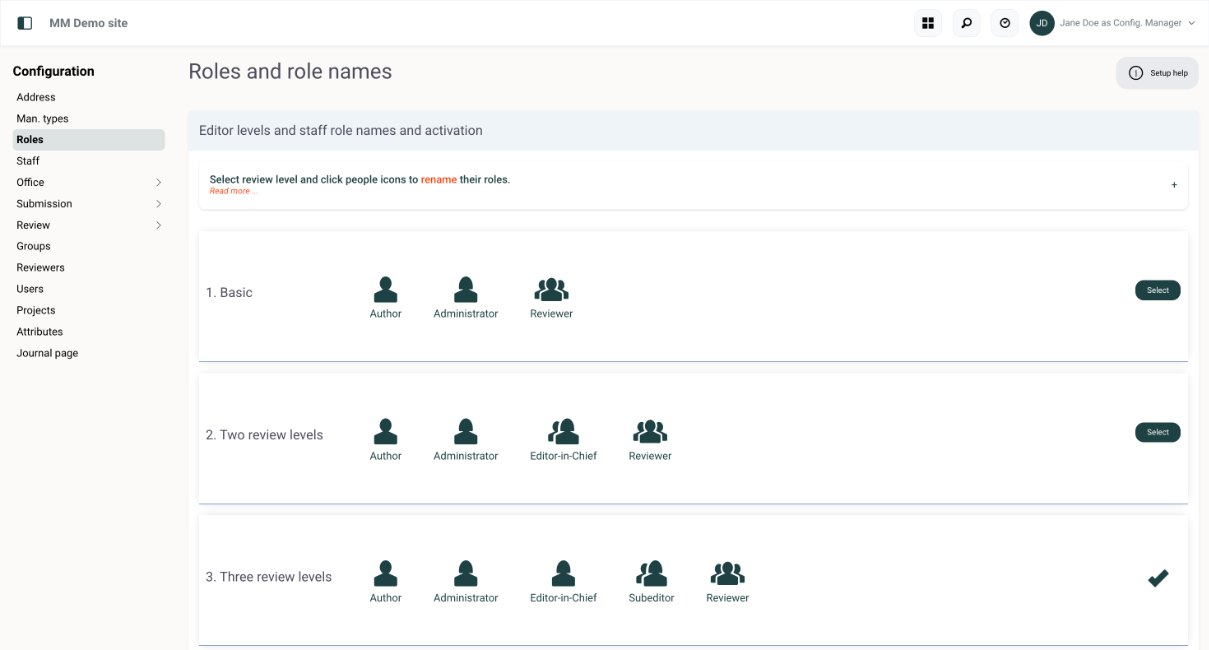
2Roles and workflow
Choose the workflow that matches how your journal works. Click Select next to one of the three editor levels:
| Level | How manuscripts move |
|---|---|
| 1. Basic | One person or a small group checks submissions, invites reviewers and sends decisions. |
| 2. Two review levels | An Administrator checks submissions and passes them to an editor, who invites reviewers and decides. |
| 3. Three review levels | An Administrator checks submissions, the Editor-in-Chief assigns a Subeditor, and the Subeditor handles the review. |
To rename a role, click its people icon and pick another name. For example, the Subeditor can be called Associate Editor or Co-Editor. If the name you need isn't in the list, contact support.
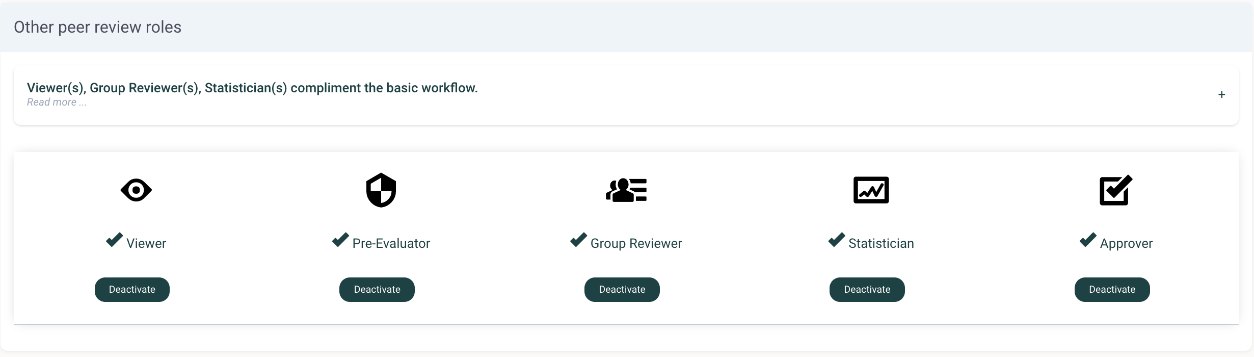
Under Other peer review roles, switch on any extra roles your journal uses:
- Viewer can see manuscripts, reviews and statistics, but can't change anything.
- Pre-Evaluator makes a quick first assessment. They can reject a manuscript, ask the author for revisions or pass it to the editorial office.
- Group Reviewer belongs to a group, often editorial board members, whose opinions are combined into one report. Group review runs alongside the usual peer review.
- Statistician is a specialist reviewer.
- Approver checks editorial decisions, usually acceptances, before they go to the author.
Choose the workflow before the journal opens for submissions. If it needs to change once manuscripts are in review, contact support first.
3Staff
The Staff page lists everyone in a staff role, grouped by role. The groups shown match the roles switched on under Roles. For each person you can see their roles, actions taken, availability and last sign-in, with buttons to email them, edit their profile or remove them from the role.
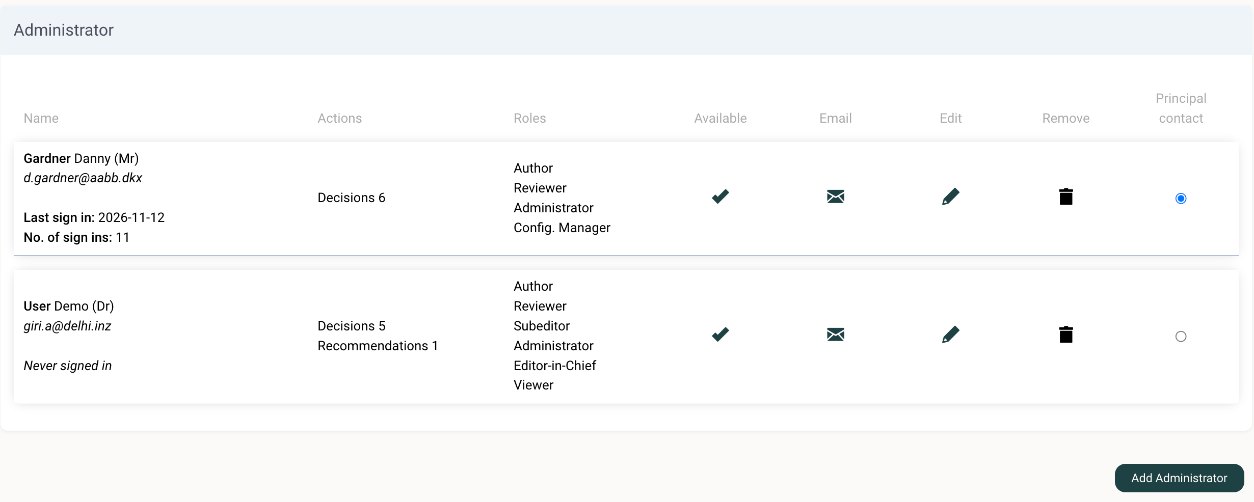
- Click Add Administrator, Add Editor-in-Chief or the button for the role you need, below that role's list.
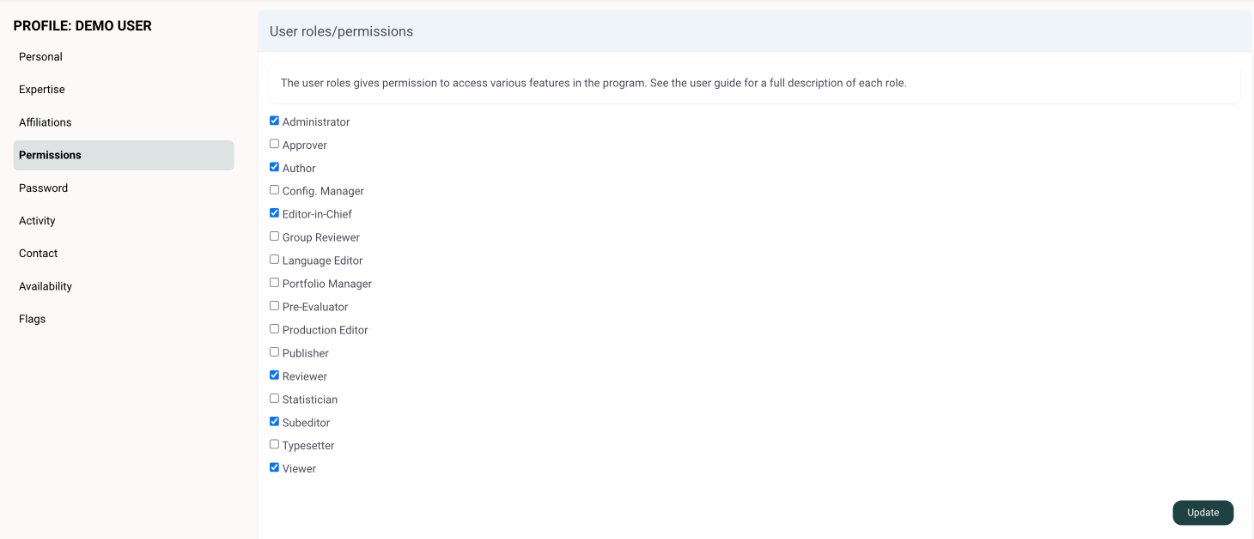
- Click the pencil to open the person's profile, then go to Permissions.
- Tick the roles the person should have, then click Update.
- For editors, set Decision or recommendation permissions further down the same page (see below).
- Choose which automatic email alerts they receive, and set their signature for email templates.
- To let a new staff member sign in for the first time, open Personal in their profile and click Send reset password email.
Removing someone from a staff role only takes away that role. Their account and history stay in the system.
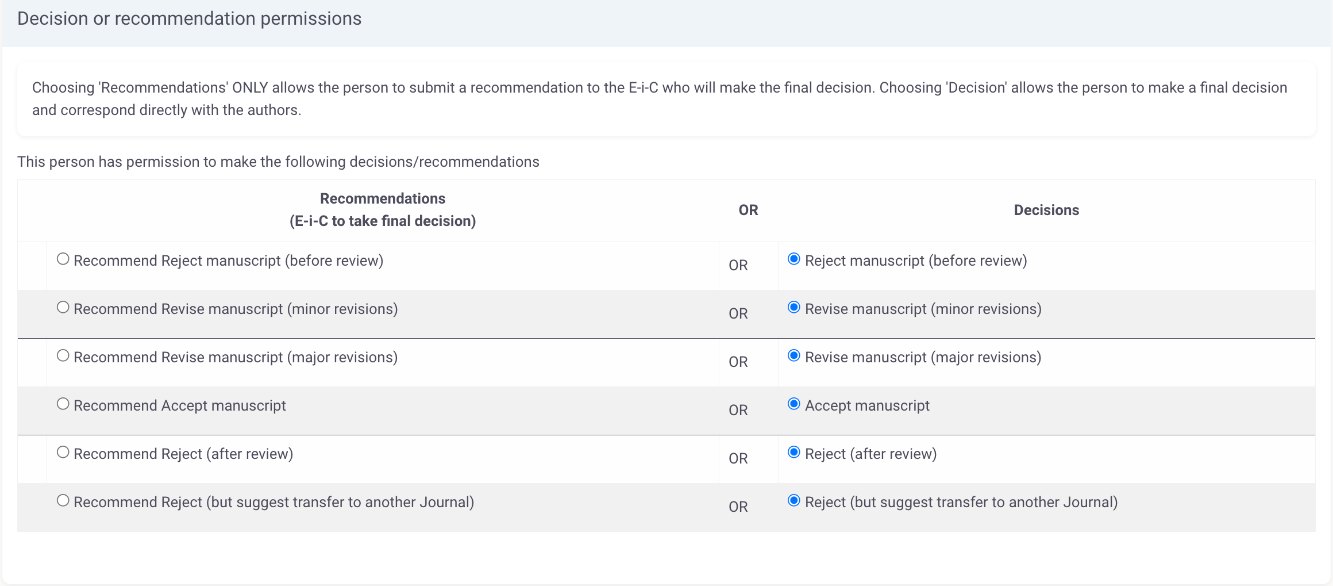
Decision or recommendation permissions
For each type of decision, choose whether the editor can make it themselves or only recommend it:
- Recommendation: the editor sends a recommendation, and the Editor-in-Chief makes the final decision.
- Decision: the editor makes the final decision and writes to the authors directly.
You set this for each decision separately: reject before review, minor revisions, major revisions, accept, reject after review, and reject with a suggested transfer. For example, a Subeditor can be allowed to reject or ask for revisions, but only recommend acceptance.
On the same page, Reviewer status sets how the person appears when reviewers are chosen:
- Editorial board or frequent reviewer: quick to find and add to a review list. They can't invite others unless they also have an editor role.
- Ordinary reviewer: invited as needed.
- Statistician: can review before the external reviewers are invited. Their report is added to the manuscript files, where external reviewers and authors can see it.
- Excluded from reviewing: left out of reviewer searches and can't be added to a review list.
Ideally, only one editor on each manuscript should be able to make the decision. Other editors send recommendations.
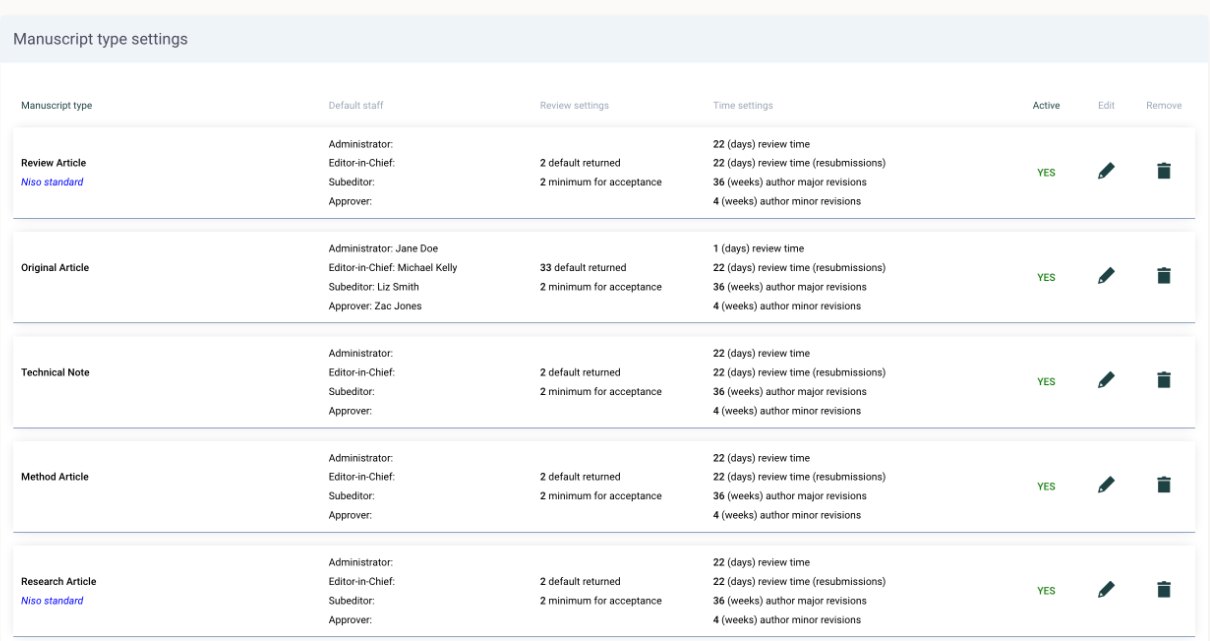
4Manuscript types
Authors choose a manuscript type at the start of their submission. The list shows every type with its default staff, review settings and time settings. Types marked Niso standard follow the NISO standard names.
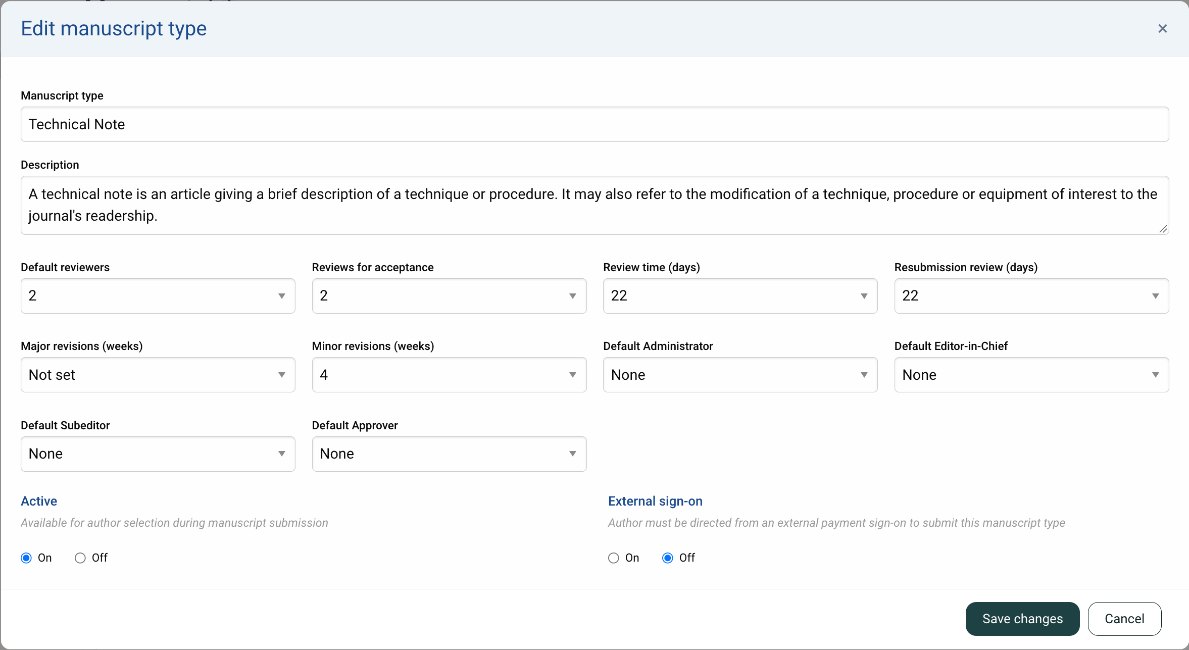
On the edit screen you can set, for this type only:
- the description authors see
- the default number of reviewers, and the number of reviews needed before acceptance
- the review time for first submissions and resubmissions, in days
- the time authors get for major and minor revisions, in weeks
- a default Administrator, Editor-in-Chief, Subeditor and Approver who are assigned automatically
- whether the type is Active, meaning authors can choose it
- External sign-on, for types that authors must reach through an external payment page
5Office preferences
Go to OfficePreferences. Each setting has its own Save changes button.
| Setting | What it does |
|---|---|
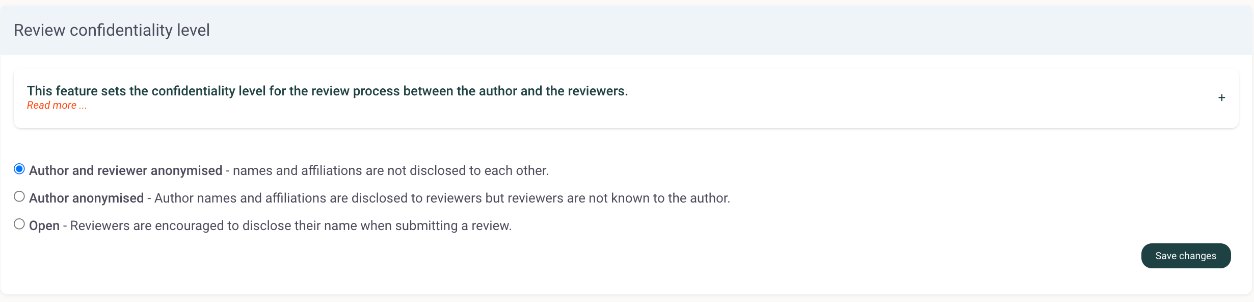
| Review confidentiality level | Author and reviewer anonymised (double-anonymous), Author anonymised (reviewers see the authors, but not the reverse) or Open (reviewers are encouraged to sign their review). Editors are always anonymous to authors unless they sign their emails. |
| Time for major and minor revisions | Weeks the author has to resubmit. The author is reminded when the time runs out. |
| Editorial staff process times | Days each staff role has for its task, such as checking a new submission, before the task turns red as overdue and the person gets an alert. Set to 0 to switch the alert off. |
| Total manuscript review time | Days before a manuscript is listed as overdue on the editorial office dashboard, whatever its stage. |
| Message on sign in page | A notice shown to everyone who signs in, such as a call for papers or office closure. |
| Manuscript Identifier | The format of manuscript numbers. Some formats add a fast search number in brackets, which you can use in the search at the top of the screen. |
| Editor access options | Stop editors from seeing their own manuscripts, let an Editor-in-Chief see other editors' manuscripts, and block acceptance until enough reviews are in. |
| Decisions and invitations | Let the Administrator send decision emails on behalf of the Editor-in-Chief, and let the Editor-in-Chief or Subeditor invite authors to submit. |
| Reminders | Reminders about transfers, revisions due, suspended manuscripts and pre-evaluations. |
| Alert addresses | Where new submission alerts and acceptance alerts for production are sent. |
| Special issue text | Introduction shown above the special issue list on the author guidelines page. |
| Default CC email | Sends a copy of every outgoing email to one address. Useful while you set up and test the journal. |
Don't change the confidentiality level while manuscripts are in review. If you do change it, update the author instructions too, since anonymised review means authors must remove their names from the files reviewers see.
6Email templates and alerts
OfficeEmail templates holds the emails staff send by hand, grouped into reviewer invitations, decisions, reminders and thank-yous, confirmations, assignments and production. Use the search box to find a template. For decision letters, the Active tick controls whether that decision can be chosen.
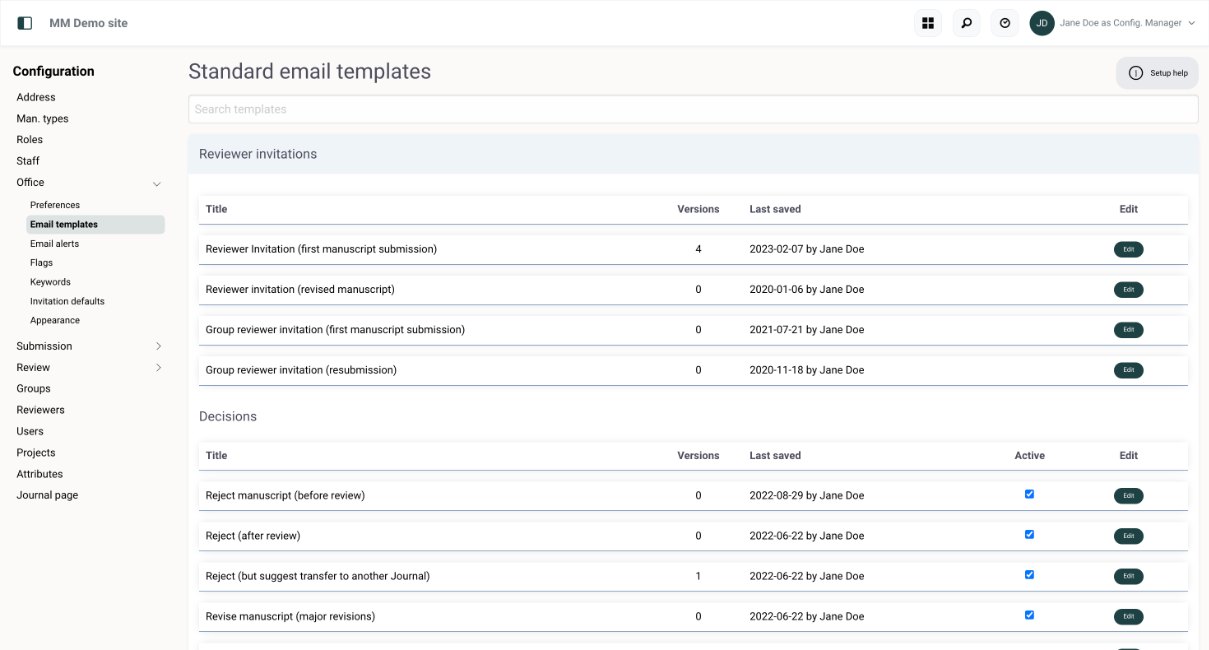
Click Edit to open a template. Edit the subject and body, then click Save.
- Tags are words in capitals between double asterisks, such as
**MANUSCRIPT_TITLE**. They are filled in with the manuscript's details when the email is sent. Click Tags to insert one where the cursor is. **FULL_SENDER_SIGNATURE**adds the sender's signature from their profile, so you don't need to type signatures into templates.- Add version creates an alternative wording. Staff choose between versions when sending the email.
- CC/BCC sets standard copy recipients, and Preview email shows the result with sample details.
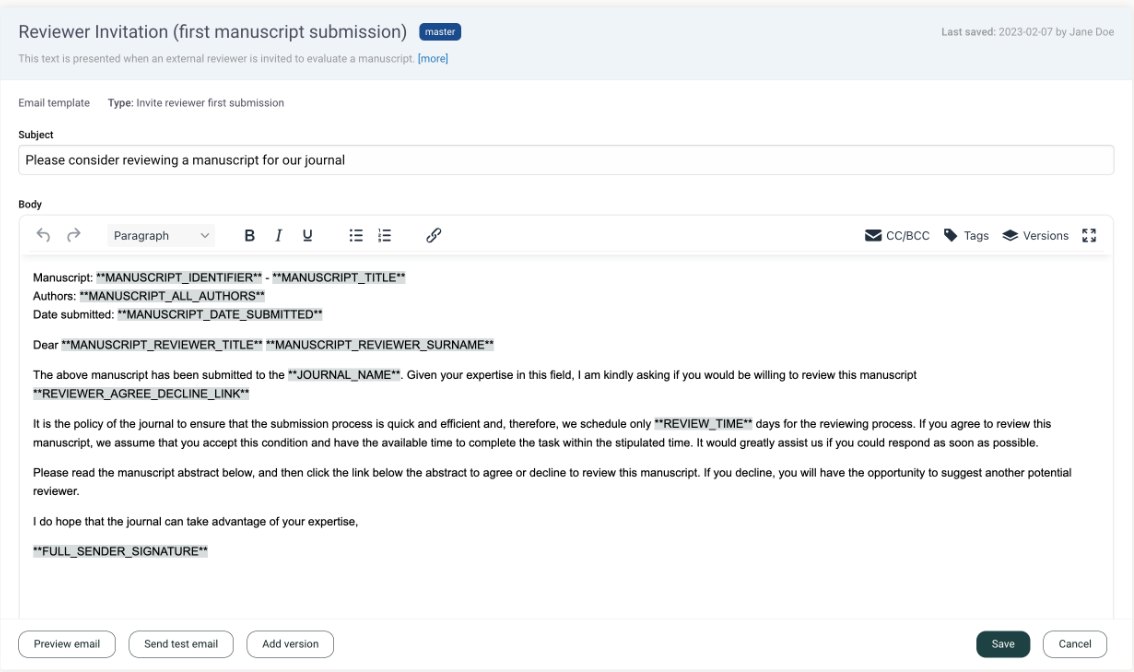
OfficeEmail alerts holds the automatic emails the system sends by itself, grouped by recipient: authors, editorial office, editors, reviewers, Editor-in-Chief and Approver. You edit them the same way.
Send test email sends a real email. Check who it goes to before clicking it.
7Submission
The Submission pages match the steps authors go through when they submit. Start with General, where you open or close the journal for new submissions and resubmissions.
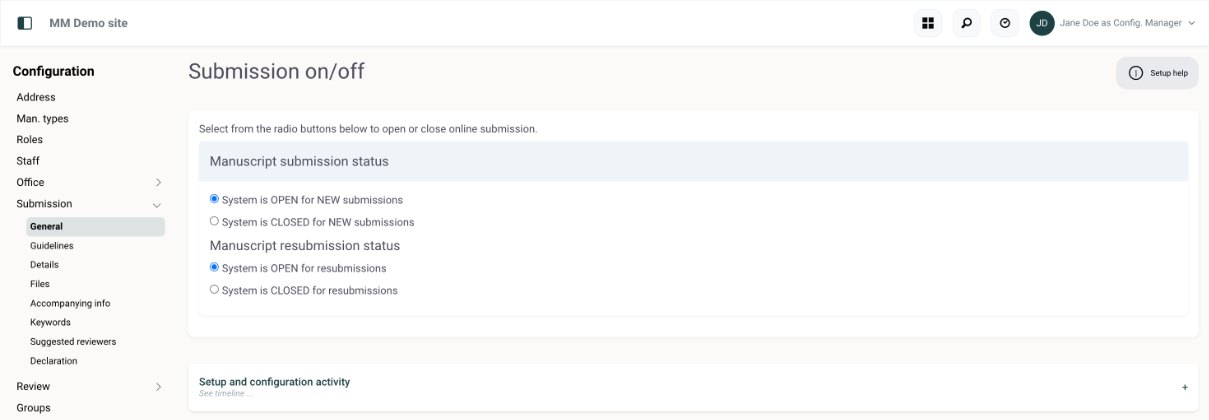
| Page | What to set |
|---|---|
| Guidelines | The text and links on the author's Guidelines step. Authors must confirm they have read the guidelines before they continue. Linking to the guidelines on the journal's website saves updating them in two places. |
| Details | The form for the manuscript's details: title, abstract, funding and any other questions. See below. |
| Files | Instructions for uploading files, and the file designations authors choose from, such as Manuscript, Figure or Cover letter. Mark designations as required where needed. |
| Accompanying info | A form, built the same way as Details, for statements and other information that accompanies the manuscript. |
| Keywords | Whether authors choose keywords, how many, and whether they can add their own. |
| Suggested reviewers | Whether authors can suggest or oppose reviewers, and whether this is optional or required. Switch it off to remove the step. |
| Declaration | The statements authors confirm before they submit, built with the same form builder. |
Build the Details form
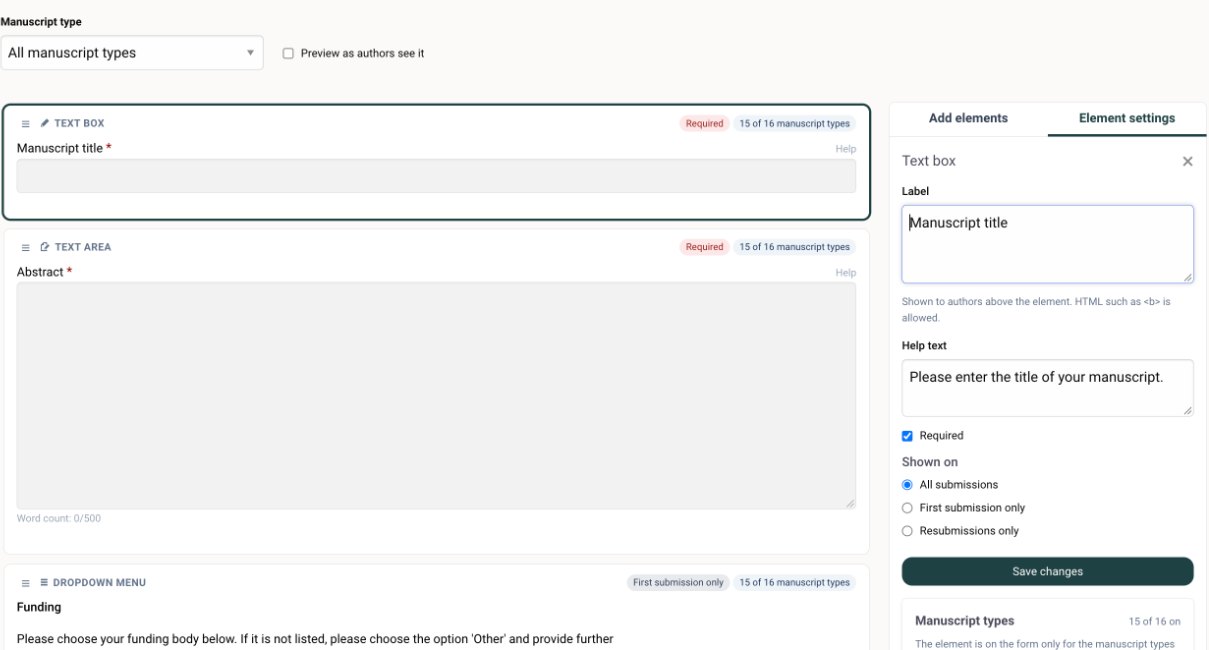
Details, Accompanying info and Declaration use a drag-and-drop form builder. The form is shown on the left and the tools on the right.
- To add a question, drag an element from Add elements onto the form, or click it to add it at the end. You can choose information text, text box, text area, checkbox, radio group, dropdown menu, date or year.
- Click an element on the form to open Element settings. Set the label and help text, whether it is Required, and whether it is shown on all submissions, first submissions only or resubmissions only.
- Under Manuscript types in the settings, choose which types the element appears for. This lets you ask different questions for, say, case reports and original articles.
- Drag elements by their handle to change the order. Click Save changes after each change.
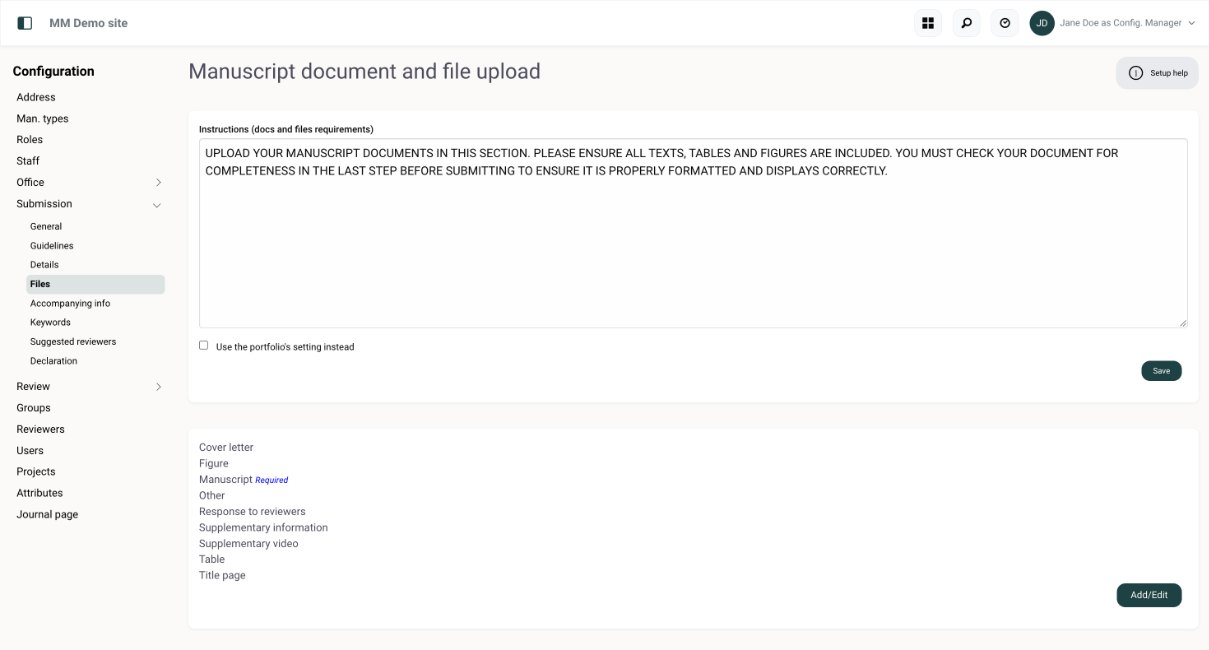
Files designated as submission statement, title page, cover letter or copyright form are left out of the PDF that reviewers see.
8Review
Go to ReviewReview preferences to set deadlines and choose how much of the reviewer process runs automatically.
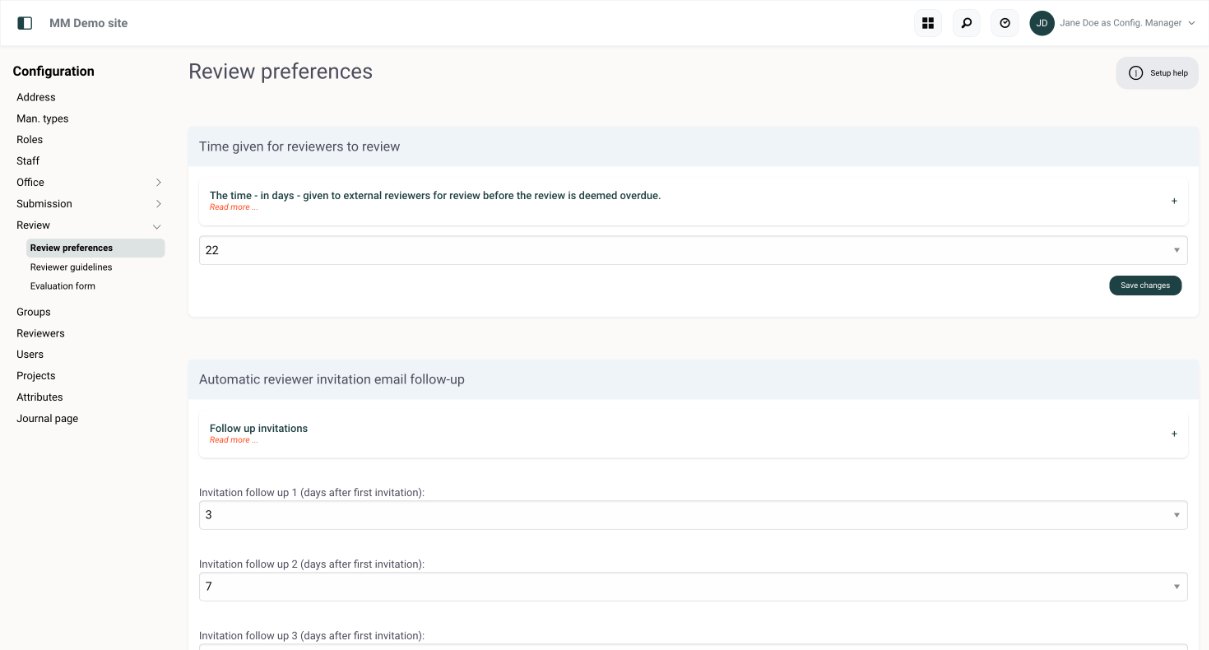
| Setting | What it does |
|---|---|
| Time given for reviewers to review | Days a reviewer has after agreeing, before the review is overdue. |
| Invitation follow-ups | Up to three reminders to reviewers who haven't answered an invitation, counted in days from the first invitation. |
| Review due alert | Days before the deadline that the reviewer is reminded. |
| Reviewer reminders | Up to three reminders after a review becomes overdue. |
| Automatic invitation on decline or cancellation | When on, the next reviewer on the invite list is invited automatically if someone declines or is cancelled. |
| Automatic reviewer cancellation | When on, an invitation is cancelled one day after the last follow-up if the reviewer hasn't answered. |
| Periodic automatic invitations | Invites a set number of reviewers at a set interval until enough have agreed. For example, 2 reviewers every 5 days. Set both to 0 to switch off. |
| Inactive review queue alert | Alerts the last person who invited a reviewer if nothing has happened in the review for this many days. |
| Batch invite reviewers | How many reviewers from the invite list are invited at once with the batch invite button. |
| Default number of external reviews | Reviews needed before an editor can decide or recommend. Editors can change it for a single manuscript. |
| Reviewer upload marked-up documents | Lets reviewers upload annotated files. Authors get them as links in the decision email. |
| Automatic reviewer suggestion | Suggests reviewers based on keywords, past reviews of similar manuscripts and past reviews of the same authors. |
| Acknowledgement and certificate | Whether reviewers get a formal acknowledgement, and whether the manuscript title appears on their certificate. |
| Co-reviewing | Lets a reviewer involve a colleague, such as a junior researcher, in the review. Switching it on adds the emails it needs to Email alerts. |
Review time, number of reviews and revision time can be set in three places. A special issue's setting overrides the manuscript type's setting, which overrides the journal-wide default here. Reminders follow whichever setting applies.
Reviewer guidelines holds the guidance reviewers see while reviewing. A link to the guidelines on the journal's website is easiest to keep up to date.
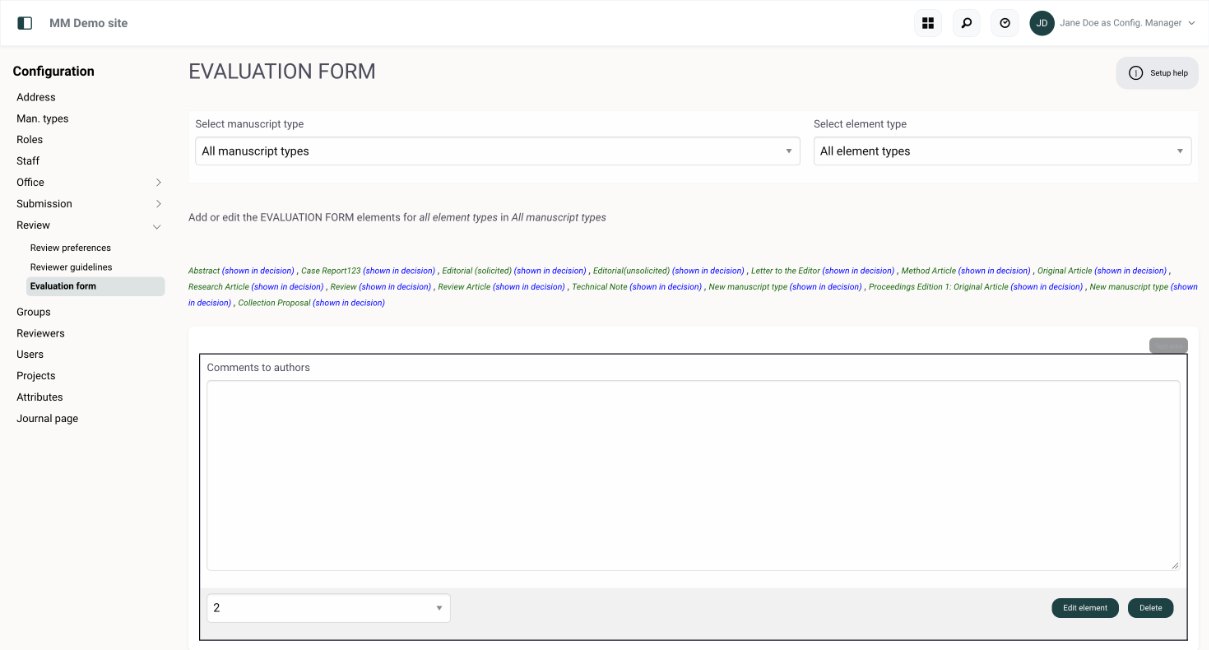
Evaluation form holds the questions reviewers answer. Use Add Element to add a question, Edit element or Delete to change one, and the number menu under each element to change the order. The menus at the top let you build a different form for each manuscript type. Click User view to see the form as a reviewer does.
9Special issues and projects
Projects lists special issues, collections, calls for papers and other projects, with their status and whether authors can choose them during submission or invitation.
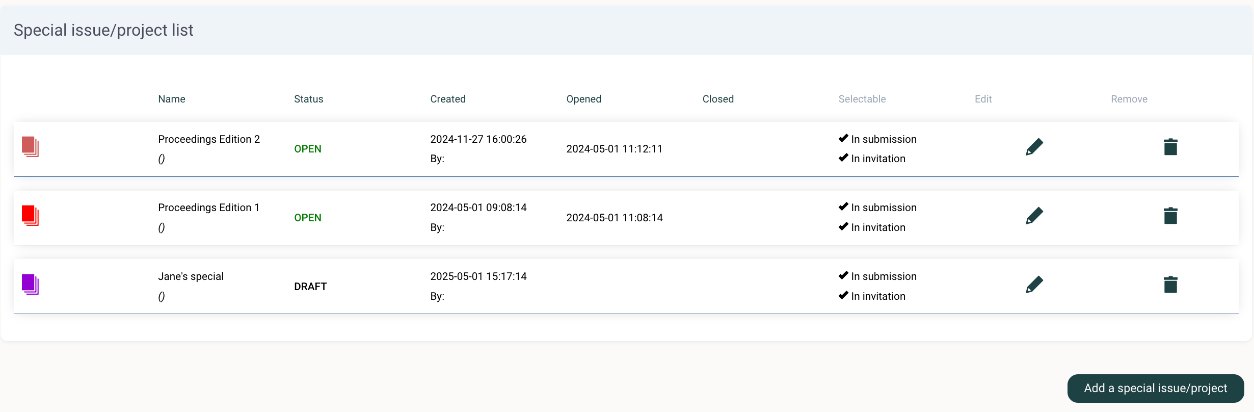
Click the pencil to set up a project. You can set:
- its name, type and status, and when it closes for submissions
- the default number of reviewers, the reviews needed for acceptance, the review time and the revision time
- whether it can be selected during submission or when inviting manuscripts
- default author charges, a colour to identify it in lists, and the default editorial office
- text for the
**SPECIAL_INFO_TEXT**tag, which you can use in email templates
Manuscripts can join a project in three ways: the author is invited to it, the author chooses it during submission, or the editorial office transfers the manuscript to it. In the new submissions list, a project's manuscripts have a colour and you can find them with the search. A project closes on its closing date, and any open invitations to submit to it are cancelled. Whoever created it gets an alert 14 days before and on the day. Only projects without manuscripts can be removed.
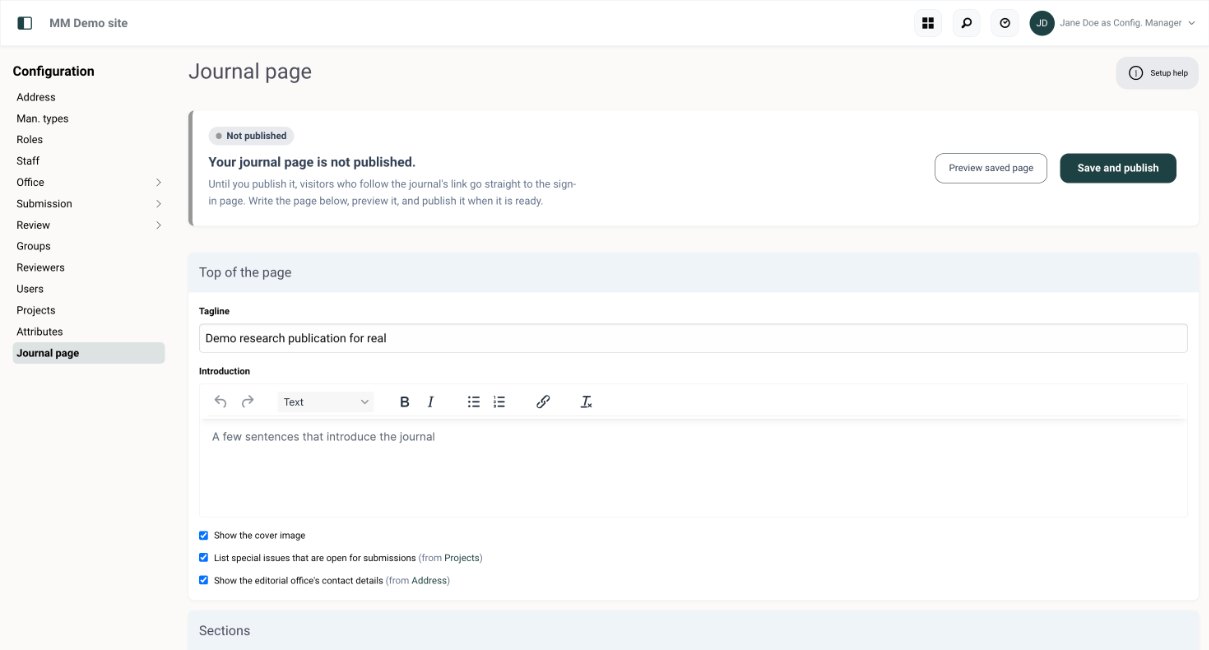
10Journal page
The journal page is an optional public landing page. Until it is published, visitors who follow the journal's link go straight to the sign-in page.
- Write a tagline and a short introduction.
- Choose whether to show the cover image, the special issues open for submission (from Projects) and the office contact details (from Address).
- Under Sections, add sections such as aims and scope, and reorder them with the up and down buttons. Sections without text are left out.
- Click Preview saved page, then Save and publish when it's ready.
Other settings
| Where | What it's for |
|---|---|
| OfficeFlags | Labels for manuscripts and user profiles, such as Statistical review or Ethical concern. Only staff see flags, and you can search by flag. Edit the labels and add your own here. |
| OfficeKeywords | The journal's keyword list, used by authors, reviewers describing their expertise, and editors searching for reviewers. Aim for 100 to 200 keywords covering the journal's subject areas. |
| OfficeInvitation defaults | For manuscripts you invite authors to submit: default handling staff, response and submission deadlines, and how many follow-ups and reminders are sent. |
| OfficeAppearance | The journal's colour scheme and cover image. |
| Groups | Group Reviewer groups, their guidelines and evaluation form, and how long the group has to respond. |
| Reviewers | The reviewer database: browse by last name, add reviewers, email reviewers in bulk and find reviewers who have never been used. To take an inactive reviewer off the list, click Remove role: their account stays in the database. |
| Users | Every account in the journal, with roles and actions. |
| Attributes | Extra fields on the registration form and user profiles. Inactive fields are hidden but keep their saved values. |
Production Manager
Managing accepted manuscripts: files and proofs, language revision and typesetting, issues and the production schedule.
Adding manuscripts to issues
Production ManagerProduction Module
Adding manuscripts to issues can be done in two different ways in the Production Module:
1. Directly from the schedule page, an issue can be opened.
Once an issue is opened, orange arrows appear next to the “unscheduled” manuscript list on the left-hand side. Clicking on the orange arrow for a specific manuscript will move it across into the issue.
To move a manuscript out of an issue, simply click the orange arrow in the manuscript details section. The order in which the manuscript should appear in the issue can also be set from the dropdown box in the manuscript details section.
2. Alternatively, the manuscripts can be assigned by using the drag and drop scheduler which is accessed by clicking on the “+” icon at the top of the left-hand menu (unscheduled manuscripts).
Manuscripts can then be dragged and dropped into the appropriate issues and moved up and down to indicate their order in the issue. The navigation arrows allow the production editor/managing editor to scroll through the various issues and volumes.
Clicking on the green “-/+” icon in the top menu contracts and expands the manuscript boxes to provide the desired overview when scheduling manuscripts.
Author-corrected files and Production
- Config. ManagerOfficePreferencesProduction alert
- DetailsProduction
When a manuscript is accepted, the production alert email is sent to the email address set in Config. ManagerOfficePreferencesProduction alert. The email states that the manuscript has been accepted.
Simultaneously the 'Production' drop-down menu appears on the 'Details' tab of the manuscript, allowing the editorial office to 'ask for author files' for the production, mark the author corrected files as 'uploaded and checked,' set the manuscript as 'ready for publication' and change the status afterward to 'published'.
Note: This drop-down menu (see image) is intended as an aid to the editorial office, but does not replace the production tracking module.
When the editorial staff member clicks 'Ask for author files,' an email template opens, with text that requests the missing files. This text can be edited so that specifics are added before the email is sent.
The author will then receive the email and have an extra button on the author dashboard to upload the requested files.
Once received, the author-corrected files can be exported with the command at the bottom of the Details tab, in order to forward to production.
See also:
Requesting Figures and Files from Authors and
Requesting Author Corrections to Files After Accceptance
Checking manuscript details and manuscript files
Production ManagerDashboardTo do / monitorView detailsDetails >
From the production overview, manuscripts new in production can be selected. The production editor can then check the manuscript files, figures, tables, etc., to ensure that the full manuscript is in a format that is publishable.
Creating volumes and issues
To create specific volumes and issues, the production editor selects “schedule” from the main menu.
To add a new volume, the production editor clicks on the “+” icon next to volume dropdown box. A new volume is automatically created.
The production editor can then complete the volume form, adding the necessary details, the year, volume label/name, and selecting a status from the dropdown box provided.
Once a volume has been added, the issues can then be added to a volume by clicking on the add issue icon.
The production editor can complete the issue form, adding the title, any notes about the issue and choosing a status.
Only issues where the status is set to open can have manuscripts assigned to them.
Once an issue is published, the publication date can be added and all manuscripts in this issue will automatically be set to published with this date.
Forwarding files to language revisers or typesetters
Production ManagerDashboardTo do / monitorView detailsDetails > production dropdown > Send to...
To forward the manuscript to the typesetter or language reviser, the production editor selects either “Send to typesetter” or ”Send to language reviser” from the yellow dropdown box in the right-hand menu.
The standard email template then opens and the production editor can edit the text accordingly before sending the email by clicking the “Save and Send Email” button.
After receiving the email, the typesetter or language reviser can log in to the website and access the manuscript files from their overview.
Forwarding to and receiving proofs from authors
To forward the proofs to the author, the production editor selects “Send proofs to authors” from the production dropdown box in the right-hand menu.
The standard email template then appears and the production editor can personalize the text accordingly before sending the email by clicking the “Save and Send Email” button.
After receiving the email, the author can log in to the website and access the typeset proof file from their overview.
The typeset proofs can also be forwarded to the editor, by including their email address in the cc field.
The author can then either send his corrections to the proof by email, or by uploading the corrected document to the site.
Getting ready for publication
Production ManagerDashboardTo do / monitorView detailsDetails > production dropdown > Ready for publication
When the production editor has made the final corrections to the manuscript typeset proof, the corrected file can be uploaded and the manuscript status set to “ready for publication”.
Production schedule
The Production Manager has access to the production schedule from his the dashboard, together with the journal’s Administrator. This allows for collaboration in scheduling manuscripts to appear in different volumes/issues.
The buttons at the top of the scheduler allow for the addition of volumes and issues. The excel feature will provide all the manuscripts in a volume to be exported grouped into issues. The desired volume can be selected from the dropdown menu and the issues opened using the + sign in the issue header.
Opening an issue shows a breakdown of parameters such as number of pages, figure, tables etc. Along with the list of manuscripts currently assigned to the issue. The order of publication can be changed using the order drop down or manuscripts removed from the issues using the refresh icon.
At the bottom of the issue is a green box that shows all manuscript that have yet to be assigned to an issue. The PE or EiC can scroll through the list and add any manuscripts to the currently opened issue by clicking the radio buttons.
Using the alternative view, manuscripts can be dragged-and-dropped between the unscheduled list and the issue and then dragged so they are listed in the preferred order.
Requesting figures and files from the authors
Once a manuscript is accepted, any 'author-corrected' files necessary for the production process can be requested from the Details tab.
Navigate to the manuscript 'Details' page and select from the 'Production' dropdown menu “ask for author files”.
The standard email template then opens and the production editor can personalise the text accordingly before sending the email to the author by clicking the “Save and Send Email” button.
After receiving the email, the author can log in to the upload the requested files. The production editor is then alerted when the authors have submitted the necessary files and the manuscript will appear in the “check author corrections” section on the dashboard.
Setting status to ‘published’
When a manuscript is published, the status can be set to “published” from the Details tab of the manuscript in the production drop-down menu.
Production Roles
Switched on in Config. ManagerRolesProduction Roles
Production Roles
If the Production module is active for your journal, the relevant production roles are available for activation and deactivation on the the Config. ManagerRoles tab; and a production alert email can be set up in Config. ManagerOfficePreferences.
Production Editor
The Production Editor has an overview all manuscripts that have been accepted for publication. A Production Editor can assign (s) and Language Editor(s) and also forward manuscript proofs to Author(s).
Language Editor
Can download accepted manuscripts and upload corrected files.
Typesetter
Can access accepted and corrected manuscript files and upload typeset proofs.
Production Alert Email
To change the production alert email see the Config. ManagerOfficePreferences tab.
Author corrections after acceptance
When a manuscript is accepted, a Production menu appears on its Details tab for staff who can see that tab. It offers: Ask author for files, Author corrected files are uploaded and checked, Set to ready for publication and Set status to published.
- Choose Ask author for files. An email opens: say which files the author should correct or provide, and send it.
- The author gets an upload button on their dashboard, uploads each file with its file type, and sends the files.
- The editorial office is notified. Check the corrected files, rename them if needed, and delete the files they replace.
- Set the status to Author corrected files are uploaded and checked. The manuscript leaves the check files list and can be exported to production.
Other roles
Optional roles that a journal can switch on when it needs them: Approver, Group Reviewer, Pre-Evaluator, Viewer, Statistician, Language reviser, Typesetter and Publisher.
Approver
The 'Approver' is an optional role that can be activated in the journal workflow. The approver can be utilised in three different ways:
1. As a standard part of the peer review process
The approver will be responsible for the final say on all manuscripts irrespective of the number of reviews a manuscript has procured.
2. As an 'adhoc' assigned final approver in certain cases
The approver might be added by the editorial office for special issue manuscripts, or if certain manuscript types require checking by the publisher, or one last internal expert before acceptance.
3. As an automatically assigned final approver for any manuscript that does not meet the "number of reviews required"
Activation of the approver would occur if an editor attempted to accept a manuscript without the required number of reviews having been met for that manuscript type. The approver can then either ask the editor to reconsider his/her decision or approve the decision and forward the correspondence to the authors.
Note: 'Number of reviews required'
The default number of reviews required can be set in the Config. ManagerOfficePreferences section. This setting will be overridden, however, by the required number of reviews set in the manuscript type itself or in the special issues section if the manuscript pertains to a special issue.
Please contact support@manuscriptmanager.com to activate of the approver role for the use cases described.
Group Reviewer
Switched on in Config. ManagerRolesOther peer review roles
Group review/ Assessment
Activating the Group Review feature will allow you to set up a special group of Reviewers. These are usually editorial board members or trusted experts who are invited to make a quick assessment of a manuscript. The group reviews are complied into a single report for easy dissemination by the editorial staff and/or Author(s).
Timing of Group Review/ Assessment
Group review works in parallel with the usual peer review process and can be group reviewers can be invited before, during or after external peer review.
Dashboard and Staff Displays
Once Group Review/Assessment is activated on the Config. ManagerRoles page, the additional staff category will display on the Config. ManagerStaff page, so that group reviewers can be added.
In addition, the Administrative dashboard and manuscript lists display the group review information.
Group Reviewer role
To be a Group Reviewer, the Group Reviewer role must be added in the 'Permissions' section of the user profile. SearchEdit ProfilePermissionsUpdate
Pre-Evaluator
The pre-evaluator role is intended as an expert screening role. The pre-evaluator will quickly assess the quality of the raw manuscript as the submission is received but before it is prepared for and sent to review.
The pre-evaluator can assess the manuscript in it's submitted form and decide whether it should be rejected outright or sent to the EiC and into review.
Rejection can be communicated directly to the authors at the pre-evaluation stage by the pre-evaluator.
If the manuscript is deemed worthy of review, an alert is sent to the editorial office so the manuscript can be checked and prepared for review before being passed on to the EiC.
In order to grant a user the pre-evaluator role, the role must first be activated by the Config. Manager in Config. ManagerRolesOther peer review roles
Viewer
The 'Viewer' role is a role which allows the user to have an overview of all journal activities, but does not allow the user to take action. A viewer can see the dashboard and where all manuscripts are in their review process much like an administrator. A viewer can also open manuscript files to see its details.
To make the viewer role available, the Config. Manager must first activate the role on the Config. ManagerRoles page under, 'Other peer review roles.'
Once this is done, the role is selectable in the user profile under PermissionsUser roles/permissions
Statistician
Responding to an invitation
If the statistician is invited to review a manuscript, they will receive an email invitation. The links in the email will allow the statistician to agree or decline to review the specific manuscript.
Choosing to review a manuscript without invitation
The statistician also has the option to view all manuscripts in the review process (under review). The statistician can see these manuscripts in the Dashboard. A list of manuscripts will appear and the pdf file of each manuscript can be opened. The statistician can agree to review by clicking on the appropriate icon.
Reviewing a manuscript
The statistician reviews a manuscript in the same way as a standard reviewer, completing the three-step process, “comments to the authors”, “confidential” and “questionnaire” sections. See reviewer for more details on how to do this.
Review history
All manuscripts previously reviewed by the statistician can be viewed from the “review history” section.
Language reviser
Receiving notification of manuscripts for revision
When a manuscript is assigned to the language reviser, they receive an email alert. The language reviser can then log in and see the manuscript waiting in the Dashboard.
Downloading manuscript files
The language reviser navigates to the manuscript from the Dashboard and can download the author-submitted files from the “details” page.
Uploading manuscript files
When the revisions are completed, the language reviser can upload the revised file by selecting “upload a revised manuscript” from the dropdown box in the right-hand menu. This opens a new page and the language reviser is prompted to find the file on their computer and upload it.
Notifying production editor
Clicking on “send files” will alert the production editor by email that the language-revised file has been uploaded.
Typesetter
Receiving notification of manuscripts for revision
When a manuscript is assigned to the typesetter, they receive an email alert. The typesetter can then log in and see the manuscript waiting in the Dashboard “to do list”.
Downloading manuscript files
The typesetter navigates to the manuscript from the “to do list” and can download the author-submitted files from the “details” page.
Uploading manuscript files
When the revisions are completed, the typesetter can upload the revised file by selecting “upload a revised manuscript” from the yellow dropdown box in the top right-hand menu. This opens a new page and the typesetter is prompted to find the file on their computer and upload it.
Notifying production editor
Clicking on “send files” will alert the production editor by email that the typeset file has been uploaded
Publisher
Receiving notification of manuscripts for revision
When a manuscript is accepted for publication, the publisher-contact will receive an email alert. The publisher contact can then log in and see the manuscript waiting in the “manuscript” list.
Downloading manuscript files
The publisher contact navigates to the manuscript from the Dashboard list and can download the author-submitted files from the “Details” tab.
Manuscript scheduling
If the Administrator/ Production Editor has added manuscripts to the manuscript schedule, the publisher contact can view the volume and issue for the journal by navigating the schedule section.
Note: The production alert email is set by the journal administrator in the Configure section.
Frequently asked questions
Answers on submission, review, journal administration, workflows, security and moving to Manuscript Manager.
Help articles
Accounts and sign-in
Why can't I find my account?
There could be a number of reasons why you can't find your account, if you have previously reviewed and/or submitted manuscripts to the journal.
1. You may have created an account or had an account created for you with a different email address. Try retrieving your password with a different email address.
2. The journal may have changed peer review systems and your account may not have been transferred. if you have already tried to retrieve your password with a different email address, and did not succeed, create a new account in order to submit a new manuscript.
Contact support@manuscriptmanager.net if you require assistance signing in.
If you are looking for a manuscript that was previously submitted, we suggest that you check on the publisher's homepage of the journal for further instructions on how to access your manuscript in the old system, or contact the journal's editorial office.
Learn more: Author › Before you start
How does Manuscript Manager prevent duplicate accounts?
When someone creates an account, their email address is checked against existing accounts. If they already have one, they are offered a password reset instead. Signing in with ORCID also helps.
For the same reason, editors and the editorial office must search for a reviewer before they can add a new one: the person may already be in the database.
If someone still ends up with two accounts, for example under different email addresses, the editorial office can merge them.
Learn more: Editorial office › Merging duplicate accounts · Editorial office › Add a reviewer who isn't in the database
Why am I not receiving a password reset email?
The password reset email, may have been intercepted by an institutional filter or otherwise may have ended up in SPAM. Contact IT support in your organisation to amend filter settings.
To manually trigger a password reset email, simply navigate to the user profile's 'Password' tab and click 'Reset and send password'.
Contact Manuscript Manager support if you or one of the journal's users did not receive a password reset email and you would like to request that we investigate.How do I update a user profile?
Everyone can update their own details at any time: click Profile in the menu at the top of the page. Depending on the role, you can change your affiliation, email address, postal address and country, password, and areas of expertise and keywords.
Reviewers should keep their expertise up to date, because editors search for reviewers by expertise and keywords.
The editorial office can update any user's profile: search for the person, open their profile and click Edit profile. Editors can update a reviewer's profile by clicking the reviewer's name in the reviewer list.
Learn more: Reviewer › Your details and expertise · Editorial office › Searching
What is proxying, and who can do it?
Proxying is performing tasks on behalf of others. In Manuscript Manager, only the editorial office administrator role can proxy as other users. The [Proxy] button is available to the administrator via a users profile. The [Proxy] button also appears next to the editors' names in the review page.
Learn more: Editorial office › Working on behalf of a user
Manuscript submission
Can authors choose between manuscript types?
ConfigureManuscript Types
Manuscript Types: The journal site is pre-configured with a list of NISO standard manuscript types. In addition, Configure Managers and some administrators can access this list via ConfigureMansucript Types, add to the manuscript types list if necessary, and decide which types should be activated. If activated, that type will appear to authors for selection upon submission.
Note: Once manuscript types are selected by authors, they cannot be deleted from the list, but they can be de-activated so that they won't be presented for future selection.
Default staff: Default staff can be set by each manuscript type in ConfigureManuscript Types. If no staff are selected the system will simply assign the default staff or staff set in the office preferences section for incoming manuscripts.
Default number of reviewers: The default number of reviewers can also be set by manuscript type in ConfigureManuscript types. This is the number of reviewers required to return a review before a decision can be made. If the number of default reviewers is not set by manuscript type, the system will revert to the setting in ConfigureReview.
Minimum total reviews and editor review/recommendations: This is the minimum number of reviews by unique reviewers in total (across all submissions, including the editors' comments to the authors) which are required before a manuscript can be accepted. This setting works with the 'Acceptance block' setting in office preferences and is only relevant if acceptance blocking is switched on. An editor recommendation must include comments to the author to count as a review.
Manuscript type descriptions: Adding a description for a manuscript type on in its settings will allow for specific guidelines for the chosen manuscript type to appear in author submission.
Learn more: Config. Manager › Manuscript types · Author › Choose the manuscript type
Can the submission form be customised?
Yes. The journal can add any number of text fields, drop-down menus and radio button groups to the submission, make them required, and set a word limit for each text field. Before the author can submit, a final check makes sure everything required has been filled in.
Learn more: Config. Manager › Submission
How are abstracts handled?
Every submission needs an abstract or short summary, even for manuscript types that don't usually have one. It is sent to reviewers with their invitation, so they can decide whether to accept.
Authors usually type or paste it into one text box during submission, and the journal sets its label, instructions and word limit. For a structured abstract, the box can be split into separate parts. Active author guidelines, a paid feature, can also check that the abstract has the required structure.
Learn more: Author › Details · Config. Manager › Build the Details form
Which file types can be uploaded, and how is the review PDF made?
Authors can upload doc, docx, pdf, tex, latex, bib, bibtex, jpg, jpeg, png, tif, tiff, eps, xls, xlsx, ppt, pptx, mp4 and ogg files.
The files marked for the PDF are converted and combined into one PDF, in the order of the file list. Line numbers are added automatically, so authors don't need to add them. Files that shouldn't go to reviewers, such as a title page or a copyright form, are left out. Authors check the PDF before they submit, and in double-blind review it is the only file reviewers see.
Learn more: Author › Attachments · Author › Send
Can forms, such as a copyright form, be required at submission?
Yes, submission and copyright forms can be uploaded as WORD or PDF or scanned image files. The program can be set so these file types are either optional or compulsory to upload during online submission.
Authors upload all files on the 'Documents' tab in the submission process, first by choosing the file then by selecting the file type, before clicking to upload. Accompanying letters typically can be copy-pasted into the space provided on the 'Letter' tab.
Learn more: Config. Manager › Submission · Author › Attachments
What if the submission PDF won't open?
In the final step of submitting a manuscript, if the PDF will not display, this usually means that one of the submission files has a formatting or size issue. It is therefore best to check which file is the problematic file and then delete it and re-upload a new version.
The checking of the files is done by making use of the 'Hide from reviewers' option in the 'Visibility' column on the files list of the 'Documents' tab.
Hide one file at a time, each time try to view the PDF on the 'Send' tab. The process of elimination will identify the problematic file(s) which can then be reformatted and re-uploaded.
Contact the journal's editorial office for if you cannot identify and/or replace the file(s) that will not convert.
Learn more: Author › Send
What is the difference between the submitting and corresponding author?
The submitting author submits the manuscript online via their user profile. This person is also labelled the, "Contact person". The contact person label is listed next to author name in the manuscript record:
Other author labels
When the contact person adds co-authors to the manuscript submission, a label for the author can be selected:
Corresponding author
"Corresponding author" is usually used to designate the main author of the work.
Resubmissions
The program will always correspond with the submitting/contact author only. Resubmissions must be made by the contact author.
If necessary, the contact author can be changed. Please contact the editorial office if you require assistance with this.
Learn more: Author › Submitting and corresponding author
Does Manuscript Manager support co-authors?
Yes, Manuscript Manager supports co-authors. Co-authors are added to the database by the submitting author, and later receive a notification of the submission. Co-authors can track progress from their Co-author account. Co-authors can also confirm that they are indeed a co-author from a link in the submission notification email.
Learn more: Author › Authors
How do authors submit to a special issue?
A special issue or special project is a collection of articles focused on a specific theme or topic within the journal's broader scope. These issues are typically guest-edited by experts in the field and are designed to highlight recent developments, emerging trends, or significant research areas that are of particular interest to the academic community.
Creating Special Issue
To create a special issue, Configure Managers can navigate to ConfigureSpecial projects. Once the project or issue has been created, and you are ready to accept submissions for that project or issue, change the status to 'Open' in the settings.
Allocating submissions to special issue
Manuscripts can only be added to special issues or projects with 'Open' status.
If you would like to add manuscripts to a project, change status to 'Open'.
Learn more: Config. Manager › Special issues and projects
How do I invite an author to submit a manuscript?
Manuscript invitations
Authors invited to submit are typically identified and chosen by publication staff and/or the journal’s editors.
Once the, 'Invite a Manuscript' feature is activated, an, 'Invite Manuscript' button will appear on the editor dashboard. Selecting this will open a form allowing the editor to fill in the necessary information before sending the invitation.
The manuscript type and special issue/project (if any are open) can be chosen as defaults together with the handling staff and editors.
Cut off dates for responding to the invitation and completing the submission can be set along with the number of follow up invitations and reminders to submit.
If preferred, the defaults can be overwritten by the inviter during the invitation process if there is a field that requires a different setting.
Note:
It is possible to use default settings to populate the invitation form. These are set in ConfigureSubmissionInvitation Defaults
In addition, the defaults can be reset at any time or by clicking on the ‘set defaults’ link at the top of the manuscript invitation page.
The manuscript invitation page consists of 4 sections. See each section in detail below:
1. Manuscript details
The title of the proposed submission, the manuscript type and the special issue/project can be set.
2. Author details
The name and email of the author to be invited can be added here:
3. Automatic correspondence
Invitation response and submission cutoff dates can be set. These affect how much time is allowed for follow up invitations and reminders to be sent (Follow-up invitations every 7 days before cut off date; Reminders every 7 days before cut off date)
4. Handling staff and editors
The staff can be preset and are assigned on submission.
Note:
If a co-editor/associate editor is set then they are tasked with taking action on the manuscript before the assigned Editor-in-Chief when the review process is started.
The manuscript type and special issue/project (if any are open) can be chosen as defaults together with the handling staff and editors.
Also, cut off dates for responding to the invitation and completing the submission can be set along with the number of follow up invitations and reminders to submit.
Default settings
The defaults can be overwritten by the inviterin the moment of the invitation if there is a field that requires a different setting.
The defaults can be reset at any time in the CONFIGURE -> Office section or by clicking on the ‘set defaults’ link at the top of the manuscript invitation page.
Learn more: Editorial office › Inviting a manuscript · Config. Manager › Invitation defaults
What is the difference between remaking and resubmitting a manuscript?
Remake/ resend
The author is asked to remake or resend a submission by the editorial office if the submission is incomplete or has been suspended to be corrected. Remaking or resending the submission will utilise the same manuscript ID number.
Resubmit
Resubmissions are manuscripts that have been sent in again after they were reviewed and given a 'revise' decision.
The author revises the manuscript and resubmits using the button on the submitting author dashboard so that it can be re-evaluated and compared with the previous version of the manuscript. The same manuscript ID number is utilised.
Learn more: Editorial office › Suspend, withdraw or transfer · Author › Revising and resubmitting
Will I be alerted if an author submits the same manuscript twice?
Yes, there is a check on incoming manuscripts against those already in the journal database. The editorial office is alerted if the incoming manuscript has a character match that is 85% or more similar to an existing manuscript.
Learn more: Editorial office › Check the submission
Manuscript review
Can the full manuscript PDF file be seen by a potential reviewer before they agree to review?
No, the PDF manuscript is not available to reviewers before they accept or decline an invitation to review in our system.
The judgement to review or not is made from viewing the abstract, which is available in the invitation email.
The manuscript is a confidential document and it is important the journal can document who has had access to it.
Learn more: Reviewer › Responding to an invitation
Which files are in the PDF that reviewers see?
Files can be automatically or manually hidden from the PDF seen by reviewers. This is controlled first by authors during the submission process and can later be set by editorial staff. This is usually done during the check of new submissions and before 'starting review'. This is done from the 'Details' tab of the manuscript.
Authors hide files during submission:
Once files are uploaded during submission on the 'Documents' tab, the list of files appears. On this list, authors can click 'hide from reviewers' next to any file which should not be seen by reviewers. This should apply to any file which contains author information submitted to a journal running a double blind review; as well as files which are irrelevant for reviewers, such as copyright forms. These file will then be excluded from the PDF of the manuscript shown to reviewers. The author can check the PDF seen by reviewers in the last step before submitting to make sure that the files that should be excluded from the PDF are indeed excluded.
Default settings for Double -blind:
Default settings to hide sensitive or unnecessary files for a double blind review can be employed by selecting standard file designations.
Files will be automatically hidden upon upload if the below file designations are utlised by the journal in a default double-blind setting.
When uploading submission files, authors must select a file designation, however these file designation must first be made available by the journal in the Configure sefction.
Files uploaded and labelled with the following file designations will automatically be excluded from the PDF.
Submission Statement
Title Page (with names and institutions)
Cover Letter
Copyright Form
The designations referred to below are included in the default list of file designations accessible by Configure Managers and some administrators in ConfigureSubmissionFiles.
Learn more: Config. Manager › Submission · Editorial office › Check the submission
How do I ensure a review is double-blind?
These are the steps you must take as an editorial office administrator to ensure anonymity in a double-blind review process.
1. In ConfigureOfficePreferencesReview confidentiality level, switch double blind review ON
2. In ConfigureSubmissionFiles select the following file labels as required documents for all submissions
Manuscript (blinded)
Title Page (with names and institutions)
3. Ensure that the instructions to authors emphasize that documents submitted (apart from the title pages) should not contain any references to the authors or acknowledgements that may reveal their identity.
4. Ensure any reviewer marked-up documents do not contain references to the reviewers.
Once manuscripts are submitted, Administrators are able to check the submitted files to be sure no author information is revealed inappropriately to reviewers. Visibility settings can be changed if necessary so that sensitive information will not appear in the PDF shown to reviewers. This type of administrative check and possible correction will be necessary if the above file names are not utilised.
Learn more: Config. Manager › Office preferences · Editorial office › Check the submission
Why can't I see all reviewers at once when searching?
Some journals may have thousands of reviewers in their databases so providing a list of all reviewers would be unhelpful in identifying experts for specific manuscripts.
The platform has a number of search parameters available to identify potential reviewers. An editor can search on name or expertise keywords for example or browser through the database using the A to Z listings.
Editorial Board / Frequent Reviewers
A journal may consider using the 'Ed. Board/Frequent' reviewer list to quickly display a list of trusted, regular reviewers.
For reviewers to appear in this list, the editorial office should tick the 'Ed. Board/Frequent reviewer' checkbox on the reviewer's profile > permissions page in the 'Reviewer' section.
Learn more: Editorial office › Find reviewers
How many reviews does a manuscript need?
The journal sets a default, usually two, in Config. ManagerReview. For a single manuscript, the editors can change it on the Review tab, above the reviewer list, for example to three if the first two reviews disagree.
When the required number of reviews is in, the responsible editor is alerted and can make a decision or recommendation on the Decision tab.
Learn more: Subeditor › Manage the reviewers · Config. Manager › Review
How do automatic reviewer invitations and cancellations work?
If automatic invitation is on, put the reviewer list in order of preference and invite the first reviewer. If a reviewer declines, doesn't answer in time or is cancelled, the next reviewer on the list is invited automatically, until enough reviews are on the way. Set a reviewer's number to 0 to leave them out.
If automatic cancellation is on, a reviewer who hasn't answered gets a cancellation email the day after the last follow-up invitation. A cancelled reviewer can be invited again with the circular arrow next to their name.
The timings are set in Config. ManagerReview.
Learn more: Editorial office › Reviewer invitation strategy · Config. Manager › Review
Can reviewers upload marked-up documents?
Yes, it is possible to upload a mark-up during the reviewer evaluation process if the journal has the marked-up documents feature activated. Please contact the journal's editorial office if this feature is not activated.
The reviewer should ensure to hide authorship of the documents to be uploaded if the journal uses a double-blind review process.
Uploaded documents are linked directly to the decision email to the authors and are available to the editorial staff.
Learn more: Config. Manager › Review · Reviewer › Mark ups
Can a review be edited by the editor or editorial staff?
Yes, if necessary, reviews can be edited by the editorial office administrator by clicking on the review icon on the 'view review' link next to the relevant reviewer on the manuscript 'review' page.
Edits can also be made to the review in the decision letter itself before sending to the author.
Learn more: Subeditor › Read the reviews
Can the editorial staff add a review on behalf of a reviewer?
Yes, the editorial office can [Proxy] as a reviewer and add the review on their behalf. However, it can prove difficult for journals that have long reviewer questionnaires as the reviewer rarely provides answers to the questions if they email their comments to the editorial office.
In these cases, it is usually better to encourage the reviewer to complete their review online
Learn more: Editorial office › Working on behalf of a user
Can I see the reviews of an earlier version of a manuscript?
The 'Previous reviews and author responses' button is next to the review PDF button on the Details tab of a resubmitted manuscript. It will display the reviewers' previous reviews as part of the decision text to the authors from the previous decision.
Details tab
To see the actual recommendation and full review including the reviewer questionnaire, click, 'Swtich version,' on the Details tab to view the previous version of the manuscript.
Review tab
Then click the 'Review' tab to view the reviewer list.
At the review icons next to each reviewer's name - click 'view review' to see complete review.
Learn more: Editorial office › Handling a resubmission
How do reviewers get acknowledgement for a review?
Once you have completed a review, a link appears on your reviewer dashboard - "Get acknowledgement for your review". Clicking this link will give you a number of options depending on the journal's installed services.
You will always be able to print a certificate that you can use to verify that you have completed a review for the journal.
Also, you may be able to send your review information directly to Publons or ORCID if these services are available. If they are not available through Manuscript Manager and you do have an account with either of these services, you can usually send the "Thank you for your review," email to them, so your contribution can be registered.
Learn more: Reviewer › Completed reviews and acknowledgement
Emails and alerts
How are emails sent and delivered?
All emails about a manuscript, such as invitations, reminders and decision letters, are sent from Manuscript Manager, and a copy of each is kept under Correspondence on the manuscript's Details tab. There's no need to send them from a personal email account.
Automatic alerts, such as reminders, use the editorial office's address as the reply-to address. It is set when the journal site is created; contact support to change it. Emails that a person sends, such as a decision letter, use the sender's own address, unless their profile says otherwise. Replies and bounced emails go to the sender or the editorial office.
If you think emails are being blocked or sent to spam, contact support.
Learn more: Editorial office › Contacting authors, reviewers and editors
Which reminders and alerts are sent, and can they be changed?
Manuscript Manager sends reminders and alerts at each stage of the review, so people know when a task is due or overdue.
- Editorial staff: each role has a number of days for its task, set in Config. ManagerOffice preferences. When the time runs out, the task turns red and the person gets an alert. Staff can also switch off alerts they don't want in their own profile.
- Reviewers: a review-due alert goes out before the deadline, and up to three reminders after it, set in Config. ManagerReview. Make sure the reminders come after the review time, and that the email templates match the settings.
- Authors: after a revise decision, a reminder to resubmit is sent when the revision time runs out. Its wording can't be changed.
To stop a reminder being sent at all, set its number of days to 0.
Learn more: Config. Manager › Office preferences · Config. Manager › Review · Config. Manager › Email templates and alerts
Can I send a bulk email to authors?
It is not possible to send a bulk email to all authors in the database from Manuscript Manager. We have limited the bulk email to reviewers and editorial board members only to ensure that both Manuscript Manager and our customers are GDPR compliant.
It is within GDPR regulations to ask reviewers to update their expertise and affiliation details or ask to be removed from the reviewer database.
Learn more: Config. Manager › Other settings
Can email templates include details from the manuscript?
Yes, there are over 50 tags that can be placed in email templates that place information such as author/reviewer names, manuscript title, date of submission etc. into the email template immediately before the email is sent to the recipient.
As Configure Manager, navigate to ConfigureOfficeEmail templatesEdit > and then select the version to edit if necessary.
Add or edit tags in the body of the template text. **TAGS"" are written in all caps ad surrounded by **double asterisks**.
To select a new tag, highlight or place your cursor where you would like the new tag to go in the text, and then select a tag from the, 'Choose tags' box at the top right of the edit screen.
Learn more: Config. Manager › Email templates and alerts
Journal and portfolio administration
Can the editorial office correct a submission?
Yes. The editorial office can correct all of a manuscript's details on its Details tab, including the author information and files. Use the pencil next to a field to change it, or next to a file to rename it, and add missing files with Upload files.
Learn more: Editorial office › Correcting manuscript details
Can I export a manuscript's files and metadata?
Yes. The export icon at the bottom of the Details tab downloads a zip file with all the manuscript's files, under their original file names, and an XML file of its metadata, such as the title, abstract, authors and affiliations. Files downloaded one at a time get a unique system name instead.
Learn more: Editorial office › The manuscript page
Can the editorial team add internal notes to a manuscript?
Internal notes and flags can be added to the manuscript record on the manuscript 'Details' tab. This is useful for internal communication.
All notes are stored chronologically and can be read by the editorial team associated with the manuscript.
Adding a custom flag allows for easy identification of a manuscript. Flags are also searchable so list of similar manuscripts can be identified.
Flags can be managed and named by the Configure Manager in the ConfigureOffice section.
Learn more: Editorial office › Flags and internal notes
Can a manuscript be deleted?
Yes, a manuscript submission can be 'marked' as deleted by deleting manuscript files in the files list on the 'Details' tab of the manuscript files. However, only the manuscript files are then removed from the platform. The meta-data is still available so that the manuscript can be referenced in case of future enquiries. This action can also be restored if a mistake has been made. In the case of test manuscripts, please contact support for removal prior to going live.
Learn more: Editorial office › Suspend, withdraw or transfer
Can a manuscript be suspended?
Yes, a manuscript can be suspended at any time during the review process. This action is taken from the bottom panel of the 'Details' tab within the manuscript record. This can be performed by editors and administrators.
Once 'Suspend' has been selected, a template opens to communicate the suspension to the submitting author. The sending of the 'Suspend' email creates a button on the submitting author's dashboard which enables the author to remake the submission with the same manuscript ID. This prevents multiple submissions of the same manuscript after a correction.
Multiple templates can be created and saved to facilitate communicating with the author. All correspondence records are saved in the timeline as accessed from the Details tab of the manuscript under 'Other manuscript info' > Correspondence.
Learn more: Editorial office › Suspend, withdraw or transfer
Does Manuscript Manager support plagiarism checking?
Yes. Manuscript Manager integrates seamlessly with iThenticate. To activate this hook-up, your journal must have a separate subscription with iThenticate.
Once the hookup is activated, an iThenticate drop-down menu is visible on the Details tab of each manuscript and able to be utilised by editorial office administrators and editors.By clicking on the drop-down menu arrow, the editorial staff member can select the file to be checked and then click, 'Submit file'. All files submitted will be on the list.
The report will take a few minutes to complete, and then it will be visible for that file in the same iThenticate box on the 'Details' tab.
Note: A similarity check with iThenticate can be run at any time during the review process for any manuscript.
Learn more: Editorial office › Check the submission
Configuration and workflows
Which editorial workflows are supported?
The journal chooses one of three workflows, by how many levels of editors handle a manuscript:
- One level: one editor or a small group checks new manuscripts, invites reviewers and makes decisions.
- Two levels: the editorial office checks new manuscripts and passes them to an editor, who invites reviewers and decides.
- Three levels: the editorial office, the Editor-in-Chief and Subeditors. Subeditors handle the review and either decide or recommend a decision to the Editor-in-Chief.
A journal can have several Editors-in-Chief and Subeditors, and the role names can be changed. Choose the workflow first, then add staff and set their permissions. Other peer review roles, such as a pre-evaluator or statistician, can be switched on as well.
Learn more: Config. Manager › Roles and workflow · Config. Manager › Staff
What is manuscript pre-evaluation?
Pre-evaluation is usually activated for journals that have a high submission rate. It allows the editorial office to pass the manuscript quickly to an expert in the field to assess the raw manuscript for academic quality and thus save editorial office time in checking and possibly reformatting the incoming manuscript before sending to the EiC.
The pre-evaluator can assess the manuscript in it's submitted form and decide whether it should be rejected outright or sent to review.
Rejection can be communicated directly to the authors at this stage by the pre-evaluator.
If the manuscript is deemed worthy of review, an alert is sent to the editorial office so the manuscript can be checked and prepared for review.
The amount of time used on pre-evaluation can vary from journal to journal.
Learn more: Config. Manager › Roles and workflow
How are journal keywords used?
The journal keeps one keyword list covering the topics and subtopics of its field. Authors choose keywords for their manuscript, reviewers choose them to describe their expertise, and editors use them to search for reviewers. Over time, the keywords also help the system suggest reviewers whose expertise matches a manuscript, so a fuller list gives better matches.
The Config. Manager maintains the list, and decides how many keywords authors must choose, whether they can add their own, and whether the step is used at all.
Learn more: Author › Keywords · Config. Manager › Other settings · Config. Manager › Submission
Can the reviewer evaluation form be customised?
ConfigureReviewEvaluation form
Reviewer evaluation form(s) can be customised to suit the journal. Forms can be populated with any number of text fields, drop-down menus or radio button groups. These elements can be made optional or compulsory for the reviewer. A review will not be able to be submitted until all compulsory information is entered.
Evaluation forms can also be customised according to manuscript type.
To customise the evaluation form, Configure Managers (and some administrators) can go to ConfigureReviewEvaluation form.
At the top of the edit screen, the type of element can be selected, then the element can be edited. The settings for the element can be reviewed and it can be decided from within the element edit screen, whether the element will appear on the review forms for all manuscript types or only on the review forms for a select group of manuscript types. It can also be decided whether the reviewer's response for the element will be visible in the decision letter to authors.
Learn more: Config. Manager › Review
Can a journal site be set up to be bilingual?
Although Manuscript Manager is presented in English, there are many areas where dual or other language text can be inserted to enable a bilingual user experience.
The parts of the platform that can be configured in multiple languages:
1. Sections of author online submission.
2. Most communication templates, but not all
3. Reviewer evaluation instruction and forms
Please advise support if you wish to have a multiple language site.
Can Manuscript Manager handle books and book reviews?
Yes. Book projects, especially multi-author books and multi-volume works such as encyclopedias, work well: each chapter is handled like a manuscript, authors can be invited to contribute, and chapters can be exported with their metadata for production.
To review a published book, register it as a manuscript: a staff member submits the book's details through the author submission. An editor then chooses a reviewer as usual. A special invitation template for book reviews can be set up, and since reviewers usually get longer for a book, tell them they can ignore automatic reminders if the timing can't be adjusted.
Contact Manuscript Manager to talk about a book project.
Learn more: Editorial office › Inviting a manuscript
Hosting and security
Where are submitted files stored?
Yes, submitted manuscript files are stored on our cloud servers. You do not need any storage unless you want to export the files for use and archiving elsewhere.
How is the system protected from attacks?
Our system is designed to be robust and secure, and to ensure data integrity and data loss prevention. We use modern programming techniques, ssl encryption on server traffic and a yearly external penetration testing service. All customer data stored in database tables and associated files and documents are backed up to a location remote from the primary server every 24 hours. The data backup is in a format that can be re-installed quickly in the event of failure of the primary server system or usable if transferred to the customer in the event of contract termination.
Transitioning to Manuscript Manager
How do we move to Manuscript Manager from another system?
How do I move from an existing peer review system to Manuscript Manager?
Our suggestion is that the journal try to get as many manuscripts that are with the authors for revisions finished up in the old system. You may want to write to the authors and ask them to expedite their revisions. Hopefully most of them will resubmit early and have a decision from the old system.Those that can't be finished in the old system...
1. We suggest you take the reviewers' names and their reviews from the old system before the end of contract date.
2. We ask the authors to create an account in MM (if necessary) and then submit as a new manuscript and include the response to reviewers.
3. It should be reasonably easy to spot that they are resubmissions because they will have the response document and we can use one of the flags to mark them as a resubmission. We could also put a temporary check box in online submission for the authors to tick if it is a resubmission.
4. The original reviewers can be added to the review list and re-invited (if necessary).
5. The editor can make a decision on the revised manuscript when the re-evaluations are returned.
Pulling the reviewers from the former system with expertise keywords is a plus. These can be added to the excel sheet for reviewer import into the new system. This really helps the editors to get the journal going on the new platform.
Can we bring our old manuscripts (backfile) into Manuscript Manager?
We do not offer any service to store any legacy files other than those submitted via Manuscript Manager. We are a peer review service only, and do not publish material online for customers. We abide by GDPR regulations and provide service to your organisation to organise and store your data but do claim to own the data. Your data is protected by GDPR.